Try it in the Admin UI
Add a decision model
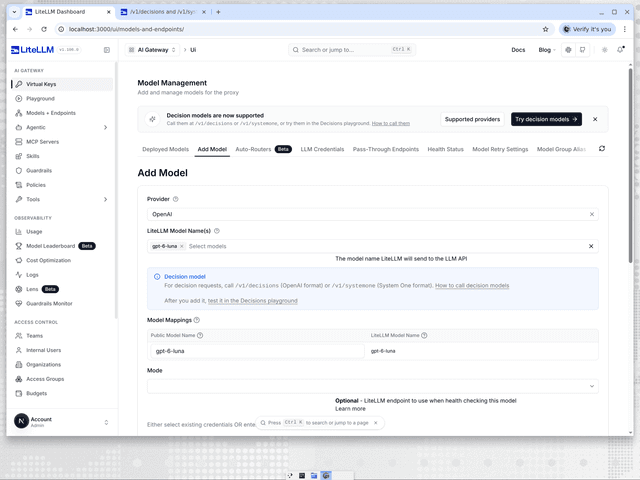
Go to Models + Endpoints, open the Add Model tab and pick the provider, for example OpenAI. Pick the decision model under LiteLLM Model Name(s), for example gpt-6-luna, and a Decision model note confirms the pick and links to the Decisions playground. Enter the provider credentials as you would for any other model, then click Add Model. The model then answers on /v1/decisions and /v1/systemone under its public model name. Providers that need an endpoint URL, such as Databricks and Microsoft Foundry, take it in the API Base field, matching the api_base in the proxy setup. The optional Mode dropdown has a Decisions - /v1/decisions entry from v1.107.0-rc.1, named Evaluation - /v1/decisions in v1.106.0, for health checking the model over /v1/decisions.
Decisions playground
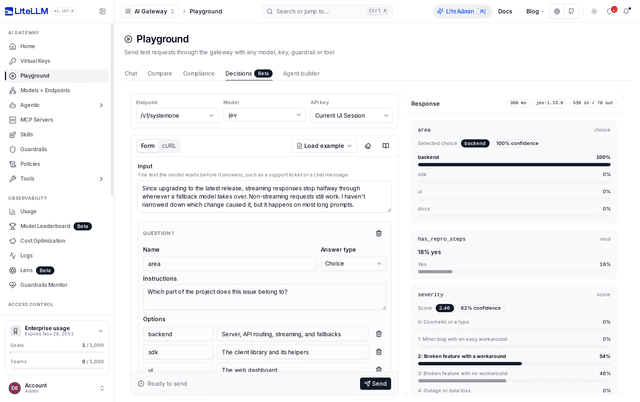
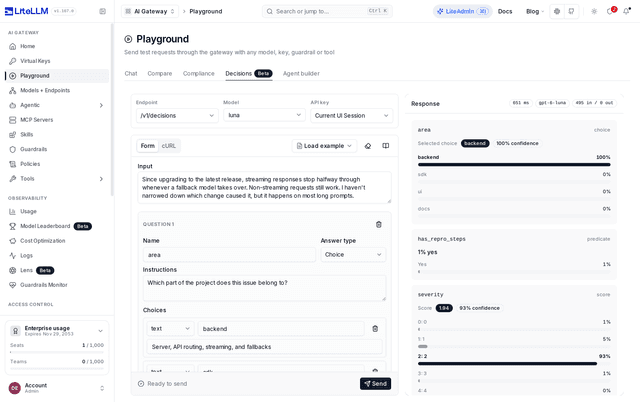
The Playground Decisions tab (Beta) sends requests to both routes. Open it at LITELLM_PROXY_BASE_URL/ui/?page=llm-playground&tab=system-one, or go to Playground and pick Decisions. The Endpoint selector picks /v1/decisions (OpenAI Decisions format) or /v1/systemone (System One format). The Model selector lists the decision models in your model_list, such as jev from the proxy setup, and a proxy with no decision models shows an Add a decision model link instead. An OpenAI decision model such as luna is listed once its model_info sets mode: evaluation.
model_list:
  - model_name: luna
    litellm_params:
      model: openai/gpt-6-luna
      api_key: os.environ/OPENAI_API_KEY
    model_info:
      mode: evaluation
API key picks the key. Current UI Session uses your dashboard login, and Virtual Key attributes the call to a key you paste. Load example fills in one of four requests: Triage a bug report, Route a support ticket, Moderate a forum comment or Score a sales lead. The form starts empty, and the eraser button clears it. Type the text the model should read into Input, then give each question a Name, an Answer type and Instructions. The answer types are Choice, Yes / no and Score on /v1/systemone, and Predicate, Choice and Score on /v1/decisions, which also takes an optional Safety identifier. Add question adds a card, and the trash buttons remove questions, options and levels. The cURL tab shows the same request as a curl command that follows your edits, and Copy cURL copies it once the form has no issues. The form only takes text, so send image input on /v1/decisions with curl or the SDK.
Problems the form can catch, such as an empty Input, are listed above Send, which stays disabled until they are fixed. Others come back from the provider when you send, such as a /v1/systemone yes / no question with no instructions and no Yes means or No means. Once the call returns, each question shows its answer and probabilities, and the Response header shows the latency, the model name from the response and the token usage. Raw response opens the JSON body. An error, such as a 401 for a bad key, shows Decisions request failed and the error message instead of the answers.
The tab is in v1.106.0 and later, and not in v1.104.2 or v1.105.0. v1.106.0 starts with the first example filled in, picks others from a dropdown instead of Load example, and labels the eraser Clear. The TypeSafe page walks through the System One form, validation and answer view.