MCP Permission Management
Control which MCP servers and tools can be accessed by specific keys, teams, or organizations in LiteLLM. When a client attempts to list or call tools, LiteLLM enforces access controls based on configured permissions.
Overview
LiteLLM provides fine-grained permission management for MCP servers, allowing you to:
- Restrict MCP access by entity: Control which keys, teams, or organizations can access specific MCP servers
- Tool-level filtering: Automatically filter available tools based on entity permissions
- Centralized control: Manage all MCP permissions from the LiteLLM Admin UI or API
- One-click public MCPs: Mark specific servers as available to every LiteLLM API key when you don't need per-key restrictions
This ensures that only authorized entities can discover and use MCP tools, providing an additional security layer for your MCP infrastructure.
- MCP Overview - Learn about MCP in LiteLLM
- Grant MCP Server Access to Keys and Teams - Step-by-step Admin UI and API procedure for key and team grants
- MCP Cost Tracking - Track costs for MCP tool calls
- MCP Guardrails - Apply security guardrails to MCP calls
- Using MCP - How to use MCP with LiteLLM
How It Works
LiteLLM supports managing permissions for MCP Servers by Keys, Teams, Organizations (entities) on LiteLLM. When a MCP client attempts to list tools, LiteLLM will only return the tools the entity has permissions to access.
When Creating a Key, Team, or Organization, you can select the allowed MCP Servers that the entity has access to.
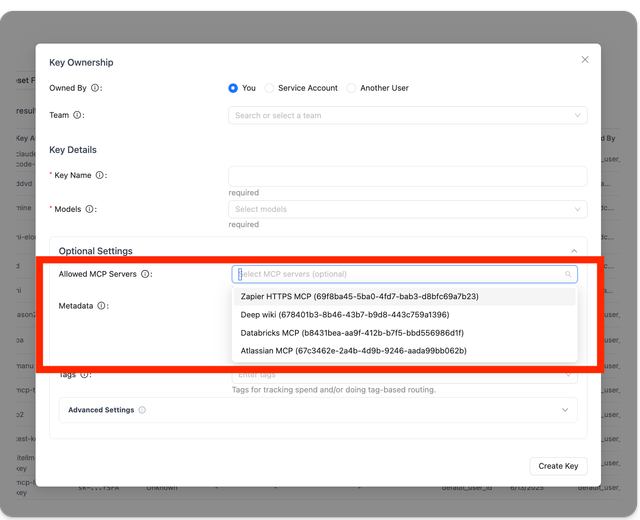
Permission Hierarchy
Permissions can be set at six distinct levels. When more than one level applies to a request, LiteLLM intersects the lists (most-restrictive wins), except for the organization level, which acts as a ceiling.
| Level | Source | How it composes |
|---|---|---|
| Key | object_permission.mcp_servers / object_permission.mcp_access_groups on the virtual key | If the key has an explicit list, it's used. |
| Team | Same fields on the team | If both key and team have lists, the result is the intersection (only servers in both). If only the team has a list, the key inherits it. |
| End user | Same fields on the LiteLLM_EndUserTable row matching x-litellm-end-user-id | Intersected with the running result. Skipped if no end-user-id is present on the request. |
| Agent | Same fields on the agent identified by x-litellm-agent-id, or the agent the key is bound to (agent_id set at key generation) | Intersected with the running result. Skipped if no agent applies. |
| Internal user | Same fields on the internal user (the human) the request authenticated as | Intersected with the running result, so it can only narrow. Skipped if that user carries no entitlement. |
| Organization | Same fields on the org owning the key/team | Acts as a ceiling; the final allowed-server set is intersected with the org's list. If the org has no list, no additional restriction. |
If no level has a list, the request can access every MCP server (open by default).
A key bound to an agent (agent_id passed to /key/generate) gets the same treatment as a request carrying x-litellm-agent-id: the agent's list is intersected with the key's on every request the key makes. Granting a server to the key alone is not enough; the agent must also hold the grant (via the Admin UI agent edit form or PATCH /v1/agents/{agent_id}), otherwise requests scoped to that server are denied with an error naming the agent.
The same intersection model applies to the per-server tool-level dict mcp_tool_permissions (see Per-entity Tool-Level Permissions below).
Require keys to define their own MCP access
By default a key with an empty or absent mcp_servers list inherits its team's list, so the team is effectively a default that every key falls back to. Set require_key_mcp_access_defined: true under general_settings to flip that relationship: the team becomes a ceiling rather than a default, and a key with an empty list is granted no MCP servers unless it grants some explicitly (either directly in object_permission.mcp_servers or via an access group).
general_settings:
  require_key_mcp_access_defined: true
Turning this on is the recommended posture. With inheritance, every key issued under a team silently reaches every MCP server that team can reach, so access is granted implicitly and widens whenever the team's list grows; with the flag on, a key reaches only what it was explicitly granted, and the team's list caps rather than defines that grant. We're looking to make this the default behavior in a future release; follow along and weigh in on the deprecation discussion. Enable it once your keys carry their own object_permission.mcp_servers (or an access group), since flipping it on before that will drop MCP access for keys that were relying on inheritance.
A team with an empty mcp_servers list still means "no restriction" regardless of this flag, since an empty team list never restricts. The flag only changes what an empty key list means when the team does have a list: inherit it (default) versus grant nothing (flag on). Access-group grants on the key remain additive, so attaching a group still reaches its servers even when the flag is enabled.
For the equivalent control at the end-user level, see require_end_user_mcp_access_defined.
Opting a key out of all MCP servers (no-mcp-servers)
To explicitly deny a key every MCP server, put the sentinel no-mcp-servers in its mcp_servers list. This mirrors the no-default-models sentinel used for model access. Unlike an empty list, which inherits the team's servers, no-mcp-servers overrides team inheritance and any additive access-group grants, so the key resolves to zero MCP servers no matter what its team allows.
curl -X POST "http://localhost:4000/key/generate" \
  -H "Authorization: Bearer sk-master-key" \
  -H "Content-Type: application/json" \
  -d '{
    "object_permission": {
      "mcp_servers": ["no-mcp-servers"]
    }
  }'
Allow/Disallow MCP Tools
Control which tools are available from your MCP servers. You can either allow only specific tools or block dangerous ones.
- Only Allow Specific Tools
- Block Specific Tools
Use allowed_tools to specify exactly which tools users can access. All other tools will be blocked.
mcp_servers:
  github_mcp:
    url: "https://api.githubcopilot.com/mcp"
    auth_type: oauth2
    oauth2_flow: authorization_code
    authorization_url: https://github.com/login/oauth/authorize
    token_url: https://github.com/login/oauth/access_token
    client_id: os.environ/GITHUB_OAUTH_CLIENT_ID
    client_secret: os.environ/GITHUB_OAUTH_CLIENT_SECRET
    scopes: ["public_repo", "user:email"]
    allowed_tools: ["list_tools"]
    # only list_tools will be available
Use this when:
- You want strict control over which tools are available
- You're in a high-security environment
- You're testing a new MCP server with limited tools
Use disallowed_tools to block specific tools. All other tools will be available.
mcp_servers:
  github_mcp:
    url: "https://api.githubcopilot.com/mcp"
    auth_type: oauth2
    oauth2_flow: authorization_code
    authorization_url: https://github.com/login/oauth/authorize
    token_url: https://github.com/login/oauth/access_token
    client_id: os.environ/GITHUB_OAUTH_CLIENT_ID
    client_secret: os.environ/GITHUB_OAUTH_CLIENT_SECRET
    scopes: ["public_repo", "user:email"]
    disallowed_tools: ["repo_delete"]
    # only repo_delete will be blocked
Use this when:
- Most tools are safe, but you want to block a few dangerous ones
- You want to prevent expensive API calls
- You're gradually adding restrictions to an existing server
Important Notes
- If you specify both
allowed_toolsanddisallowed_tools, the allowed list takes priority - Tool names are case-sensitive
Pin a Server's Tool List
allowed_tools trusts whatever the upstream says each tool does. Pinning freezes the tool list, the descriptions, and the input schemas too: the gateway serves only the pinned tools with their pinned descriptions and schemas, refuses calls to any other name, and alerts when the upstream drifts from the pin. That closes tool poisoning (OWASP LLM01): a server that quietly rewrites a description to carry instructions for the model, or adds a tool your clients never approved, changes nothing your clients see
- Pin from the API
- Pin in config.yaml
Pin the catalog the gateway sees right now (admin only, needs a database). Find server_id with GET /v1/mcp/server. The response is the stored snapshot: each tool's name, description, and input schema:
curl -s -X POST http://localhost:4000/v1/mcp/server/$SERVER_ID/pin \
  -H "Authorization: Bearer $LITELLM_MASTER_KEY"
{
  "get_note": {
    "description": "Return the saved note with the given id",
    "input_schema": {"type": "object", "properties": {"id": {"type": "string"}}, "required": ["id"]}
  }
}
The snapshot is taken after the discovery guardrail scan, so a description a guardrail blocks never gets pinned and a description it masks is pinned in its masked form; a server with no tool left to pin returns 400. A tool_name_to_description override in effect at pin time is what gets pinned
Unpin to serve the live upstream catalog again:
curl -s -X DELETE http://localhost:4000/v1/mcp/server/$SERVER_ID/pin \
  -H "Authorization: Bearer $LITELLM_MASTER_KEY"
{"server_id": "<server_id>", "status": "unpinned"}
pinned_tools maps each tool name to the description and input schema your clients should see. The pin response above is the same shape, so pin once on a deployment with a database and paste the response here:
mcp_servers:
  notes:
    url: http://notes.internal/mcp
    transport: http
    pinned_tools:
      get_note:
        description: "Return the saved note with the given id"
        input_schema:
          type: object
          properties:
            id: {type: string}
          required: [id]
What clients see once a server is pinned:
tools/list(over/mcp,/mcp-rest/tools/list, and LLM-driven discovery) returns the pinned tools only, each with its pinned description and input schema- A tool the upstream added after the pin is not listed, and a call to it returns
403 - A tool the upstream removed after the pin is not listed either, since the gateway has nothing to call
- A description or input schema the upstream changed after the pin is served as pinned
Whenever a listing finds the upstream differs from the pin, the gateway logs a warning and sends an mcp_pinned_tools_changed alert naming the added, removed, and changed tools, once per distinct diff per server; the same diff on the next listing stays quiet, a different one alerts again, and the alert clears on its own once the upstream matches the pin. Re-pin to accept a change you reviewed
MCP server `notes`: upstream tool list drifted from the pinned catalog; serving the pinned tools and descriptions until an admin re-pins the server
added: `delete_all_notes`
changed: `get_note`
Important Notes
- A pin covers tool names, descriptions, and input schemas; anything else the upstream reports about a tool (annotations, output schema) is served live
allowed_tools,disallowed_tools, and per-key tool permissions still apply on top of the pin- The discovery guardrail scan still runs on a pinned server, on the pinned text the proxy is about to serve: a pinned tool keeps serving its pinned description while the upstream's text is poisoned (reported as changed), and a pinned description the guardrails themselves block is hidden and reported as blocked until the admin re-pins the server
- A
tool_name_to_descriptionoverride edited after the pin reads as a changed tool: the pinned text is served until the server is re-pinned
Public MCP Servers (allow_all_keys)
Some MCP servers are meant to be shared broadly: internal knowledge bases, calendar integrations, or other low-risk utilities where every team should be able to connect without requesting access. Instead of adding those servers to every key, team, or organization, enable the new allow_all_keys toggle.
- UI
- config.yaml
- Open MCP Servers → Add / Edit in the Admin UI.
- Expand Permission Management / Access Control.
- Toggle Allow All LiteLLM Keys on.
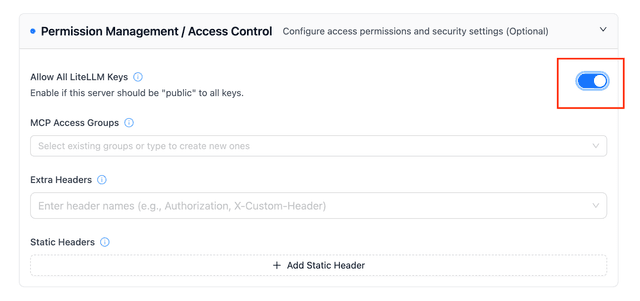
The toggle makes the server “public” without touching existing access groups.
Set allow_all_keys: true to mark the server as public:
mcp_servers:
  deepwiki:
    url: https://mcp.deepwiki.com/mcp
    allow_all_keys: true
When to use it
- You have shared MCP utilities where fine-grained ACLs would only add busywork.
- You want a “default enabled” experience for internal users, while still being able to layer tool-level restrictions.
- You’re onboarding new teams and want the safest MCPs available out of the box.
Once enabled, LiteLLM automatically includes the server for every key during tool discovery/calls, with no extra virtual-key or team configuration required.
Allow/Disallow MCP Tool Parameters
Control which parameters are allowed for specific MCP tools using the allowed_params configuration. This provides fine-grained control over tool usage by restricting the parameters that can be passed to each tool.
Configuration
allowed_params is a dictionary that maps tool names to lists of allowed parameter names. When configured, only the specified parameters will be accepted for that tool - any other parameters will be rejected with a 403 error.
mcp_servers:
  deepwiki_mcp:
    url: https://mcp.deepwiki.com/mcp
    transport: "http"
    auth_type: "none"
    allowed_params:
      # Tool name: list of allowed parameters
      read_wiki_contents: ["status"]

  my_api_mcp:
    url: "https://my-api-server.com"
    auth_type: "api_key"
    auth_value: "my-key"
    allowed_params:
      # Using unprefixed tool name
      getpetbyid: ["status"]
      # Using prefixed tool name (both formats work)
      my_api_mcp-findpetsbystatus: ["status", "limit"]
      # Another tool with multiple allowed params
      create_issue: ["title", "body", "labels"]
How It Works
- Tool-specific filtering: Each tool can have its own list of allowed parameters
- Flexible naming: Tool names can be specified with or without the server prefix (e.g., both
"getpetbyid"and"my_api_mcp-getpetbyid"work) - Whitelist approach: Only parameters in the allowed list are permitted
- Unlisted tools: If
allowed_paramsis not set, all parameters are allowed - Error handling: Requests with disallowed parameters receive a 403 error with details about which parameters are allowed
Example Request Behavior
With the configuration above, here's how requests would be handled:
✅ Allowed Request:
{
  "tool": "read_wiki_contents",
  "arguments": {
    "status": "active"
  }
}
❌ Rejected Request:
{
  "tool": "read_wiki_contents",
  "arguments": {
    "status": "active",
    "limit": 10  // This parameter is not allowed
  }
}
Error Response:
{
  "error": "Parameters ['limit'] are not allowed for tool read_wiki_contents. Allowed parameters: ['status']. Contact proxy admin to allow these parameters."
}
Use Cases
- Security: Prevent users from accessing sensitive parameters or dangerous operations
- Cost control: Restrict expensive parameters (e.g., limiting result counts)
- Compliance: Enforce parameter usage policies for regulatory requirements
- Staged rollouts: Gradually enable parameters as tools are tested
- Multi-tenant isolation: Different parameter access for different user groups
Combining with Tool Filtering
allowed_params works alongside allowed_tools and disallowed_tools for complete control:
mcp_servers:
  github_mcp:
    url: "https://api.githubcopilot.com/mcp"
    auth_type: oauth2
    oauth2_flow: authorization_code
    authorization_url: https://github.com/login/oauth/authorize
    token_url: https://github.com/login/oauth/access_token
    client_id: os.environ/GITHUB_OAUTH_CLIENT_ID
    client_secret: os.environ/GITHUB_OAUTH_CLIENT_SECRET
    scopes: ["public_repo", "user:email"]
    # Only allow specific tools
    allowed_tools: ["create_issue", "list_issues", "search_issues"]
    # Block dangerous operations
    disallowed_tools: ["delete_repo"]
    # Restrict parameters per tool
    allowed_params:
      create_issue: ["title", "body", "labels"]
      list_issues: ["state", "sort", "perPage"]
      search_issues: ["query", "sort", "order", "perPage"]
This configuration ensures that:
- Only the three listed tools are available
- The
delete_repotool is explicitly blocked - Each tool can only use its specified parameters
MCP Server Access Control
LiteLLM Proxy provides two methods for controlling access to specific MCP servers:
- URL-based Namespacing - Use URL paths to directly access specific servers or access groups
- Header-based Namespacing - Use the
x-mcp-serversheader to specify which servers to access
Method 1: URL-based Namespacing
LiteLLM Proxy supports URL-based namespacing for MCP servers using the format /<servers or access groups>/mcp. This allows you to:
- Direct URL Access: Point MCP clients directly to specific servers or access groups via URL
- Simplified Configuration: Use URLs instead of headers for server selection
- Access Group Support: Use access group names in URLs for grouped server access
URL Format
<your-litellm-proxy-base-url>/<server_alias_or_access_group>/mcp
Examples:
/github_mcp/mcp- Access tools from the "github_mcp" MCP server/zapier/mcp- Access tools from the "zapier" MCP server/dev_group/mcp- Access tools from all servers in the "dev_group" access group/github_mcp,zapier/mcp- Access tools from multiple specific servers
Usage Examples
- OpenAI API
- LiteLLM Proxy
- Cursor IDE
curl --location 'https://api.openai.com/v1/responses' \
--header 'Content-Type: application/json' \
--header "Authorization: Bearer $OPENAI_API_KEY" \
--data '{
    "model": "gpt-6.1-sol",
    "tools": [
        {
            "type": "mcp",
            "server_label": "litellm",
            "server_url": "<your-litellm-proxy-base-url>/github_mcp/mcp",
            "require_approval": "never",
            "headers": {
                "x-litellm-api-key": "Bearer YOUR_LITELLM_API_KEY"
            }
        }
    ],
    "input": "Run available tools",
    "tool_choice": "required"
}'
This example uses URL namespacing to access only the "github" MCP server.
curl --location '<your-litellm-proxy-base-url>/v1/responses' \
--header 'Content-Type: application/json' \
--header "Authorization: Bearer $LITELLM_API_KEY" \
--data '{
    "model": "gpt-6.1-sol",
    "tools": [
        {
            "type": "mcp",
            "server_label": "litellm",
            "server_url": "litellm_proxy",
            "require_approval": "never",
            "headers": {
                "x-litellm-api-key": "Bearer YOUR_LITELLM_API_KEY"
            }
        }
    ],
    "input": "Run available tools",
    "tool_choice": "required"
}'
This example uses the x-mcp-servers header to access all servers in the "dev_group" access group. Use server_url: "litellm_proxy" when calling the proxy's /v1/responses endpoint; do not use the full proxy URL.
{
  "mcpServers": {
    "LiteLLM": {
      "url": "<your-litellm-proxy-base-url>/github_mcp,zapier/mcp",
      "headers": {
        "x-litellm-api-key": "Bearer sk-<your-litellm-api-key>"
      }
    }
  }
}
This configuration uses URL namespacing to access tools from both "github" and "zapier" MCP servers.
Benefits of URL Namespacing
- Direct Access: No need for additional headers to specify servers
- Clean URLs: Self-documenting URLs that clearly indicate which servers are accessible
- Access Group Support: Use access group names for grouped server access
- Multiple Servers: Specify multiple servers in a single URL with comma separation
- Simplified Configuration: Easier setup for MCP clients that prefer URL-based configuration
Method 2: Header-based Namespacing
You can choose to access specific MCP servers and only list their tools using the x-mcp-servers header. This header allows you to:
- Limit tool access to one or more specific MCP servers
- Control which tools are available in different environments or use cases
The header accepts a comma-separated list of server aliases: "alias_1,Server2,Server3"
Notes:
- If the header is not provided, tools from all available MCP servers will be accessible
- This method works with the standard LiteLLM MCP endpoint
- OpenAI API
- LiteLLM Proxy
- Cursor IDE
curl --location 'https://api.openai.com/v1/responses' \
--header 'Content-Type: application/json' \
--header "Authorization: Bearer $OPENAI_API_KEY" \
--data '{
    "model": "gpt-6.1-sol",
    "tools": [
        {
            "type": "mcp",
            "server_label": "litellm",
            "server_url": "<your-litellm-proxy-base-url>/mcp/",
            "require_approval": "never",
            "headers": {
                "x-litellm-api-key": "Bearer YOUR_LITELLM_API_KEY",
                "x-mcp-servers": "alias_1"
            }
        }
    ],
    "input": "Run available tools",
    "tool_choice": "required"
}'
In this example, the request will only have access to tools from the "alias_1" MCP server.
curl --location '<your-litellm-proxy-base-url>/v1/responses' \
--header 'Content-Type: application/json' \
--header "Authorization: Bearer $LITELLM_API_KEY" \
--data '{
    "model": "gpt-6.1-sol",
    "tools": [
        {
            "type": "mcp",
            "server_label": "litellm",
            "server_url": "litellm_proxy",
            "require_approval": "never",
            "headers": {
                "x-litellm-api-key": "Bearer YOUR_LITELLM_API_KEY",
                "x-mcp-servers": "alias_1,Server2"
            }
        }
    ],
    "input": "Run available tools",
    "tool_choice": "required"
}'
This configuration restricts the request to only use tools from the specified MCP servers. Use server_url: "litellm_proxy" when calling the proxy's /v1/responses endpoint.
{
  "mcpServers": {
    "LiteLLM": {
      "url": "<your-litellm-proxy-base-url>/mcp/",
      "headers": {
        "x-litellm-api-key": "Bearer sk-<your-litellm-api-key>",
        "x-mcp-servers": "alias_1,Server2"
      }
    }
  }
}
This configuration in Cursor IDE settings will limit tool access to only the specified MCP servers.
Comparison: Header vs URL Namespacing
| Feature | Header Namespacing | URL Namespacing |
|---|---|---|
| Method | Uses x-mcp-servers header | Uses URL path /<servers>/mcp |
| Endpoint | Standard litellm_proxy endpoint | Custom /<servers>/mcp endpoint |
| Configuration | Requires additional header | Self-contained in URL |
| Multiple Servers | Comma-separated in header | Comma-separated in URL path |
| Access Groups | Supported via header | Supported via URL path |
| Client Support | Works with all MCP clients | Works with URL-aware MCP clients |
| Use Case | Dynamic server selection | Fixed server configuration |
- OpenAI API
- LiteLLM Proxy
- Cursor IDE
curl --location 'https://api.openai.com/v1/responses' \
--header 'Content-Type: application/json' \
--header "Authorization: Bearer $OPENAI_API_KEY" \
--data '{
    "model": "gpt-6.1-sol",
    "tools": [
        {
            "type": "mcp",
            "server_label": "litellm",
            "server_url": "<your-litellm-proxy-base-url>/mcp/",
            "require_approval": "never",
            "headers": {
                "x-litellm-api-key": "Bearer YOUR_LITELLM_API_KEY",
                "x-mcp-servers": "alias_1"
            }
        }
    ],
    "input": "Run available tools",
    "tool_choice": "required"
}'
In this example, the request will only have access to tools from the "alias_1" MCP server.
curl --location '<your-litellm-proxy-base-url>/v1/responses' \
--header 'Content-Type: application/json' \
--header "Authorization: Bearer $LITELLM_API_KEY" \
--data '{
    "model": "gpt-6.1-sol",
    "tools": [
        {
            "type": "mcp",
            "server_label": "litellm",
            "server_url": "litellm_proxy",
            "require_approval": "never",
            "headers": {
                "x-litellm-api-key": "Bearer YOUR_LITELLM_API_KEY",
                "x-mcp-servers": "alias_1,Server2"
            }
        }
    ],
    "input": "Run available tools",
    "tool_choice": "required"
}'
This configuration restricts the request to only use tools from the specified MCP servers.
{
  "mcpServers": {
    "LiteLLM": {
      "url": "litellm_proxy",
      "headers": {
        "x-litellm-api-key": "Bearer sk-<your-litellm-api-key>",
        "x-mcp-servers": "alias_1,Server2"
      }
    }
  }
}
This configuration in Cursor IDE settings will limit tool access to only the specified MCP server.
Grouping MCPs (Access Groups)
MCP Access Groups allow you to group multiple MCP servers together for easier management.
1. Create an Access Group
A. Creating Access Groups using Config:
mcp_servers:
  "deepwiki_mcp":
    url: https://mcp.deepwiki.com/mcp
    transport: "http"
    auth_type: "none"
    access_groups: ["dev_group"]
While adding mcp_servers using the config:
- Pass in a list of strings inside
access_groups - These groups can then be used for segregating access using keys, teams and MCP clients using headers
To give an IdP group an access group, grant it to the team SCIM provisions for that group, see Grant MCP access through SCIM-provisioned teams.
B. Creating Access Groups using UI
To create an access group:
- Go to MCP Servers in the LiteLLM UI
- Click "Add a New MCP Server"
- Under "MCP Access Groups", create a new group (e.g., "dev_group") by typing it
- Add the same group name to other servers to group them together
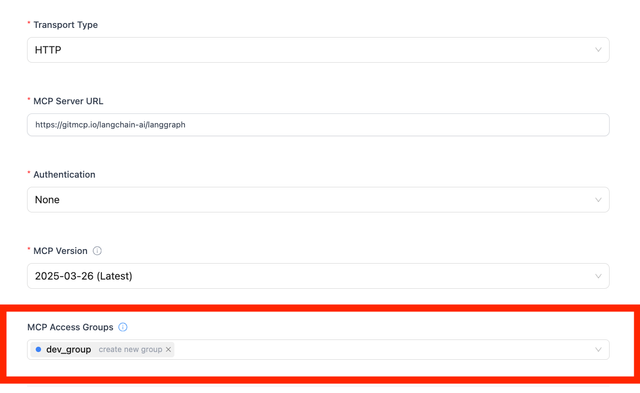
2. Use Access Group in Cursor
Include the access group name in the x-mcp-servers header:
{
  "mcpServers": {
    "LiteLLM": {
      "url": "litellm_proxy",
      "headers": {
        "x-litellm-api-key": "Bearer sk-<your-litellm-api-key>",
        "x-mcp-servers": "dev_group"
      }
    }
  }
}
This gives you access to all servers in the "dev_group" access group.
- Which means that if deepwiki server (and any other servers) which have the access group
dev_groupassigned to them will be available for tool calling
Advanced: Connecting Access Groups to API Keys
When creating API keys, you can assign them to specific access groups for permission management:
- Go to "Keys" in the LiteLLM UI and click "Create Key"
- Select the desired MCP access groups from the dropdown
- The key will have access to all MCP servers in those groups
- This is reflected in the Test Key page
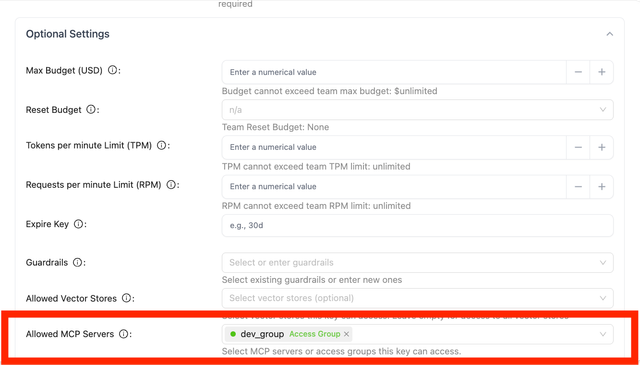
Per-entity Tool-Level Permissions
Control which tools different teams can access from the same MCP server. For example, give your Engineering team access to list_repositories, create_issue, and search_code, while Sales only gets search_code and close_issue.
This video shows how to set allowed tools for a Key, Team, or Organization.
mcp_tool_permissions API
object_permission.mcp_tool_permissions is a Dict[server_id, List[tool_name]] on the key, team, end-user, agent, internal user, or organization. It's evaluated after server-level access has been resolved (see Permission Hierarchy above) and applies the same six-level intersection: most-restrictive wins, organization acts as a ceiling.
This is distinct from the server-registration-level allowed_tools / disallowed_tools (which apply to every caller of the server). mcp_tool_permissions lets you carve out per-team subsets without changing the server config.
- On a Key
- On a Team
- On an Agent
- On an Internal User
curl -X POST "http://localhost:4000/key/generate" \
  -H "Authorization: Bearer sk-master-key" \
  -H "Content-Type: application/json" \
  -d '{
    "object_permission": {
      "mcp_servers": ["github_mcp"],
      "mcp_tool_permissions": {
        "github_mcp": ["list_repositories", "create_issue", "search_code"]
      }
    }
  }'
curl -X POST "http://localhost:4000/key/generate" \
  -H "Authorization: Bearer sk-master-key" \
  -H "Content-Type: application/json" \
  -d '{
    "object_permission": {
      "mcp_servers": ["github_mcp"],
      "mcp_tool_permissions": {
        "github_mcp": ["search_code", "close_issue"]
      }
    }
  }'
curl -X POST "http://localhost:4000/team/new" \
  -H "Authorization: Bearer sk-master-key" \
  -H "Content-Type: application/json" \
  -d '{
    "team_alias": "engineering",
    "object_permission": {
      "mcp_servers": ["github_mcp", "deepwiki_mcp"],
      "mcp_tool_permissions": {
        "github_mcp": ["list_repositories", "create_issue", "search_code"]
      }
    }
  }'
When the key also sets mcp_tool_permissions for github_mcp, the resulting tool list is the intersection of the two.
When an agent (identified by x-litellm-agent-id) calls MCP tools, the agent's own mcp_tool_permissions participate in the intersection. Useful for capping what an autonomous agent can do regardless of which key originally invoked it.
curl -X PATCH "http://localhost:4000/v1/agents/{agent_id}" \
  -H "Authorization: Bearer sk-master-key" \
  -H "Content-Type: application/json" \
  -d '{
    "object_permission": {
      "mcp_servers": ["github_mcp"],
      "mcp_tool_permissions": {
        "github_mcp": ["search_code"]
      }
    }
  }'
An entitlement on the internal user says which tools that person may run, whatever key they happen to be holding. It only ever narrows: the tools they get on a server are the intersection of their entitlement with what the key, team, agent and organization already allow.
curl -X POST "http://localhost:4000/user/update" \
  -H "Authorization: Bearer sk-master-key" \
  -H "Content-Type: application/json" \
  -d '{
    "user_id": "alice",
    "object_permission": {
      "mcp_servers": ["github_mcp"],
      "mcp_tool_permissions": {"github_mcp": ["list_issues"]}
    }
  }'
/user/new takes the same object_permission block at creation time. See Entitling a person rather than a credential below for the read-back and the resolution details.
Entitling a person rather than a credential
Every other level describes a credential or a group: the key's scope, the team's scope, the organization's ceiling. The internal user level describes the human, so an admin can say which people may perform which MCP tool calls without chasing down every key those people hold
The grant lives on the internal user's object_permission and uses the same fields as everywhere else, mcp_servers, mcp_access_groups and mcp_tool_permissions. It resolves as a ceiling on both axes: the servers the person reaches are intersected with what their key, team, agent and organization allow, and so are the tools they may run on each of those servers. Someone entitled to a server their key does not grant still cannot reach it. In resolution order the key and team come first, then the end user, then the agent, then the internal user, then the organization ceiling
A user carrying no entitlement places no ceiling, so nothing changes for an existing deployment until an admin grants someone one. Servers named only as keys of mcp_tool_permissions count as entitled, so granting one tool never means naming its server twice
Read the grant back with GET /v2/user/info, which now returns the linked object_permission:
curl -X GET "http://localhost:4000/v2/user/info?user_id=alice" \
  -H "Authorization: Bearer sk-master-key" \
  | jq '.object_permission | {mcp_servers, mcp_tool_permissions}'
{
  "mcp_servers": ["github_mcp"],
  "mcp_tool_permissions": {"github_mcp": ["list_issues"]}
}
The full block also carries object_permission_id, mcp_access_groups and the remaining object-permission fields
The entitlement is applied at tools/list time and again at tools/call time, so a tool outside it is never advertised and a client that hardcodes the name is still refused. The refusal arrives inside the MCP result with isError: true:
Tool 'delete_repo' is not allowed for your key/team on server 'issue_tracker'. Contact proxy admin for access.
The same grant is editable from the Admin UI on the internal user's detail page under Internal Users.
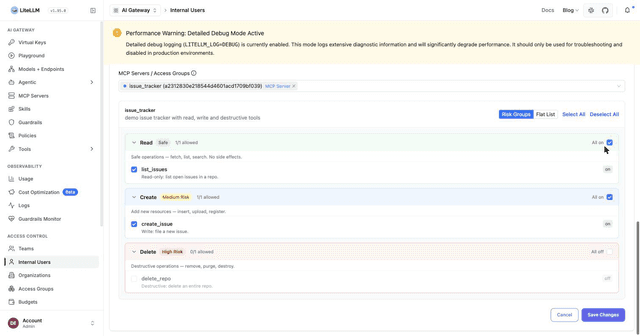
/user/new and /user/update accept object_permission from a proxy admin only. A non-admin editing their own record is rejected, since an empty grant list means "no restriction" and a self-write would otherwise lift a ceiling an admin placed on them.
A caller with an admin role and no explicit key-level mcp_servers list normally sees the whole MCP server registry. Once that human carries an entitlement of their own, that shortcut no longer applies and the entitlement binds them; the admin role widens what the credential reaches, and leaves the scope attached to the person in place.
Rate Limiting per MCP Server
Cap how many requests a key or team can make to a specific MCP server per minute with mcp_rpm_limit. This is a Dict[str, int] keyed by MCP server name, where the name is the server's alias if one is set, otherwise the configured server name. Each entry sets the requests-per-minute limit for that one server, so a limit on github does not affect calls to slack. Servers without an entry are uncapped.
Every MCP operation sent to that server counts: tools/call, tools/list, prompts/list, prompts/get, resources/list, resources/templates/list and resources/read, plus the REST tool listing at /mcp-rest/tools/list. Once the limit is exceeded within the window, further requests to that server are rejected until the window rolls over. On /mcp the rejection is an MCP error that names the exhausted limit, and REST routes return 429 Too Many Requests. The cap has no effect on regular LLM requests.
- On a Key
- On a Team
curl -X POST "http://localhost:4000/key/generate" \
  -H "Authorization: Bearer sk-master-key" \
  -H "Content-Type: application/json" \
  -d '{
    "mcp_rpm_limit": {"github": 100, "slack": 200},
    "object_permission": {"mcp_servers": ["github", "slack"]}
  }'
curl -X POST "http://localhost:4000/team/new" \
  -H "Authorization: Bearer sk-master-key" \
  -H "Content-Type: application/json" \
  -d '{
    "team_alias": "engineering",
    "mcp_rpm_limit": {"github": 500},
    "object_permission": {"mcp_servers": ["github"]}
  }'
mcp_rpm_limit is also accepted on /key/update, /team/update, /user/new, and /user/update. A key-level limit takes precedence over a team-level limit for the same server; the team limit otherwise applies to every key on the team as a shared counter.
Global limit on an MCP server
Set rpm on the MCP server itself to cap the total requests it receives from every caller, the same way rpm on a model deployment caps that deployment. The counter is keyed by the server's ID only, so all keys, teams and users share one bucket, and when the proxy uses Redis the bucket is shared across every proxy instance. It applies in addition to any key or team mcp_rpm_limit, and a request is rejected when the server limit or any applicable key or team limit is exhausted. Leave rpm unset for no server-wide limit; rpm: 0 rejects every request to the server.
- config.yaml
- API
mcp_servers:
  github:
    url: "https://api.githubcopilot.com/mcp"
    rpm: 300
curl -X PUT "http://localhost:4000/v1/mcp/server" \
  -H "Authorization: Bearer sk-master-key" \
  -H "Content-Type: application/json" \
  -d '{"server_id": "<server_id>", "rpm": 300}'
In the Admin UI the same setting is the RPM limit (all callers) field on the MCP server form, next to Max Concurrent Requests.
How requests are counted. Each page of a paginated listing is one request to every server it reads, so a client paging through a large catalog uses one unit per page per server. In a listing that spans several servers, a server that is over its limit on the first page is left out and reported with a rate_limited status while the other servers still return their items; if the limit is hit on a later page the whole request is rejected, since dropping a server mid-listing would make the pagination cursor inconsistent. A server/discover request charges each server once, even though it runs several listings. Calls rejected before reaching the limiter, for example a tool the key is not allowed to use or invalid arguments, are not counted. A request rejected by one of these limits does not count toward any of them, so a key retrying past its own mcp_rpm_limit does not use up the team or server budget. For tools/call, the key's ordinary rpm_limit and guardrails are checked first, and a call they reject is not counted against MCP limits either. Internal listings are not counted either: the catalog warmup the proxy runs before a first tool call, and the admin configuration view of a server's tools that includes disabled tools.
The window defaults to 60 seconds and starts with the first counted request; set LITELLM_RATE_LIMIT_WINDOW_SIZE (in seconds) to change it. These MCP limits are enforced by the default rate limiter only. With LEGACY_MULTI_INSTANCE_RATE_LIMITING=true, neither mcp_rpm_limit nor the server rpm is enforced.
Dashboard View Modes
Proxy admins can also control what non-admins see inside the MCP dashboard via general_settings.user_mcp_management_mode:
restricted(default) – users only see servers that their team explicitly has access to.view_all– every dashboard user can see the full MCP server list.
general_settings:
  user_mcp_management_mode: view_all
This is useful when you want discoverability for MCP offerings without granting additional execution privileges.
Publish MCP Registry
If you want other systems (for example external agent frameworks such as MCP-capable IDEs running outside your network) to automatically discover the MCP servers hosted on LiteLLM, you can expose a Model Context Protocol Registry endpoint. This registry lists the built-in LiteLLM MCP server and every server you have configured, using the official MCP Registry spec.
- Set
enable_mcp_registry: trueundergeneral_settingsin your proxy config (or DB settings) and restart the proxy. - LiteLLM will serve the registry at
GET /v1/mcp/registry.json. - Each entry points to either
/mcp(built-in server) or/{mcp_server_name}/mcpfor your custom servers, so clients can connect directly using the advertised Streamable HTTP URL.
The registry only advertises server URLs. Actual access control is still enforced by LiteLLM when the client connects to /mcp or /{server}/mcp, so publishing the registry does not bypass per-key permissions.