Microsoft 365 Copilot
Connect an app with Microsoft Entra single sign-on (SSO) to your remotely deployed LiteLLM gateway. Users sign in with their Microsoft account, then ask Copilot about the Microsoft 365 data they can access.
An admin configures Entra ID, the gateway, and the app once. The app sends each signed-in user's access token to LiteLLM, which exchanges it for a Microsoft Graph access token. Microsoft calls this the on-behalf-of (OBO) flow.
Before you start
You need:
- A Microsoft 365 Copilot license for each user.
- Access to register an app in Microsoft Entra ID and grant admin consent.
- A remotely deployed LiteLLM gateway with an HTTPS URL, dashboard access, and JWT authentication, an enterprise feature.
- An app that supports Entra SSO and can send the signed-in user's access token to an OpenAI-compatible API.
1. Register an app in Microsoft Entra ID
Create the app and client secret
In the Microsoft Entra admin center, open App registrations > New registration. Select Accounts in this organizational directory only, then register the app. Copy the Application (client) ID and Directory (tenant) ID from its overview page. See Microsoft's app registration guide.
Use this registration for both your app's SSO settings and the LiteLLM credential.
Open Certificates & secrets > New client secret. Create a secret and copy its Value immediately; Entra only shows it once. Keep it for the LiteLLM credential. See Microsoft's client credentials guide.
Add Microsoft Graph permissions
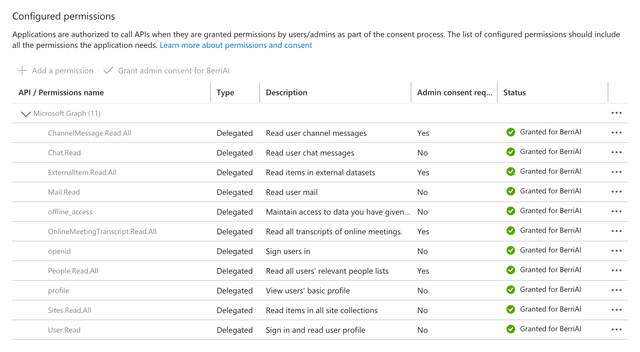
Open API permissions > Add a permission > Microsoft Graph > Delegated permissions. Add all seven permissions required by the Copilot Chat API:
Sites.Read.All
Mail.Read
People.Read.All
OnlineMeetingTranscript.Read.All
Chat.Read
ChannelMessage.Read.All
ExternalItem.Read.All
Also add openid, profile, and offline_access. Select Grant admin consent for your tenant. See Microsoft's API permission guide.
Create a scope for users to sign in
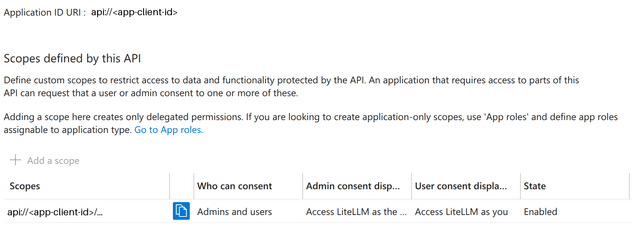
Open Expose an API. Set Application ID URI to api://<app-client-id>. Select Add a scope, name it access_as_user, and allow admins and users to consent. See Microsoft's Expose an API guide.
Open Manifest, set api.requestedAccessTokenVersion to 2, and save. The gateway configuration below expects v2 access tokens.
Configure client sign-in
Open Authentication > Add a platform. Choose the platform your app uses and add the exact redirect URI from its sign-in settings. See Microsoft's redirect URI guide.
2. Add the model in LiteLLM
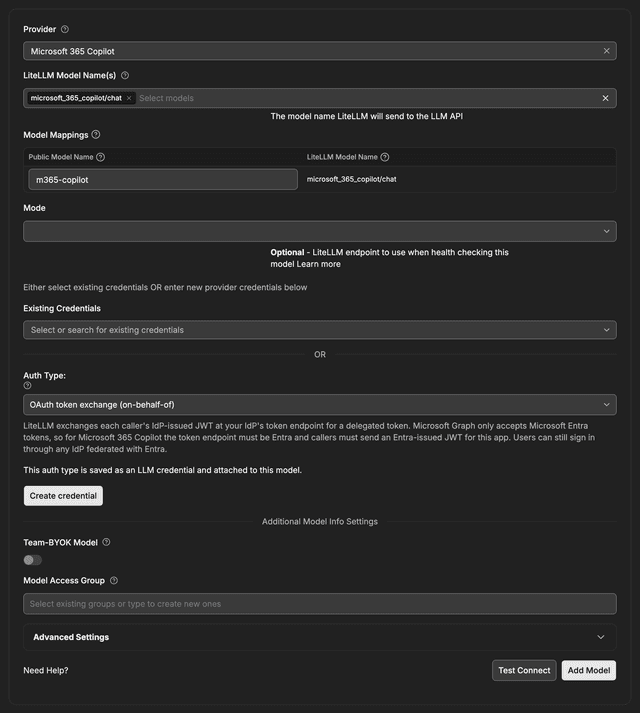
In the LiteLLM dashboard, open Models + Endpoints > Add Model. Select Microsoft 365 Copilot as the provider and chat as the model. Set Public Model Name to m365-copilot; use this name in client requests.
Select OAuth token exchange (on-behalf-of) as the Auth Type, then select Create credential.
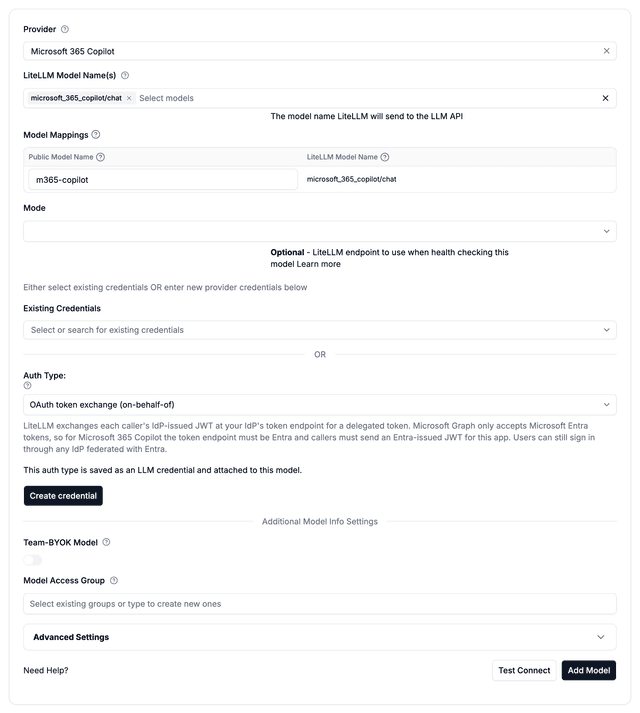
Enter these values:
| Field | Value |
|---|---|
| Credential Name | m365-copilot-obo |
| Token Endpoint URL | https://login.microsoftonline.com/<tenant-id>/oauth2/v2.0/token |
| Exchange Grant | jwt_bearer_obo |
| Client ID | The app's Application (client) ID |
| Client Secret | The client secret value you saved |
| Scope | https://graph.microsoft.com/.default |
| Audience | Leave blank |
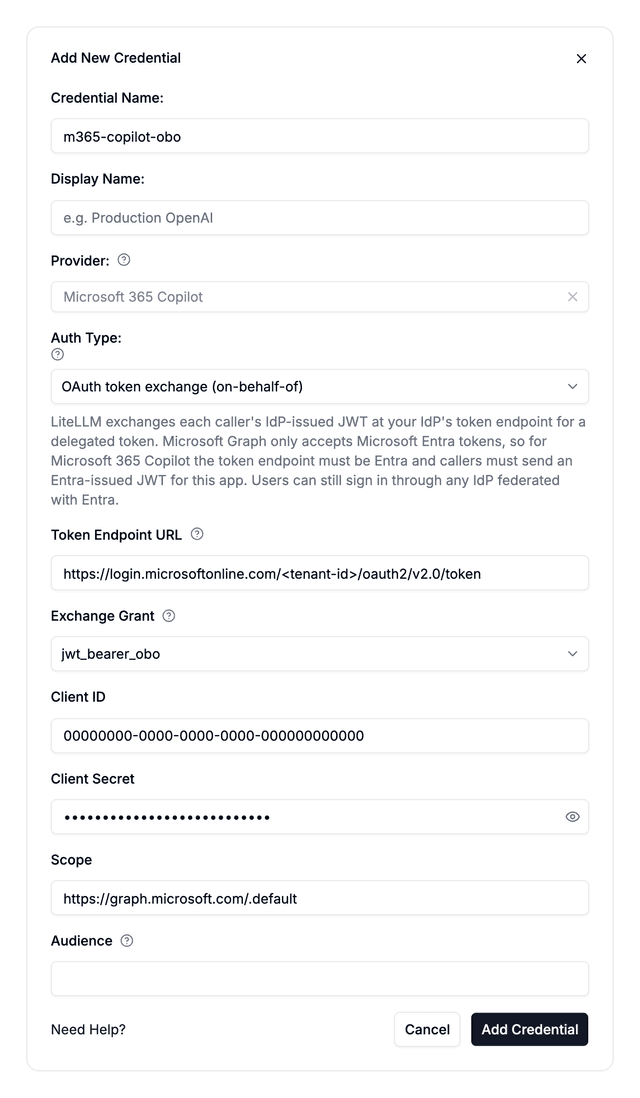
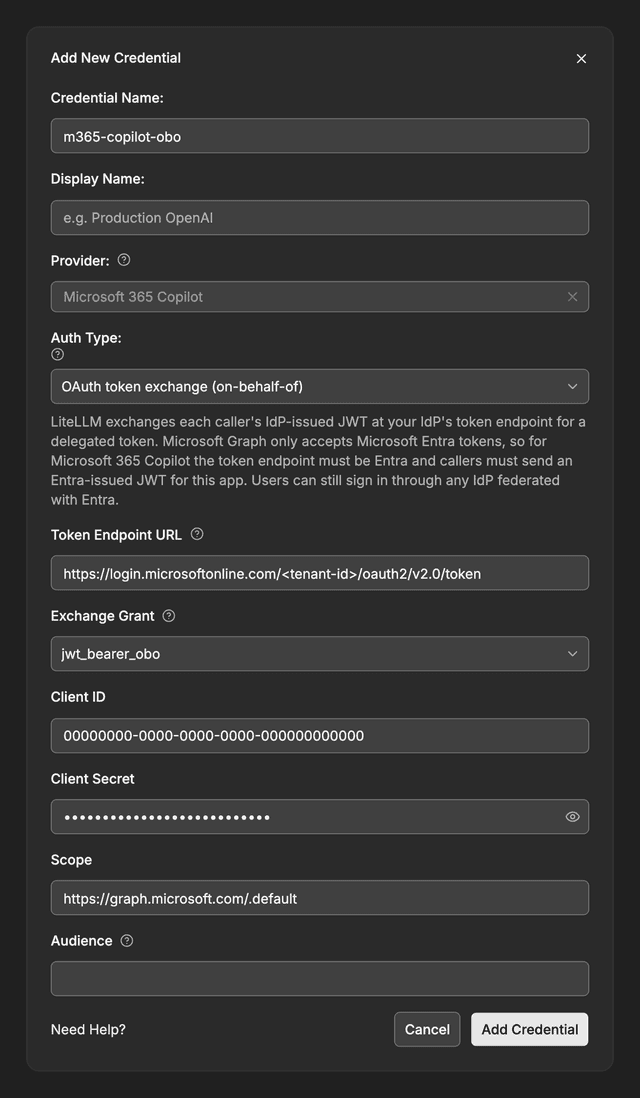
Select Add Credential, select the saved credential on the model form, then select Add Model.
This recording runs through the whole step in the dashboard:
3. Configure the gateway to accept Entra access tokens
Set these environment variables in your gateway deployment. Replace <tenant-id> and <app-client-id> with the IDs from step 1:
| Environment variable | Value |
|---|---|
JWT_PUBLIC_KEY_URL | https://login.microsoftonline.com/<tenant-id>/discovery/v2.0/keys |
JWT_AUDIENCE | <app-client-id> |
JWT_ISSUER | https://login.microsoftonline.com/<tenant-id>/v2.0 |
Add this to your gateway's config.yaml, then restart the gateway:
general_settings:
  enable_jwt_auth: true
  litellm_jwtauth:
    user_id_jwt_field: oid
    user_email_jwt_field: preferred_username
    user_id_upsert: true

litellm_settings:
  drop_params: true
drop_params: true removes unsupported parameters, such as tools or temperature, from requests across the gateway. Copilot does not support tool calling, and LiteLLM ignores max_tokens for this provider.
4. Connect your app with SSO
As the app admin, configure OpenID Connect (OIDC) sign-in with Microsoft Entra:
| Setting | Value |
|---|---|
| Issuer URL | https://login.microsoftonline.com/<tenant-id>/v2.0 |
| Client ID | The Entra app's client ID from step 1 |
| Redirect URI | The app's SSO callback URL, registered in step 1 |
| Scopes | openid profile email offline_access api://<app-client-id>/access_as_user |
Then configure the app's model connection:
| Setting | Value |
|---|---|
| API base URL | https://litellm.example.com/v1, using your gateway's address |
| Model | m365-copilot, or the public model name you set in step 2 |
| Authentication | Send the signed-in user's Entra access token in the Authorization: Bearer <access-token> header |
The app must send the access token issued for api://<app-client-id>/access_as_user with each model request. SSO sign-in alone is not enough. An ID token cannot complete the on-behalf-of exchange.
5. Sign in and use Copilot
Open the app and sign in with your Microsoft work account. Select m365-copilot and send a prompt such as “Summarize my latest meeting.” The app handles authentication for each request, and Copilot uses your Microsoft 365 permissions to answer.
Optional configuration
Add email or group claims
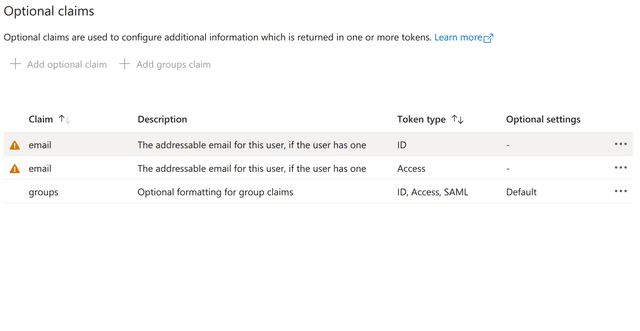
If your gateway uses email or group claims, add them under Token configuration. Select the Access token type for the optional email claim, and add groups only if your gateway uses it. See Microsoft's optional claims guide.
Add the model with a configuration file
If you manage models in config.yaml, reference the credential you saved in step 2:
model_list:
  - model_name: m365-copilot
    litellm_params:
      model: microsoft_365_copilot/chat
      litellm_credential_name: m365-copilot-obo
Credential fields
LiteLLM reads token exchange settings from the saved credential. Clients cannot set them in requests.
| Field | Purpose |
|---|---|
token_exchange_endpoint | Entra token endpoint |
token_exchange_profile | Exchange type; defaults to jwt_bearer_obo. Also supports rfc8693. |
client_id | Entra app's client ID |
client_secret | Entra app's client secret |
token_exchange_scope | Defaults to https://graph.microsoft.com/.default |
token_exchange_audience | Optional; applies only to rfc8693 |
How requests work
LiteLLM calls the Microsoft Graph beta Copilot Chat API. Microsoft chooses the model. LiteLLM lists token costs as $0 by default because Microsoft bills Copilot by license. Admins can set custom pricing to track usage costs in LiteLLM.
LiteLLM sends the last user message as the prompt and all other messages, in order, as context. If Graph returns the same reply twice in a row, LiteLLM removes the duplicate only when both copies match exactly.
Each gateway worker caches exchanged access tokens in memory until 60 seconds before they expire. LiteLLM does not store refresh tokens.
Troubleshooting
| Problem | What to do |
|---|---|
Entra returns AADSTS240002 | Check that the app requests api://<app-client-id>/access_as_user and forwards the resulting access token, not an ID token. |
| A connection test says it requires the caller's access token | Sign in through the app and send a prompt. A LiteLLM dashboard session alone cannot complete the exchange. |
| Token audience or issuer does not match | Check that the app issues v2 access tokens. The token's aud must match JWT_AUDIENCE, and its iss must match JWT_ISSUER. |