Search tools (Admin UI)
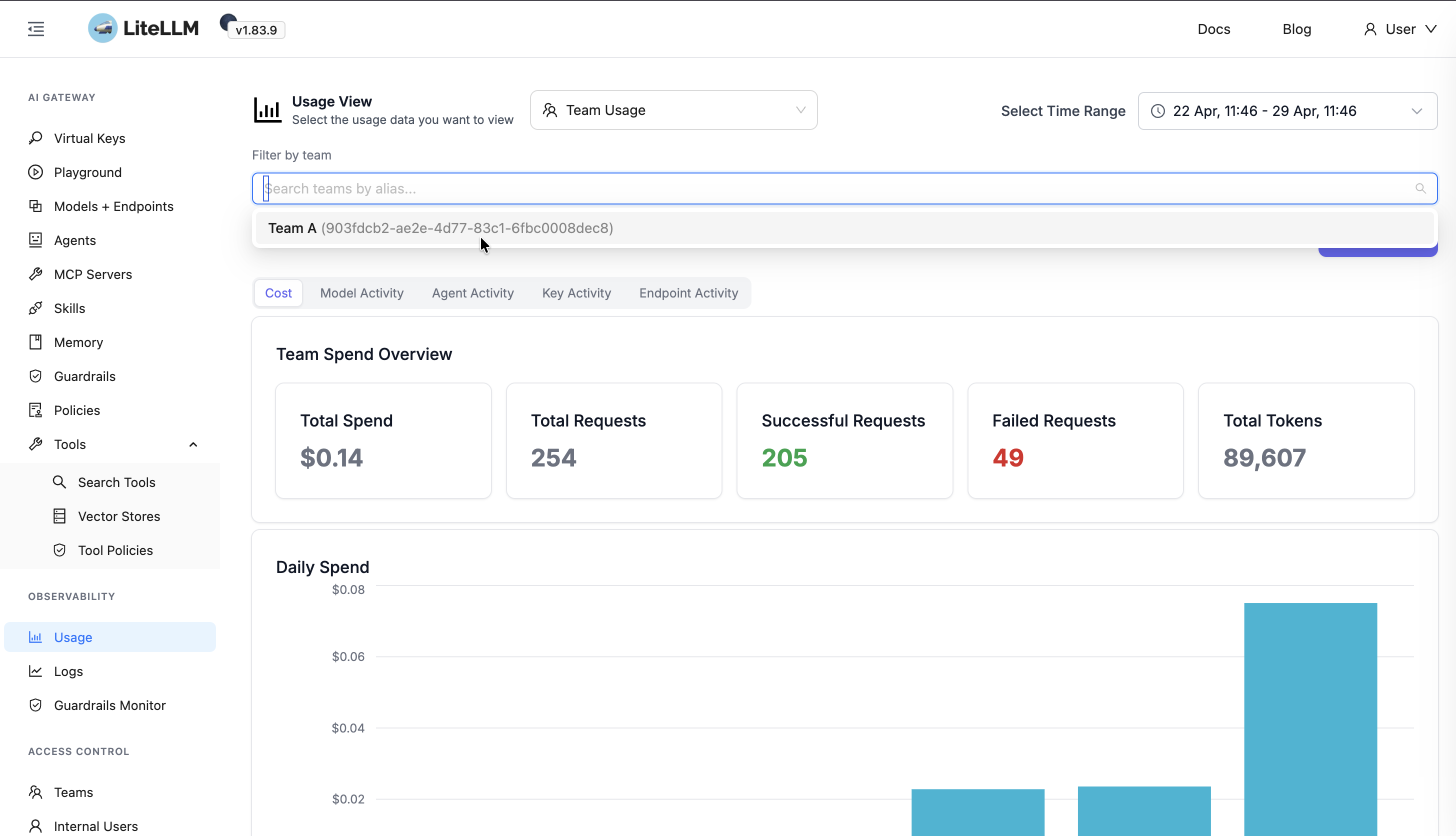
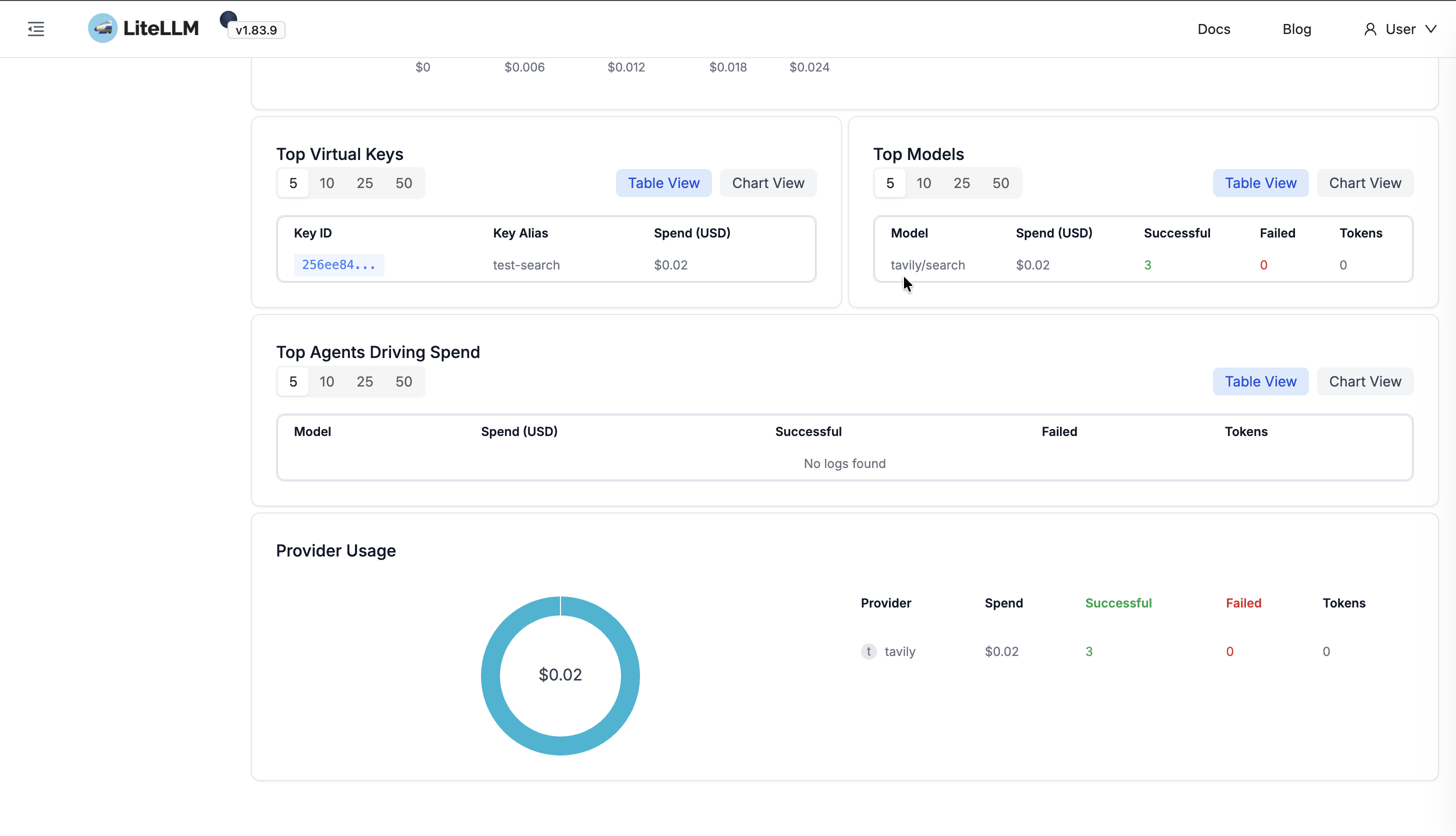
Control which teams and virtual keys may call each configured web search integration (/v1/search) and see team/key level usage visibility within LiteLLM's spend dashboard.
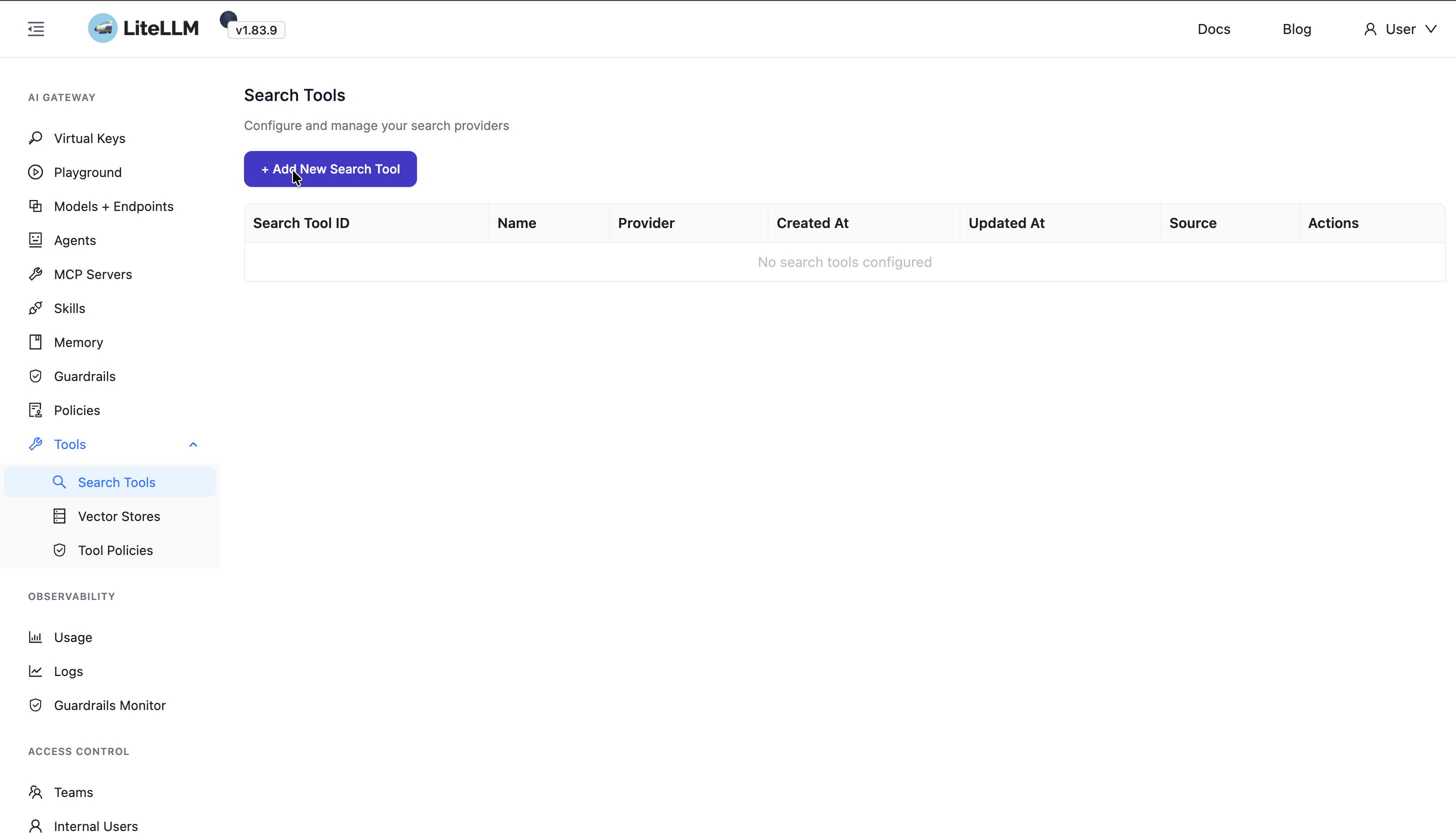
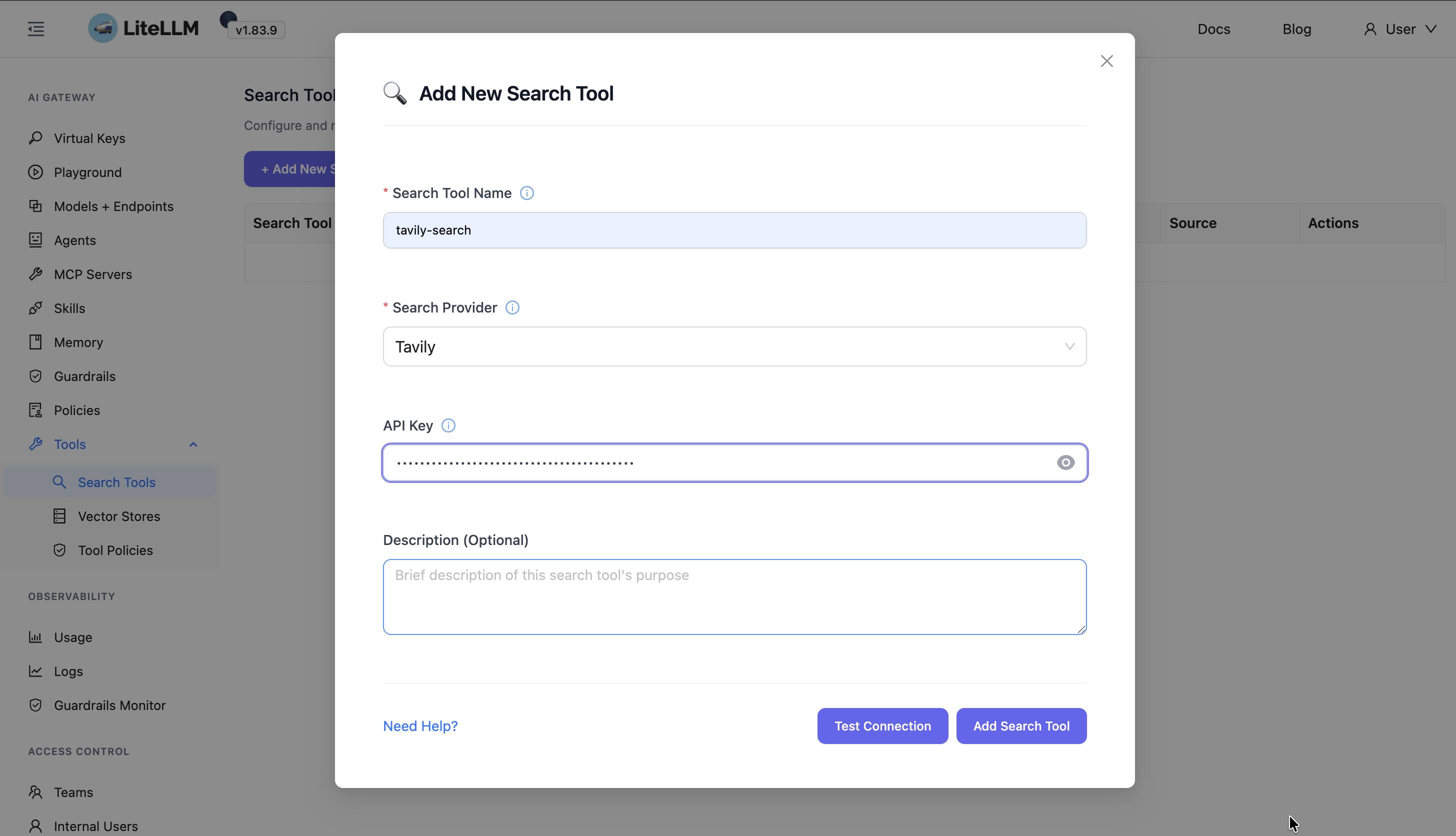
Step 1: Register tools
Search tools page → create tool (name + provider + credentials).
Step 2: Team allowlist
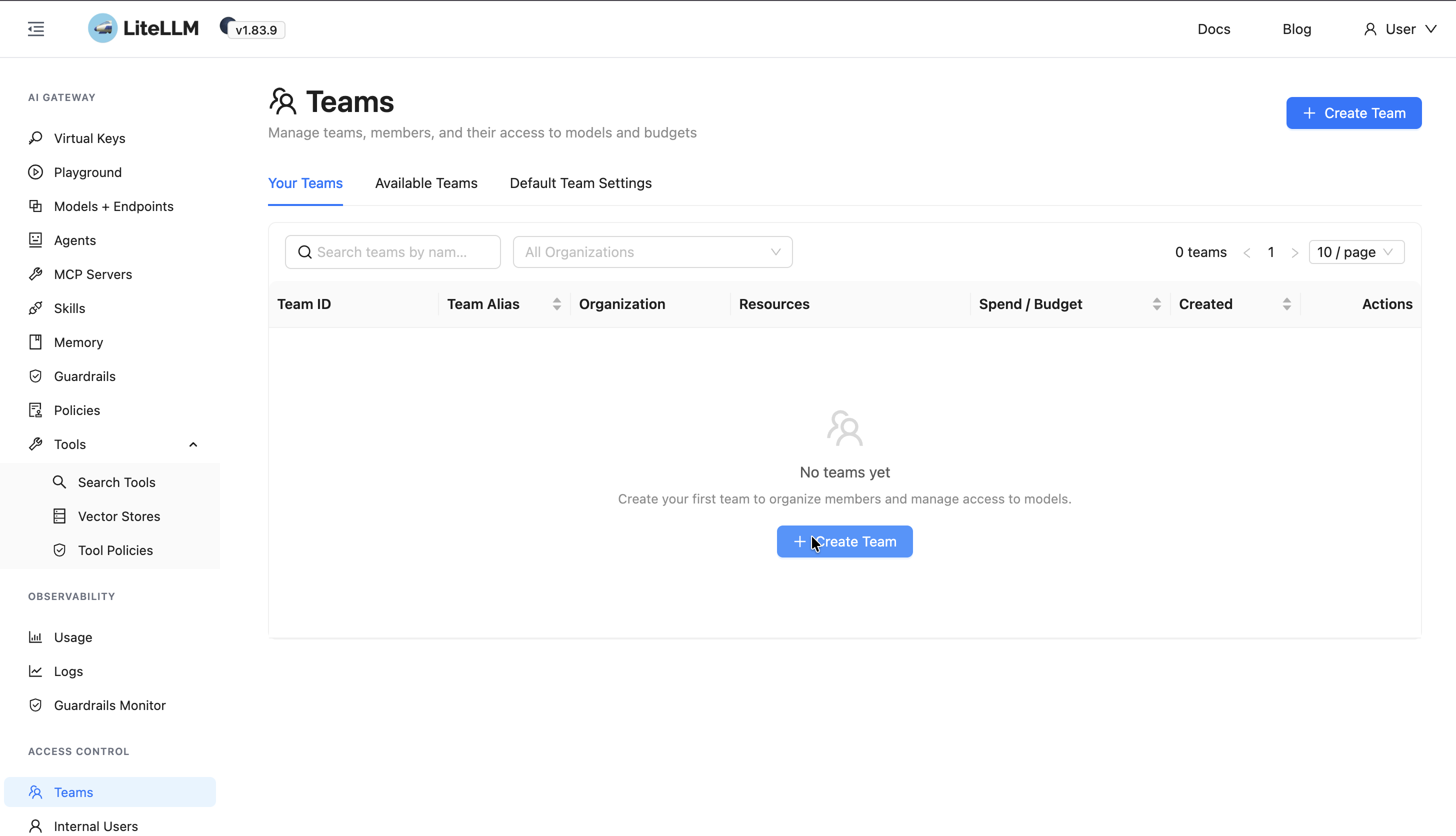
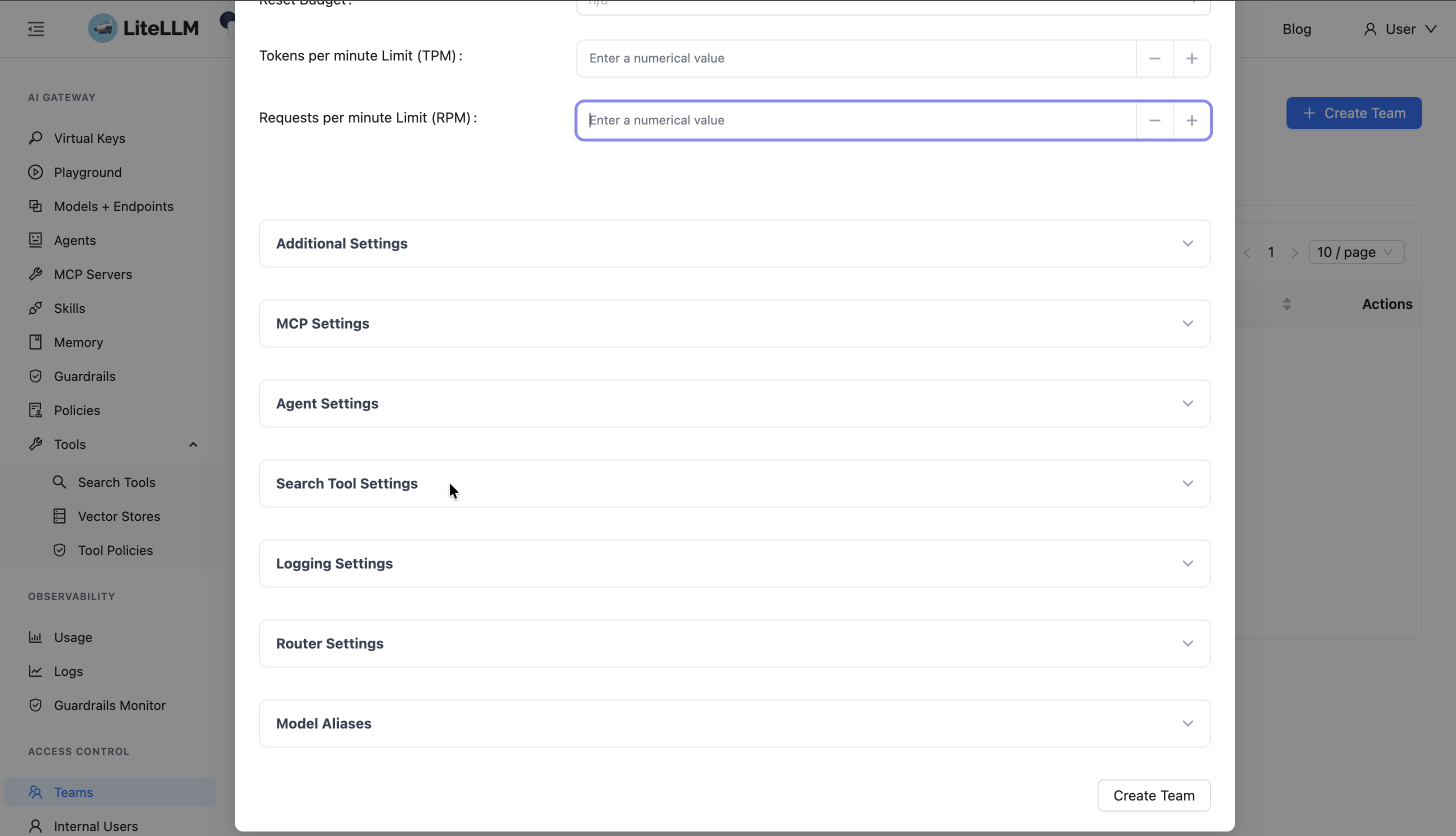
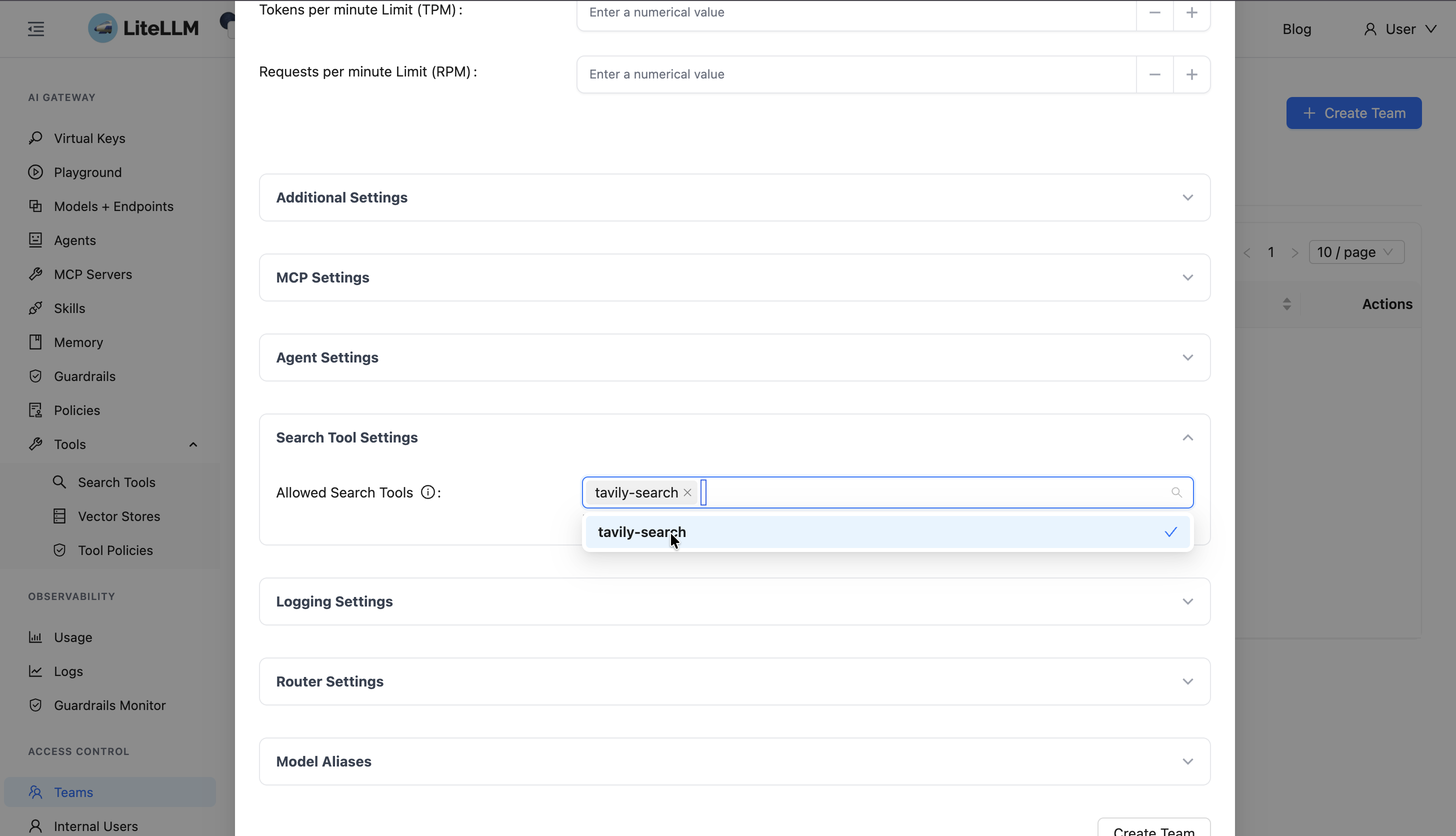
Teams → create/edit team → open Search Tool Settings → add tool(s) to the team.
Step 3: Key (optional stricter list)
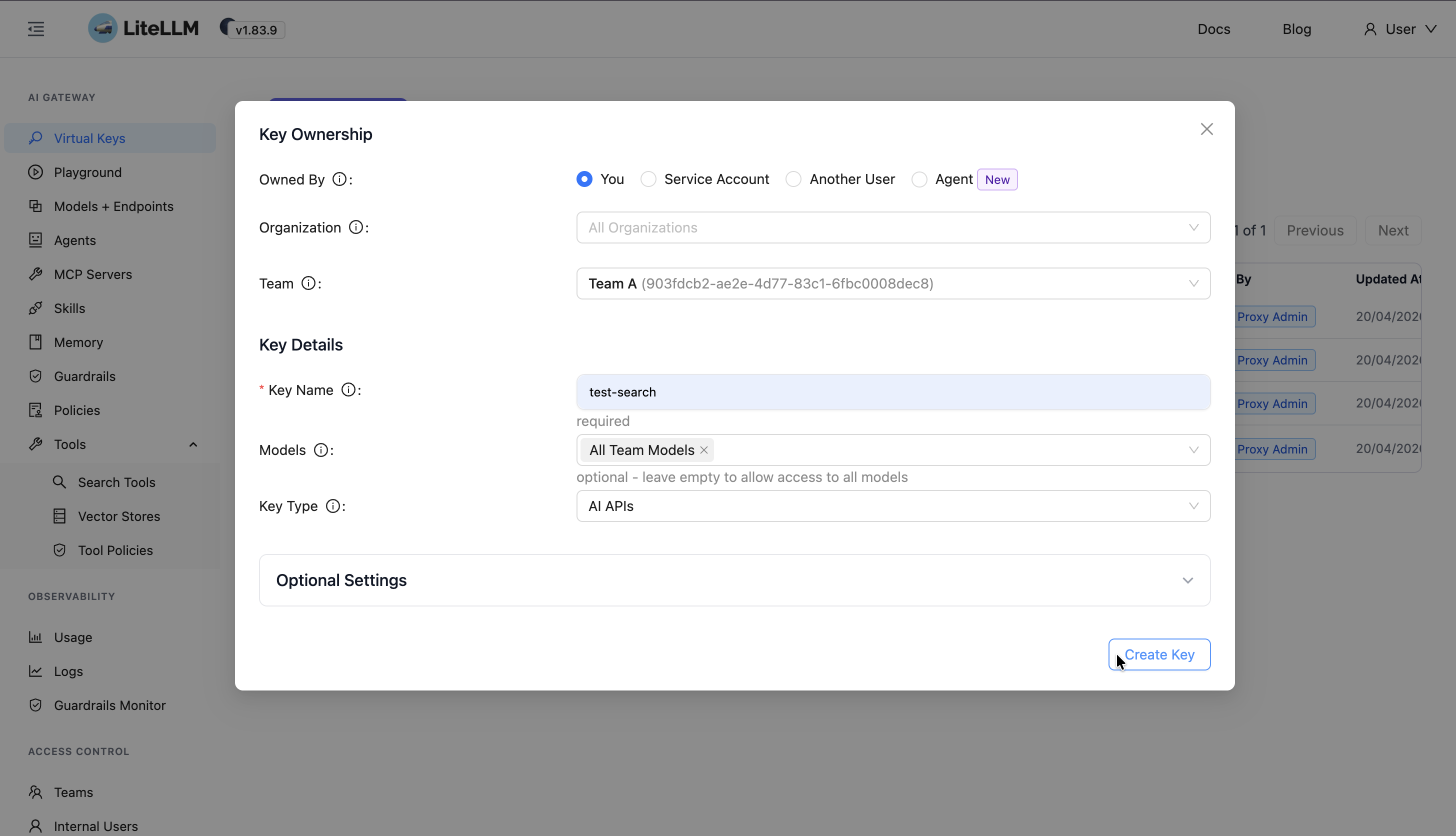
Virtual keys → generate/update for that team → Search Tool Settings must stay inside the team list (if team list is non-empty).
Step 4: Call search
curl -sS -X POST "http://localhost:4000/v1/search/YOUR_SEARCH_TOOL_NAME" \
  -H "Authorization: Bearer YOUR_VIRTUAL_KEY" \
  -H "Content-Type: application/json" \
  -d '{"query": "hello world", "max_results": 5}'
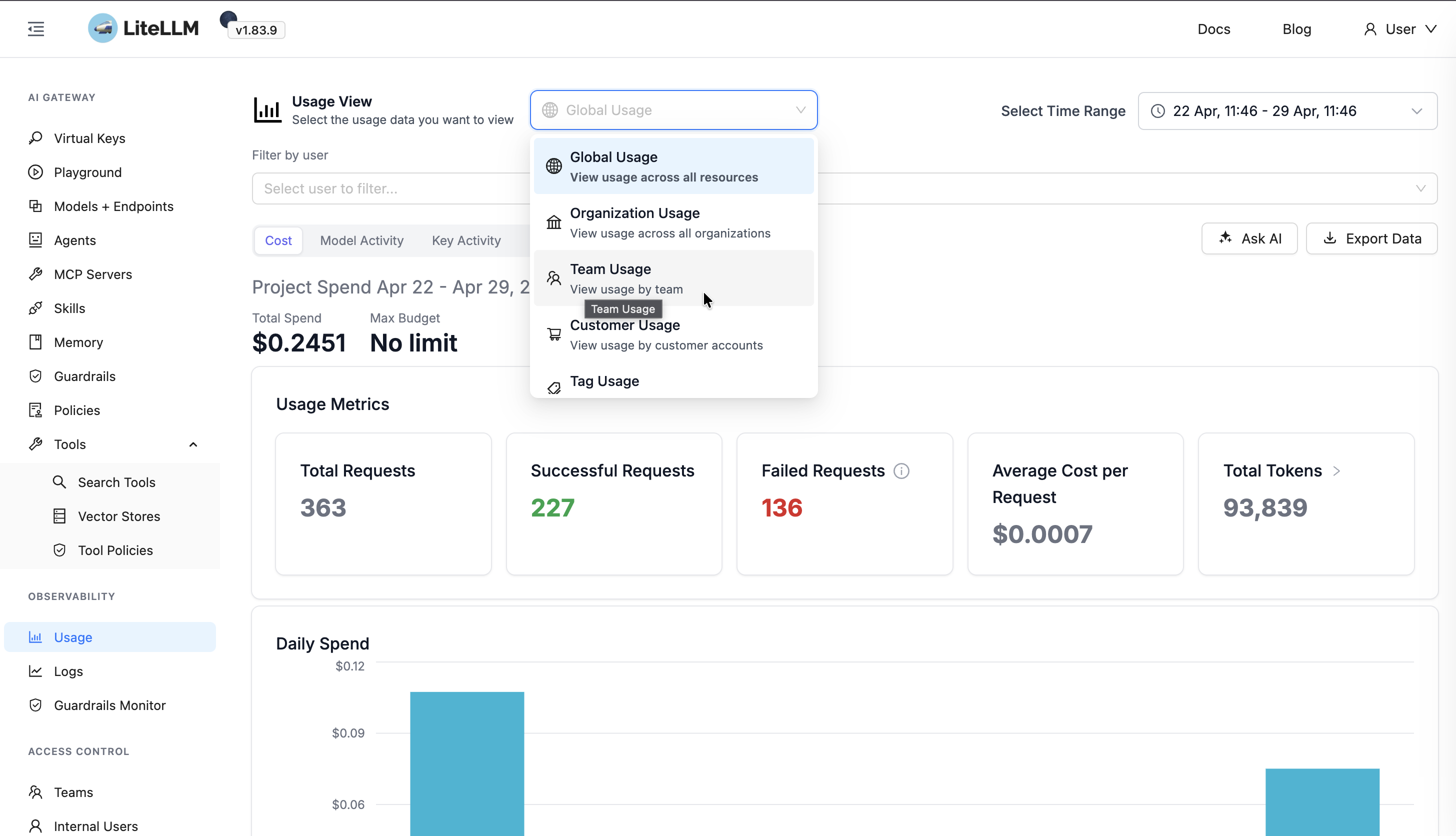
Step 5: See spend
Logs → filter Team ID + Public model / search tool = search_tool_name → Cost column.