Set up Moyai
Deploy the web app and agent sandboxes on Modal, then verify a task before connecting your repositories. This guide uses the Claude Agent SDK harness with the openai/gpt-6-astra gateway alias, the pair in Moyai's getting-started guide. Your gateway must support that model through the Messages API.
You run the installation commands on your computer. After deployment, use Moyai from a browser or Slack; your computer can be offline. Modal bills for hosting, sandboxes, and storage. Your model provider bills for inference through LiteLLM.
Before you start
- Install Git, uv, and Python 3.12 or newer. On Windows, use WSL.
- Choose a Modal workspace with billing and permission to deploy. Use a fresh workspace if possible: the script updates resources with fixed names.
- Get a protected HTTPS LiteLLM gateway that Modal can reach, plus a dedicated virtual key with a budget. A gateway administrator can create the key; Moyai itself does not need a master key.
Moyai is a shared workspace for a trusted team. Keep authentication enabled. Connected apps use their authorizing identity's permissions; start with a small repository and the access you need.
1. Install Moyai
uv python install 3.12
git clone https://github.com/BerriAI/moyai.git
cd moyai
uv sync --frozen --python 3.12
cp .env.example .env
chmod 600 .env
Run the remaining commands from this directory. If you already have a .env, edit it instead of overwriting it. Keep secrets in that file or your host's secret store, never in task prompts.
Check: uv sync finishes and .env exists. A missing uv command means you need to reopen your shell after installing it.
2. Connect Modal
uv run modal token new
Complete the browser login for the workspace that will own Moyai. Open ~/.modal.toml in a private editor and copy the profile's token_id and token_secret into the matching .env fields:
MODAL_TOKEN_ID=<token ID for your workspace>
MODAL_TOKEN_SECRET=<secret from the same profile>
Check: both fields contain values from the same profile. CLI login alone does not populate Moyai's .env. Check the token's expiry and follow your team's service identity policy.
3. Configure LiteLLM
Add the model and create a key
If you already have a gateway, ask its administrator for the exact model alias and a budget-limited key with access to it through Messages. Skip the configuration below if the administrator has done this.
For a new gateway, add the model to its configuration and store the provider key on the gateway:
model_list:
  - model_name: openai/gpt-6-astra
    litellm_params:
      model: openai/gpt-6-astra
      api_key: os.environ/OPENAI_API_KEY

litellm_settings:
  include_cost_in_streaming_usage: true
In the LiteLLM Admin UI, open Virtual Keys, create a key named moyai, grant access to openai/gpt-6-astra, and set a budget. See virtual keys for API and UI instructions. Choose a budget you are comfortable spending on the trial. Admission checks can allow an in-flight request to take spend past the threshold.
Set Moyai's endpoint
Edit .env:
LITELLM_API_BASE=https://your-gateway.example.com/v1
LITELLM_API_KEY=<Moyai virtual key>
AGENT_MODEL=openai/gpt-6-astra
AGENT_HARNESS=claude-agent-sdk
SESSION_TITLES_ENABLED=false
Keep /v1 at the end of the base URL, without /messages. Use a cloud-reachable address; localhost inside a Modal container refers to that container. Disabling title generation avoids a second model dependency during the first run.
This explicit harness setting keeps the walkthrough on Messages. To use automatic selection later, remove AGENT_HARNESS: resolved openai/ models select Codex, anthropic/ models select Claude Agent SDK, and other aliases use the Claude fallback. Choose another supported harness in a new session.
| Harness | Gateway endpoint | Check before selecting |
|---|---|---|
| Claude Agent SDK | /v1/messages | Messages API and tool calls for the chosen alias |
| Codex | /v1/responses | Responses API and tool calls for the chosen alias |
| Hermes, OpenCode, Deep Agents, Tool Loop | /v1/chat/completions | Chat Completions and tool calls for the chosen alias |
A name in the model picker does not grant your key access to it. Set AGENT_MODEL to the alias your gateway serves. See harness compatibility.
Check the model connection
With your virtual key in the shell variable LITELLM_API_KEY, test the same protocol the walkthrough uses. This makes a small billed model request:
curl --fail-with-body -i 'https://your-gateway.example.com/v1/messages' \
  -H "Authorization: Bearer $LITELLM_API_KEY" \
  -H 'Content-Type: application/json' \
  -H 'anthropic-version: 2023-06-01' \
  -d '{
    "model": "openai/gpt-6-astra",
    "max_tokens": 64,
    "messages": [{"role": "user", "content": "Reply with: connection works"}]
  }'
Check: HTTP 200 with a model response. Inspect the cost header when the gateway supplies it. This checks your local connection; the first cloud task also verifies reachability from Modal. Resolve an access or protocol error before deploying.
4. Deploy and sign in
For the first Modal-hosted deployment, leave PUBLIC_URL at its example value and leave WORKSPACE_PASSWORD, SESSION_SECRET, and ENCRYPTION_KEY empty. The script generates missing secrets and saves them in .env. Keep PASSWORD_LOGIN_ENABLED=true. Leave Slack, Google OAuth, and Temporal disabled for this first run.
Check required fields without printing secrets:
uv run python -c 'from app.config import Settings; s=Settings(); missing=s.missing_cloud(); print("Missing: " + ", ".join(missing) if missing else "Required fields present; credentials not tested."); raise SystemExit(bool(missing))'
Deploy after filling any missing fields:
uv run python deploy_modal.py
This starts billed compute and updates the moyai app, hermes-workspace-config secret, and hermes-workspace-state volume in your Modal environment. Coordinate downtime before running it against an existing installation.
Check: open the printed Workspace URL. Read WORKSPACE_PASSWORD in your private editor and sign in. The first image build can take several minutes. Back up .env securely, especially ENCRYPTION_KEY, which you need to decrypt saved connections.
Keep one web container. Redeployment interrupts active tasks on this setup. After changing .env, wait for tasks to finish and rerun the deployment command; file values, including blanks, override shell variables.
5. Verify a task and a follow-up
-
Open Settings > Runtime and look for Cloud ready. This checks required fields, not credential validity.
-
Start a new session. In Context, select Execution > Cloud session and leave GitHub repository empty.
-
Choose Claude Agent SDK and GPT-6 Astra, or the exact alias you configured.
-
Send this task:
Use the terminal to create
/workspace/setup-check.txtcontainingmoyai setup works. Read it back with a tool and report the contents. Do not connect apps or publish anything. -
Wait for completion. Expand Activity to inspect the actual tool calls, then open
setup-check.txtin Files. -
Send a follow-up in the same chat:
Read
/workspace/setup-check.txtusing a tool and report its contents.
Check: both turns read moyai setup works from the file. A simulated/demo response does not verify cloud execution. Resolve any failure before connecting apps.
6. Connect GitHub and open a small PR
An organization owner or someone with permission to register and install the organization's GitHub App must complete the connection. Personal-account installations are not supported.
- As a Moyai administrator, open Connections > GitHub > Connect. Register an organization-owned App or supply an existing App's ID and PEM key in the connection form.
- Review the GitHub permissions. Checkout and PR work use Contents and Pull requests read/write. The new-App manifest also asks for Administration write for ruleset reviewer changes; an existing suitable App can omit that permission for ordinary PR work.
- Complete the installation, then open Manage > Choose repositories and select the repositories to expose. Moyai saves repository IDs; changing the selection does not require a redeploy.
- Start a new Cloud session, choose the repository in Context, and enable GitHub under Organization connections.
- Ask the agent to identify and run the smallest relevant test suite before changing code. Inspect the command and result, then request a small change with a regression test and a PR.
Check: open the PR, inspect the diff, and confirm the reported checks. Review and merge it yourself. Enabled connected-app writes execute under connection policies without a per-use approval prompt; pause a connection or use read-only access when appropriate.
7. Check the spend
As a Moyai administrator, open Settings > Administration > Spend & usage to inspect costs by user, session, and model. Members can see their own costs under Settings > Workspace > Spend. In the LiteLLM Admin UI, open Logs > Filters and set Key Alias to moyai.
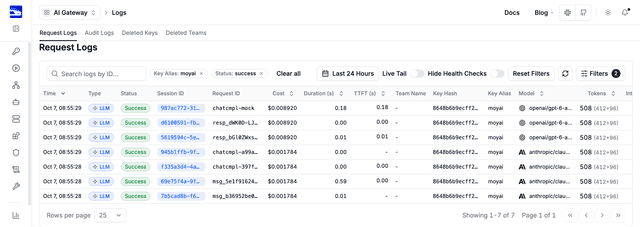
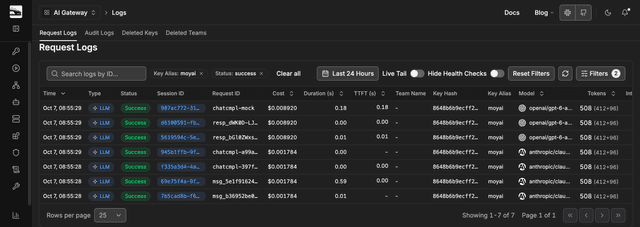
Moyai attaches its request ID in x-litellm-call-id and spend_logs_metadata.moyai_request_id. Use that ID to reconcile a request across the two systems. For streaming costs, keep include_cost_in_streaming_usage: true on the gateway and verify native endpoint support in your deployed version. Cost accounting explains missing receipts and recovery permissions. Include Modal hosting, sandbox, and storage charges in your trial total.
Troubleshooting
| Symptom | Action |
|---|---|
| Missing Modal credentials | Populate both token fields in .env; CLI login is separate. Check the workspace and expiry. |
| Gateway 401 or 403 | Check the virtual key, exact model alias, and permission for the selected API. |
| Gateway 404 or protocol error | Confirm a reachable base ending in /v1 and the API required by the harness. |
| Budget exceeded or rate limited | Inspect spend and limits in LiteLLM. Stop unwanted work; adjust the budget only if you intend to spend more. |
| UI works but the task fails | Inspect the sandbox build and gateway error. Cloud ready verifies settings are present, not that services work. |
| Task says simulated/demo | Start a new session with Cloud session selected. Existing demo sessions keep their mode. |
| GitHub missing from a chat | Confirm the App installation and repository selection, then start a new session with GitHub enabled in Context. |
| Configuration change has no effect | Redeploy when idle. Check for blank .env entries that override shell variables. |
Share the failed step and a redacted error in a bug report. Exclude credentials and .env.
Stop or expand the deployment
Closing the browser leaves the service running. Stop active tasks, stop the moyai web app in Modal if you no longer need it, and check remaining sandboxes. Retained snapshots and volumes can incur storage charges.
After the first task works, add Slack, other connections, or Google SSO. Replace BerriAI-specific domain examples before enabling SSO. For Render, Docker, other sandbox providers, or Temporal, read deployment options and the architecture guide.