SCIM with LiteLLM
Enterprise: SCIM support requires a premium license.
Enables identity providers (Okta, Azure AD, OneLogin, etc.) to automate user and team (group) provisioning, updates, and deprovisioning on LiteLLM.
This tutorial will walk you through the steps to connect your IDP to LiteLLM SCIM Endpoints.
Supported SSO Providers for SCIM
Below is a list of supported SSO providers for connecting to LiteLLM SCIM Endpoints.
- Microsoft Entra ID (Azure AD)
- Okta
- Google Workspace
- OneLogin
- Keycloak
- Auth0
1. Get your SCIM Tenant URL and Bearer Token
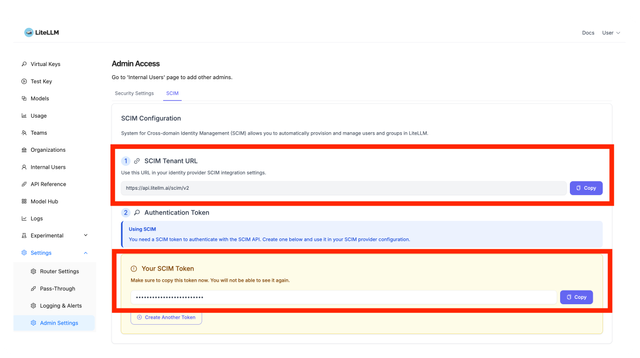
On LiteLLM, navigate to the Settings > Admin Settings > SCIM. On this page you will create a SCIM Token, this allows your IDP to authenticate to litellm /scim endpoints.
2. Connect your IDP to LiteLLM SCIM Endpoints
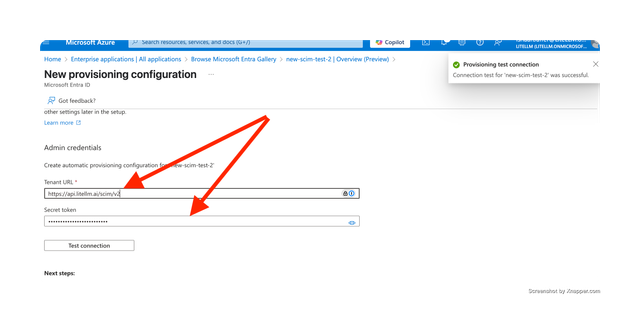
On your IDP provider, navigate to your SSO application and select Provisioning > New provisioning configuration.
On this page, paste in your litellm scim tenant url and bearer token.
Once this is pasted in, click on Test Connection to ensure your IDP can authenticate to the LiteLLM SCIM endpoints.
3. Test SCIM Connection
3.1 Assign the group to your LiteLLM Enterprise App
On your IDP Portal, navigate to Enterprise Applications > Select your litellm app
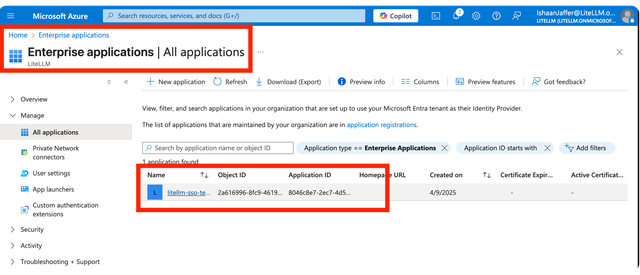
Once you've selected your litellm app, click on Users and Groups > Add user/group
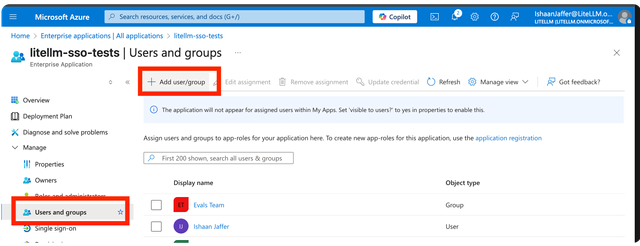
Now select the group you created in step 1.1. And add it to the LiteLLM Enterprise App. At this point we have added Production LLM Evals Group to the LiteLLM Enterprise App. The next step is having LiteLLM automatically create the Production LLM Evals Group on the LiteLLM DB when a new user signs in.
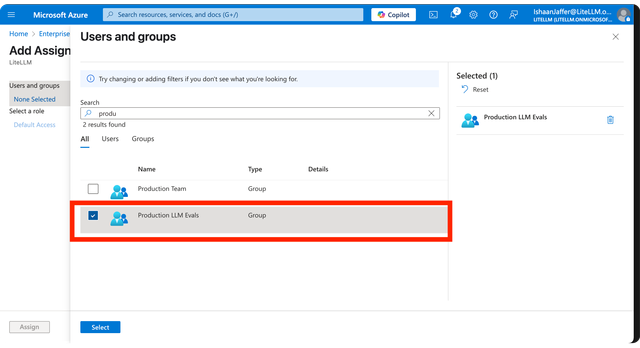
3.2 Sign in to LiteLLM UI via SSO
Sign into the LiteLLM UI via SSO. You should be redirected to the Entra ID SSO page. This SSO sign in flow will trigger LiteLLM to fetch the latest Groups and Members from Azure Entra ID.
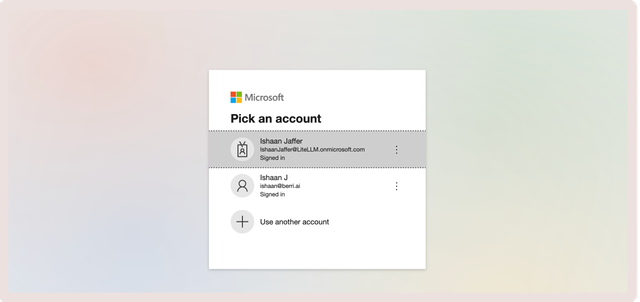
3.3 Check the new team on LiteLLM UI
On the LiteLLM UI, Navigate to Teams, You should see the new team Production LLM Evals Group auto-created on LiteLLM.
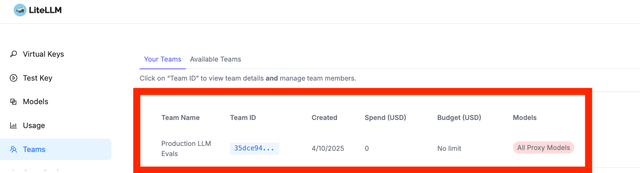
Note: When a user is deprovisioned through SCIM, LiteLLM blocks all virtual keys owned by that user and removes them from the authentication cache, revoking access immediately. The keys remain in the database to preserve spend history. See Deactivation and deprovisioning.
User attribute mapping
LiteLLM processes the following attributes from SCIM user resources submitted to POST /scim/v2/Users and PUT /scim/v2/Users/{id}. Attributes not listed in this table are ignored.
| SCIM attribute | Stored as | Notes |
|---|---|---|
userName | user_id | Stored unchanged. If omitted, LiteLLM generates a random UUID. |
emails[0].value | user_email | Only the first email entry is processed, regardless of its primary value. |
name.givenName | user_alias and metadata.scim_metadata.givenName | Used to derive the user alias; displayName is not used during POST or PUT. |
name.familyName | metadata.scim_metadata.familyName | Stored as SCIM metadata. |
groups[].value | teams | Each value is treated as an existing LiteLLM team_id. |
externalId | sso_user_id | Stored only for PUT and PATCH. It remains unset after initial POST provisioning until the first update. |
active | metadata.scim_active | Applied only for PUT and PATCH. A POST request with active: false still creates an active user. |
entitlements, roles | metadata.scim_entitlements, metadata.scim_roles | Preserved for subsequent read responses; these values do not grant LiteLLM permissions. |
urn:ietf:params:scim:schemas:extension:enterprise:2.0:User | metadata.scim_enterprise | Preserved for subsequent read responses. |
displayName is not processed by POST or PUT. A PATCH operation that targets displayName updates user_alias, so the final alias depends on the most recent applicable request.
SCIM read and write representations differ. GET /scim/v2/Users constructs userName and displayName from user_email, while write operations store userName as user_id. The externalId value is not included in read responses. To support identity provider lookup workflows, a userName eq filter matches against both user_email and user_id, allowing providers such as Okta to locate a previously provisioned user before applying a lifecycle update.
Provisioning a user who already exists
LiteLLM evaluates potential conflicts in the following order:
- If
userNamematches an existing LiteLLMuser_id,POST /scim/v2/Usersreturns409 Conflict. The identity provider can then update the existing user withPUTorPATCH. - If
userNameis new butemails[0].valuematches an existing user, LiteLLM updates the existing record instead of creating a duplicate. It replacesuser_idwith the incominguserName, reconciles team membership with the suppliedgroups, and replacesuser_email,user_alias,teams, andmetadata. The endpoint returns201. Existing keys, memberships, and spend history remain associated with the updated record. To prevent this email-based reassignment, configure a stableuserNamein the identity provider.
This behavior is independent of litellm_settings.scim_upsert_user. That setting applies only when resolving group members. With the default value of true, a PUT or PATCH request for a group creates users for member IDs that LiteLLM has not encountered. When set to false, the request returns 400 and requires the user to be created first. The setting does not affect email-based matching in POST /Users.
Assigning the proxy admin role
By default, newly provisioned SCIM users receive the role configured in litellm_settings.default_internal_user_params.user_role. If no role is configured, LiteLLM assigns internal_user_viewer. Existing users retain their current role.
Configure scim_admin_group to manage global roles through SCIM group membership:
litellm_settings:
  scim_admin_group: "litellm-admins"
LiteLLM compares this setting with each group's value and display name. Members of the matching group receive the proxy_admin role; all other users receive the default role described above. LiteLLM evaluates this mapping on every SCIM write, so removing a user from the configured admin group changes the user's role during the next synchronization. If scim_admin_group is not configured, SCIM does not modify roles assigned through the Admin UI or management API.
Granting MCP access to SCIM groups
Each SCIM group becomes a LiteLLM team, so you grant MCP servers or access groups to the team that SCIM created and members reach them with keys that belong to that team. SCIM syncs keep the grant in place. Group, role, and entitlement values that name an MCP access group do not grant MCP access by themselves; see Grant MCP access through SCIM-provisioned teams for the walkthrough and the reasoning.
Deactivation and deprovisioning
When a PUT or PATCH request sets active to false, LiteLLM blocks every virtual key owned by the user and removes the corresponding credentials from the authentication cache, revoking access immediately. LiteLLM records which keys were blocked by this operation. If the user is reactivated, only those keys are unblocked; keys independently blocked by an administrator remain blocked. A PUT request that omits active preserves the user's current activation state.
DELETE /scim/v2/Users/{id} removes the user's team and organization memberships, deletes associated invitation links, blocks the user's virtual keys, and deletes the user record. The keys remain in the database to preserve historical spend data.