Secret Managers Overview
This feature requires a LiteLLM Enterprise license. Start a free 30-day trial or book a demo. See what Enterprise includes.
LiteLLM supports reading secrets (eg. OPENAI_API_KEY) and writing secrets (eg. Virtual Keys) from Azure Key Vault, Google Secret Manager, Hashicorp Vault, CyberArk Conjur, and AWS Secret Manager.
Supported Secret Managers
- AWS Key Management Service
- AWS Secret Manager
- Azure Key Vault
- CyberArk Conjur
- Google Secret Manager
- Google Key Management Service
- Hashicorp Vault
All Secret Manager Settings
All settings related to secret management
general_settings:
  key_management_system: "aws_secret_manager" # REQUIRED
  key_management_settings:

    # Storing Virtual Keys Settings
    store_virtual_keys: true # OPTIONAL. Defaults to False, when True will store virtual keys in secret manager
    prefix_for_stored_virtual_keys: "litellm/" # OPTIONAL.I f set, this prefix will be used for stored virtual keys in the secret manager

    # Access Mode Settings
    access_mode: "write_only" # OPTIONAL. Literal["read_only", "write_only", "read_and_write"]. Defaults to "read_only"

    # Hosted Keys Settings
    hosted_keys: ["litellm_master_key"] # OPTIONAL. Specify which env keys you stored on AWS

    # K/V pairs in 1 AWS Secret Settings
    primary_secret_name: "litellm_secrets" # OPTIONAL. Read multiple keys from one JSON secret on AWS Secret Manager
Team-Level Secret Manager Settings
Team-level secret manager settings let every team bring their own key-management configuration. These settings are used when creating virtual keys tied to the team.
Follow these steps to configure it:
-
Create a team
Open the Teams page and clickCreate Teamto launch the modal.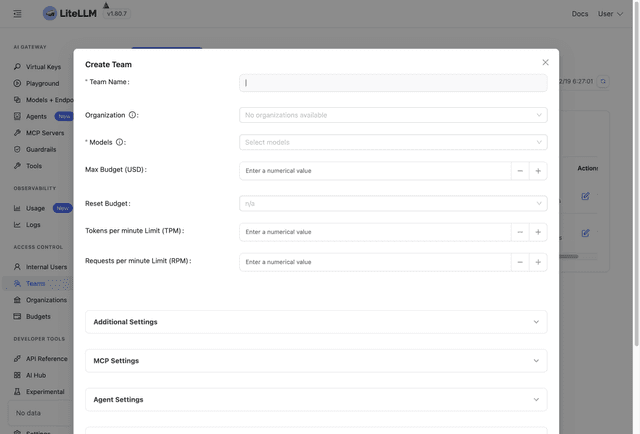
-
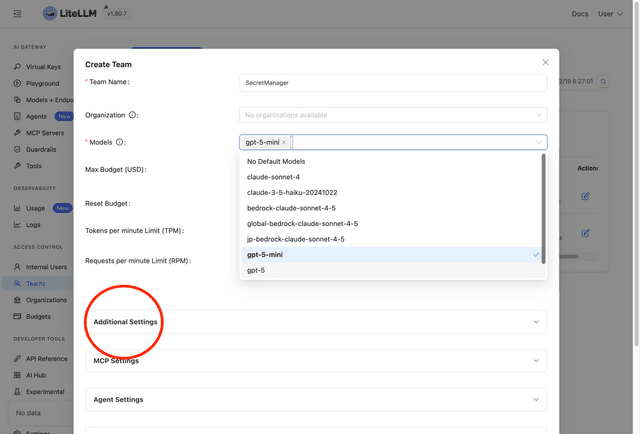
Expand Additional Settings
Use theAdditional Settingstoggle to reveal the advanced configuration panel.
-
Configure the Secret Manager
In theSecret Manager Settingspanel, paste the provider-specific JSON. Refer to each provider page (AWS, Azure, Google, Hashicorp, etc.) for the supported keys/values. JSON is required today, but we plan to add a more UI-friendly editor.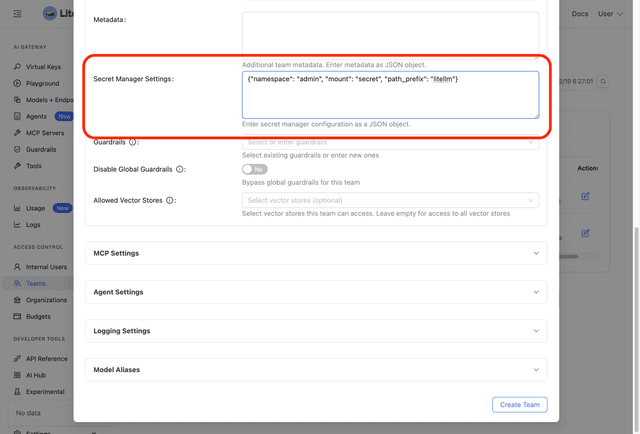
-
Create the team
Review the inputs and clickCreate Teamto save.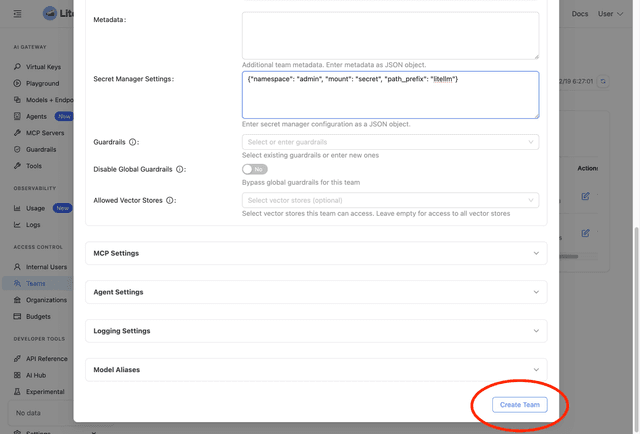
Once saved, LiteLLM will use this configuration.