LiteLLM AI Gateway
The LiteLLM AI Gateway is a self-hosted server. It gives your applications one OpenAI-compatible endpoint for 100+ LLM providers, MCP tools, and A2A agents.
Your applications send requests to the gateway. The gateway sends each request to the provider of the model. Then the gateway sends the response back to your application in the OpenAI format. If a client can use the OpenAI API, the client can also use the gateway. You do not change the client code.
Start the gateway now
curl -fsSL https://raw.githubusercontent.com/BerriAI/litellm/main/scripts/quickstart.sh | shWhat the gateway does
- Access control. Give each user, team, and project a virtual key. Each key has its models, budgets, and rate limits.
- Spend tracking. The gateway records the cost of each request. You can see the spend for each key, team, user, and tag.
- Reliability. Load balancing, fallbacks, and retries move traffic between deployments when a provider has a problem.
- Guardrails. Apply content filters, PII masking, and policies to requests and responses.
- Logging. Send logs and metrics to Langfuse, Datadog, OpenTelemetry, Prometheus, and other tools.
- Admin UI. Add models, add keys, and look at spend and logs in a browser.
- MCP and agents. The same gateway also gives access to MCP tools and A2A agents. It uses the same keys and spend records.
Set up the gateway
The pages in this section follow the steps of a new deployment. Do the steps in the table that follows:
| Step | What you do | Start here |
|---|---|---|
| 1. Deploy | Start the gateway with Docker, Helm, or Terraform. Connect a Postgres database. | Quickstart, Production deployment |
| 2. Add models and providers | Add the models that your users can call. Add MCP tools and agents if necessary. | Model management, Providers |
| 3. Connect clients | Set the gateway URL and a virtual key in your applications and coding tools. | Client setup |
| 4. Set up authentication | Add virtual keys. Connect your identity provider for single sign-on. | Virtual keys, Admin UI SSO |
| 5. Track spend and set budgets | Assign costs to teams and projects. Set budgets and rate limits. | Spend tracking, Budgets |
Call the gateway
After you start the gateway, use the OpenAI client with the gateway URL and a virtual key:
import openai

client = openai.OpenAI(api_key="sk-your-virtual-key", base_url="http://localhost:4000")

response = client.chat.completions.create(
    model="gpt-6-luna",
    messages=[{"role": "user", "content": "Write a short poem"}],
)
print(response.choices[0].message.content)
Admin UI
The Admin UI is part of the gateway. Use it to set up and monitor the gateway in a browser:
- Models
- Virtual keys
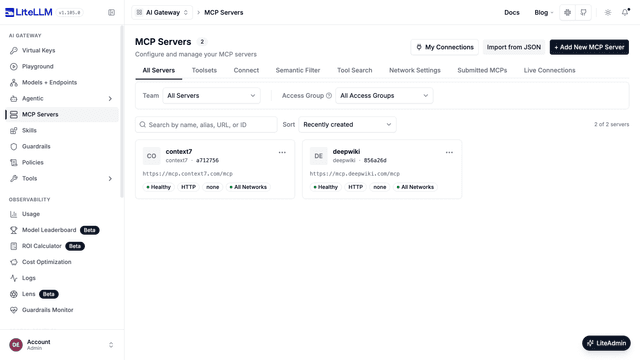
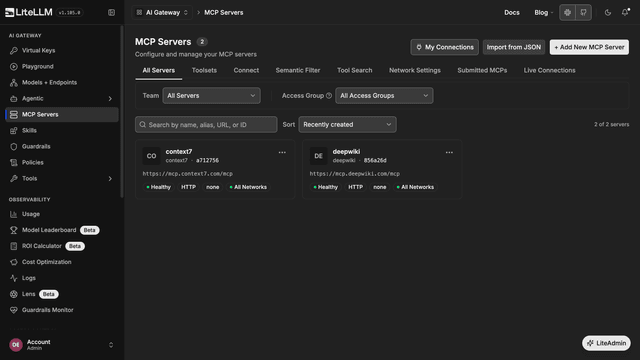
- MCP servers
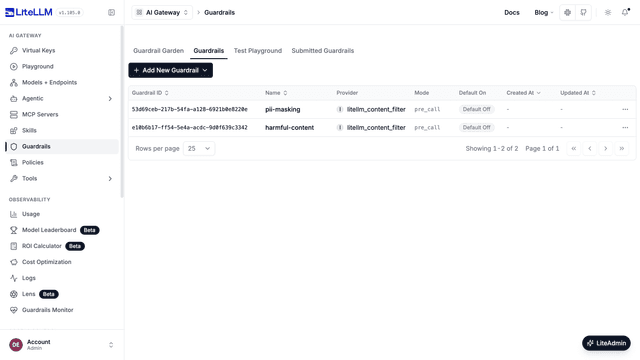
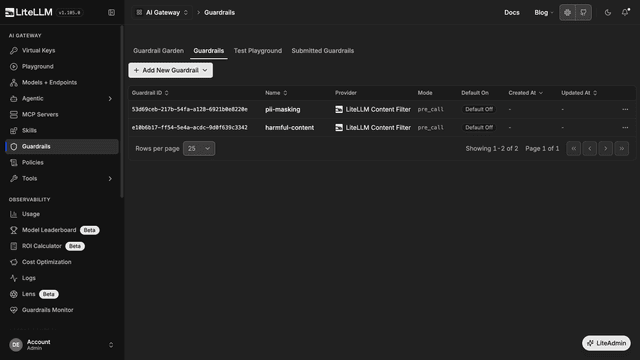
- Guardrails
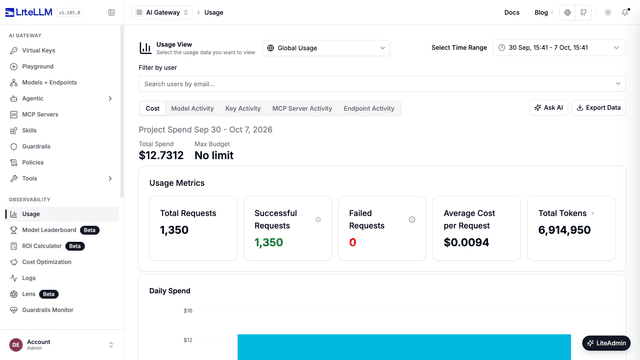
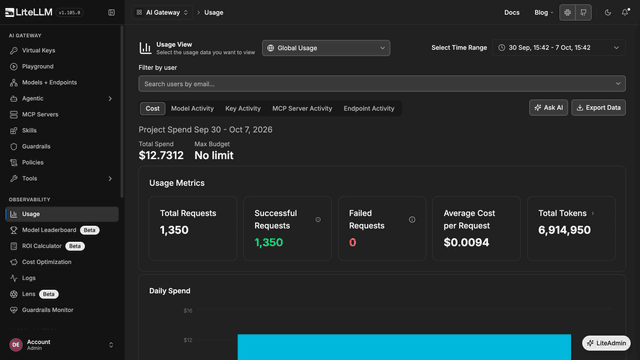
- Usage
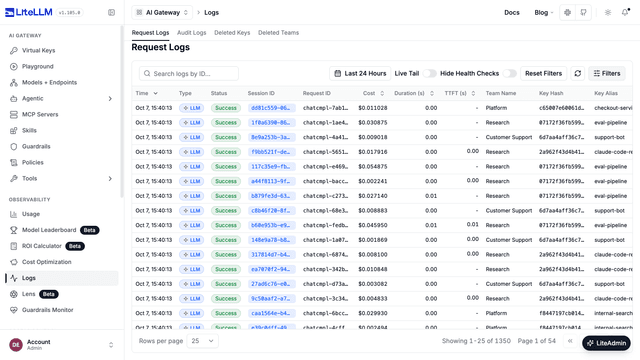
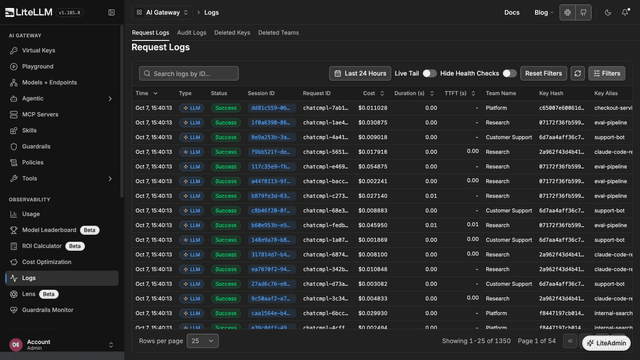
- Logs
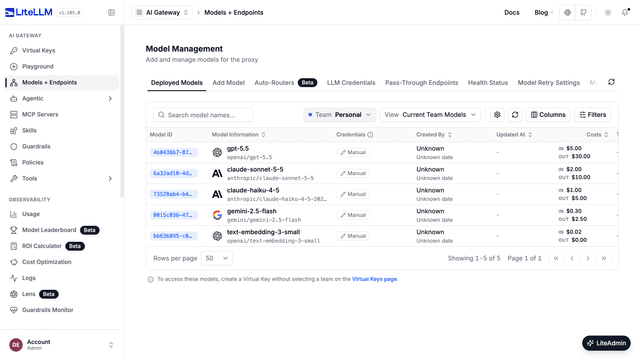
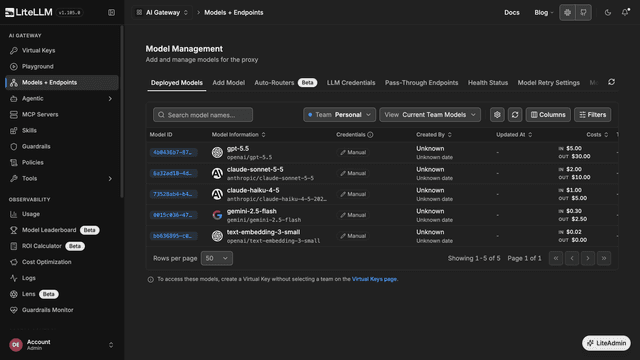
Add models from each provider. The table shows the price of input and output tokens for each model.
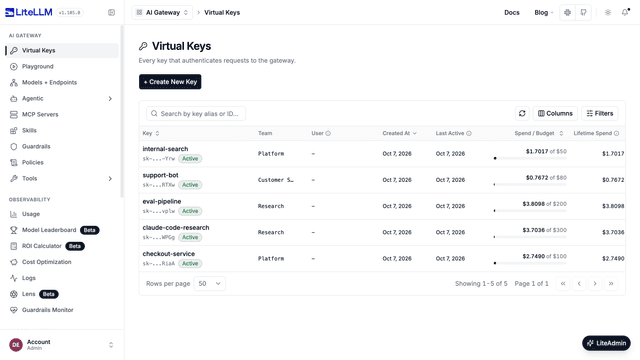
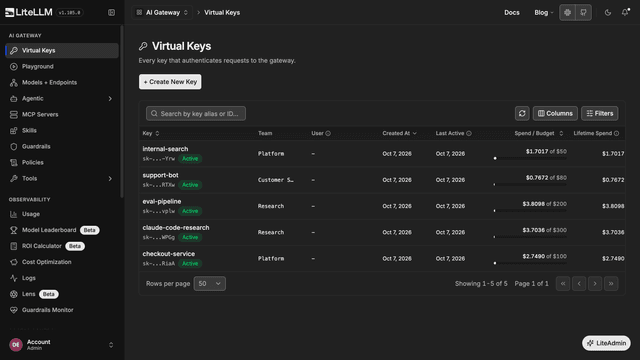
Give each application or person a virtual key. Each key has a team, a budget, and a list of models.
Add MCP servers. Agents use the tools of these servers through the gateway, with the same virtual keys.
Add guardrails that examine requests before the model receives them, for example PII masking.
Look at the spend, the requests, and the tokens for all teams, keys, and models.
Find each request with its cost, duration, team, key, and model.
Gateway or Python SDK
Use the gateway if more than one application or person sends requests to LLMs. Also use the gateway if virtual keys, spend tracking, logs in one location, or guardrails are necessary. Use the Python SDK if you send requests from one Python application and these controls are not necessary.