OpenID Connect (OIDC) SSO
Sign in to the Admin UI with OpenID Connect (OIDC), the identity layer built on OAuth 2.0. For SAML providers, use SAML SSO.
SSO requires a LiteLLM Enterprise license. Start a free 30-day trial or book a demo. See what Enterprise includes.
From v1.76.0, SSO is free for up to 5 users. Beyond that, an enterprise license is required.
How it works
The Admin UI redirects the user to your identity provider. After sign-in, LiteLLM receives the provider's response at /sso/callback, identifies the user, and starts their UI session. Configure roles, team membership, and sign-in restrictions in SSO permissions.
Prerequisites
- A running LiteLLM proxy with a master key and database connection.
- An application registered with your identity provider, with a client ID and secret.
- The public proxy URL, including
https://(orhttp://for local development).
Set the base URL so LiteLLM generates the correct callback URL:
PROXY_BASE_URL="https://litellm.yourcompany.com"
Setup
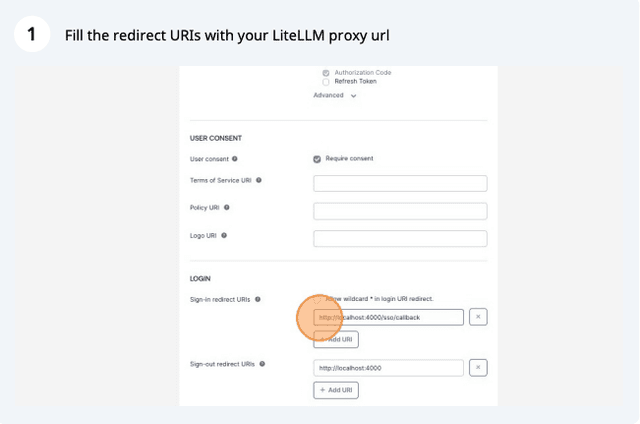
Choose your provider and register <PROXY_BASE_URL>/sso/callback as its sign-in redirect URI.
- Okta SSO
- Google SSO
- Microsoft SSO
- Generic SSO Provider
Video Walkthrough
Step 1: Create an OIDC Application in Okta
In your Okta Admin Console, create a new OIDC Web Application. See Okta's guide on creating OIDC app integrations for detailed instructions.
When configuring the application:
- Sign-in redirect URI:
https://<your-proxy-base-url>/sso/callback - Sign-out redirect URI (optional):
https://<your-proxy-base-url>
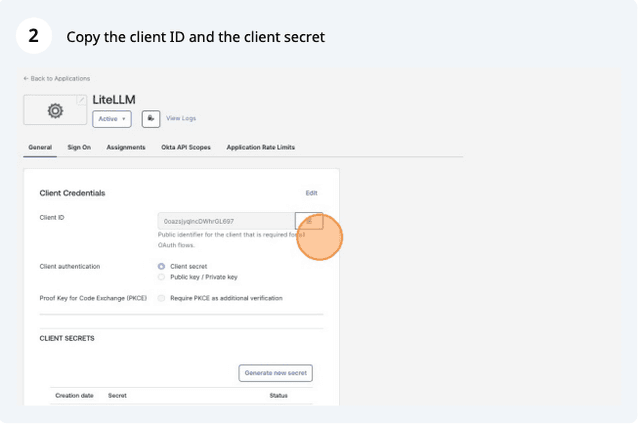
After creating the app, copy your Client ID and Client Secret from the application's General tab:
Step 2: Assign Users to the Application
Ensure users are assigned to the app in the Assignments tab. If Federation Broker Mode is enabled, you may need to disable it to assign users manually.
Step 3: Set Environment Variables
Set the following environment variables. The only difference between the two Okta authorization servers is the endpoint URLs:
Org Authorization Server (available on all Okta plans, no additional SKU required):
GENERIC_CLIENT_ID="<your-client-id>"
GENERIC_CLIENT_SECRET="<your-client-secret>"
GENERIC_AUTHORIZATION_ENDPOINT="https://<your-okta-domain>/oauth2/v1/authorize"
GENERIC_TOKEN_ENDPOINT="https://<your-okta-domain>/oauth2/v1/token"
GENERIC_USERINFO_ENDPOINT="https://<your-okta-domain>/oauth2/v1/userinfo"
PROXY_BASE_URL="https://<your-proxy-base-url>"
Custom Authorization Server (requires the Okta API Access Management SKU):
GENERIC_CLIENT_ID="<your-client-id>"
GENERIC_CLIENT_SECRET="<your-client-secret>"
GENERIC_AUTHORIZATION_ENDPOINT="https://<your-okta-domain>/oauth2/default/v1/authorize"
GENERIC_TOKEN_ENDPOINT="https://<your-okta-domain>/oauth2/default/v1/token"
GENERIC_USERINFO_ENDPOINT="https://<your-okta-domain>/oauth2/default/v1/userinfo"
PROXY_BASE_URL="https://<your-proxy-base-url>"
You can find all OAuth endpoints at https://<your-okta-domain>/.well-known/openid-configuration
Step 3a: Configure Access Policy (Custom Authorization Server only)
If you are using the Custom Authorization Server, you must configure an Access Policy. Without it, users will get a no_matching_policy error. Skip this step if you are using the Org Authorization Server.
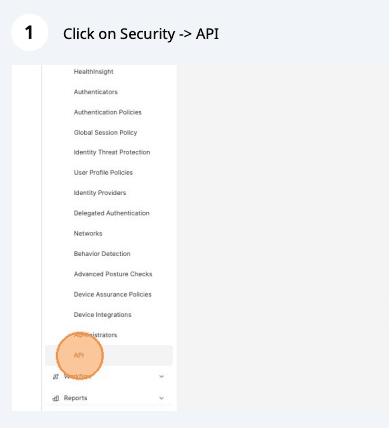
- Go to Security → API
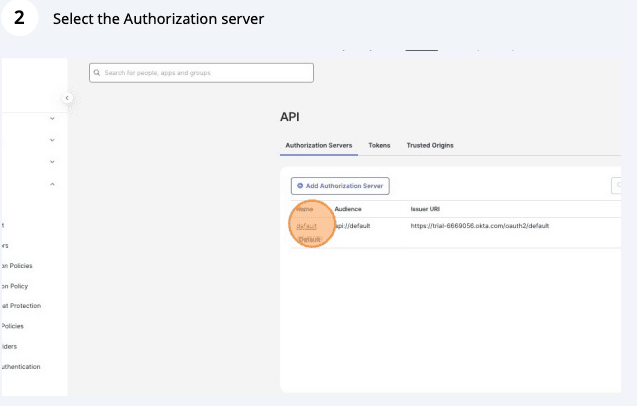
- Select the default authorization server (or your custom one)
- Click on Access Policies tab, create a new policy assigned to your LiteLLM app
- Add a rule that allows the Authorization Code grant type
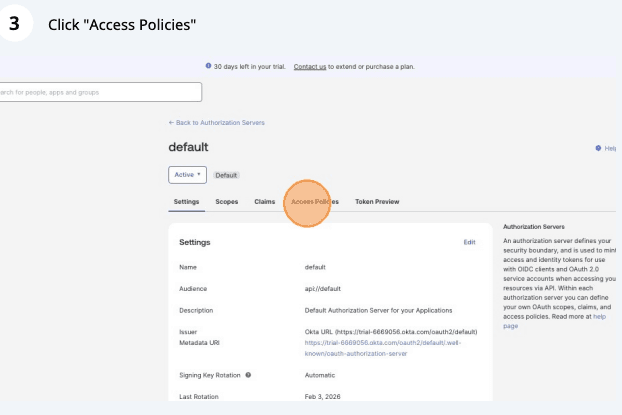
See Okta's Access Policy documentation for more details.
For state and PKCE settings, see Okta security settings.
- Create a new Oauth 2.0 Client on Google Cloud Console
Required .env variables on your Proxy
# for Google SSO Login
GOOGLE_CLIENT_ID="<client-id>"
GOOGLE_CLIENT_SECRET="<client-secret>"
- Set Redirect URL on your Oauth 2.0 Client on Google Cloud Console
- Set a redirect url =
<your proxy base url>/sso/callback
https://litellm-production-7002.up.railway.app/sso/callback - Set a redirect url =
- Create a new App Registration on Azure portal
- Create a client Secret for your App Registration
Required .env variables on your Proxy
MICROSOFT_CLIENT_ID="<client-id>"
MICROSOFT_CLIENT_SECRET="<client-secret>"
MICROSOFT_TENANT="<tenant-id>"
For custom endpoints, see Microsoft endpoint overrides.
- Set Redirect URI on your App Registration on Azure portal
- Set a redirect url =
<your proxy base url>/sso/callback
http://localhost:4000/sso/callback - Set a redirect url =
To assign LiteLLM roles from Entra ID, follow Assign roles through Microsoft Entra ID.
For non-standard user fields, see Microsoft identity attributes.
Configure an OIDC provider with its authorization, token, and UserInfo endpoints.
Required .env variables on your Proxy
GENERIC_CLIENT_ID="<client-id>"
GENERIC_CLIENT_SECRET="<client-secret>"
GENERIC_AUTHORIZATION_ENDPOINT="http://localhost:9090/auth"
GENERIC_TOKEN_ENDPOINT="http://localhost:9090/token"
GENERIC_USERINFO_ENDPOINT="http://localhost:9090/me"
Set a stable user identifier and any additional response fields using generic provider options.
- Set Redirect URI, if your provider requires it
- Set a redirect url =
<your proxy base url>/sso/callback
http://localhost:4000/sso/callback - Set a redirect url =
Test sign-in
-
Start or restart the proxy with your existing configuration:
litellm --config /path/to/config.yaml -
Open
https://<your-proxy-base-url>/uiand click SSO. -
Sign in with a user assigned to the identity-provider application. Confirm that you return to the Admin UI.
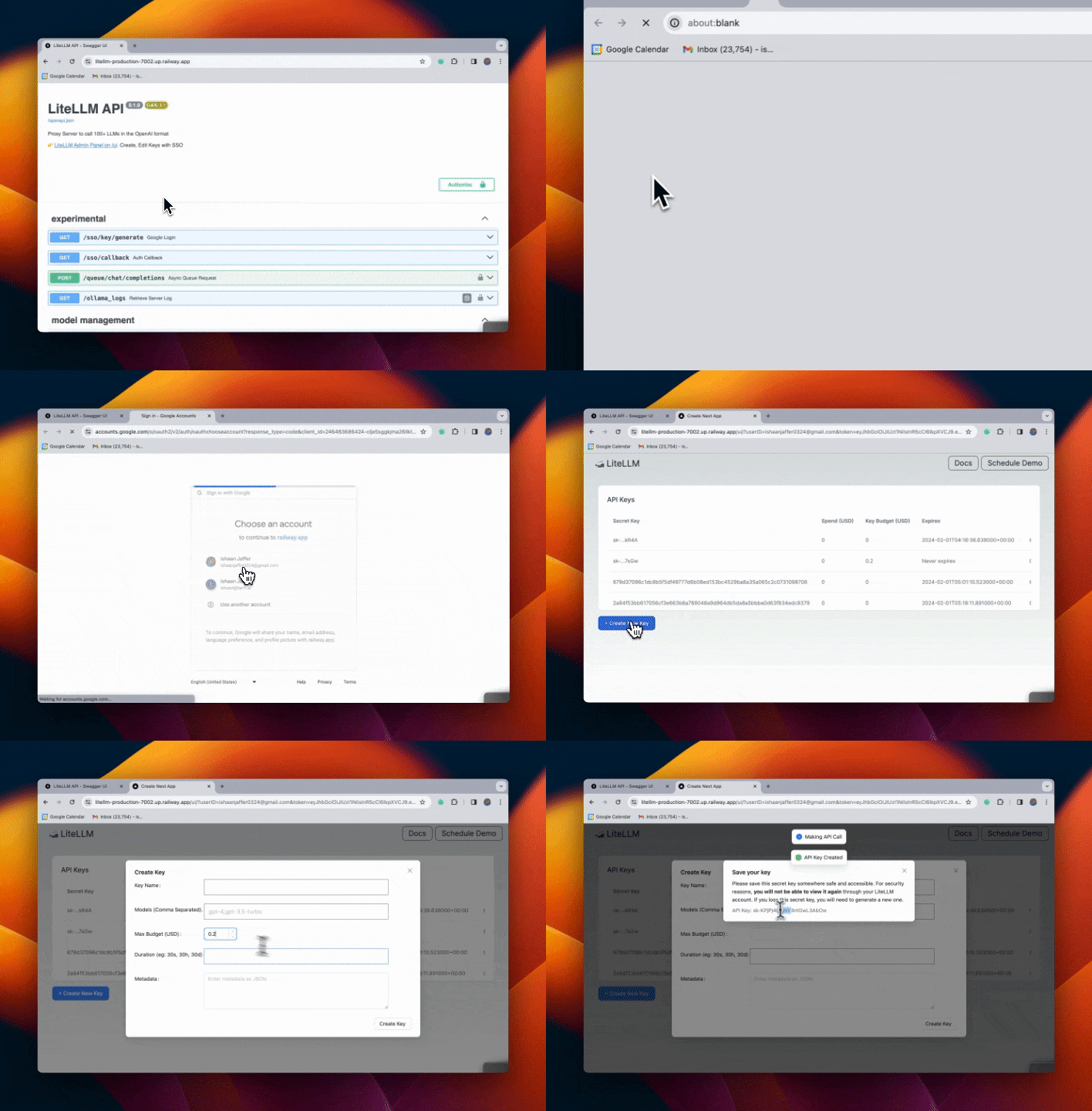
Configuration reference
Default Login, Logout URLs
| Endpoint | URL |
|---|---|
| Start sign-in | <PROXY_BASE_URL>/sso/key/generate |
| Sign-in callback | <PROXY_BASE_URL>/sso/callback |
| Default logout destination | <PROXY_BASE_URL> |
Override the logout destination when your provider requires another URL:
PROXY_LOGOUT_URL="https://www.google.com"
Okta security settings
GENERIC_CLIENT_STATE is recommended for Okta to prevent CSRF attacks:
GENERIC_CLIENT_STATE="random-string"
PKCE (Proof Key for Code Exchange). If your Okta application is configured to require PKCE, enable it by setting:
GENERIC_CLIENT_USE_PKCE="true"
LiteLLM will automatically handle PKCE parameter generation and verification during the OAuth flow.
Microsoft endpoint overrides
If you need to use custom Microsoft SSO endpoints (e.g., for a custom identity provider, sovereign cloud, or proxy), you can override the default endpoints:
MICROSOFT_AUTHORIZATION_ENDPOINT="https://your-custom-url.com/oauth2/v2.0/authorize"
MICROSOFT_TOKEN_ENDPOINT="https://your-custom-url.com/oauth2/v2.0/token"
MICROSOFT_USERINFO_ENDPOINT="https://your-custom-graph-api.com/v1.0/me"
If these are not set, the default Microsoft endpoints are used based on your tenant.
Microsoft identity attributes
Inspect your provider response with the SSO debug flow, then override any non-standard user fields and restart the proxy.
| Environment Variable | Description | Default Value |
|---|---|---|
MICROSOFT_USER_EMAIL_ATTRIBUTE | Field name for user email | userPrincipalName |
MICROSOFT_USER_DISPLAY_NAME_ATTRIBUTE | Field name for display name | displayName |
MICROSOFT_USER_ID_ATTRIBUTE | Field name for user ID | id |
MICROSOFT_USER_FIRST_NAME_ATTRIBUTE | Field name for first name | givenName |
MICROSOFT_USER_LAST_NAME_ATTRIBUTE | Field name for last name | surname |
Generic provider options
Customize the user attributes and protocol settings read from your provider:
GENERIC_USER_ID_ATTRIBUTE="sub"
GENERIC_USER_EMAIL_ATTRIBUTE="email"
GENERIC_USER_DISPLAY_NAME_ATTRIBUTE="display_name"
GENERIC_USER_FIRST_NAME_ATTRIBUTE="first_name"
GENERIC_USER_LAST_NAME_ATTRIBUTE="last_name"
GENERIC_USER_PROVIDER_ATTRIBUTE="provider"
GENERIC_USER_EXTRA_ATTRIBUTES="department,employee_id,manager" # comma-separated list of additional fields to extract from SSO response
GENERIC_CLIENT_STATE="some-state" # if the provider needs a state parameter
GENERIC_INCLUDE_CLIENT_ID="false" # some providers enforce that the client_id is not in the body
GENERIC_SCOPE="openid profile email" # default scope openid is sometimes not enough to retrieve basic user info like first_name and last_name located in profile scope
Set GENERIC_INCLUDE_TOKEN_CLAIMS="true" to also read user claims from the ID token and access token when the UserInfo response is incomplete. UserInfo claims take precedence
Choosing GENERIC_USER_ID_ATTRIBUTE
LiteLLM stores this attribute's value as the user's identity and looks the user up by it on every subsequent login, so point it at a claim your provider guarantees is unique and never changes for the lifetime of the account. sub is the standard OIDC claim for this. Claims that a user can edit in their own profile, such as preferred_username, email, or name, will change out from under LiteLLM, and the next login is then treated as a different person with a separate set of keys, teams, and spend. When GENERIC_USER_ID_ATTRIBUTE is unset, LiteLLM reads preferred_username, so set it explicitly if your provider lets users change that value.
For role assignment, see generic OIDC role mapping.
Capturing Additional SSO Fields
Use GENERIC_USER_EXTRA_ATTRIBUTES to extract additional fields from the SSO provider response beyond the standard user attributes (id, email, name, etc.). This is useful when you need to access custom organization-specific data (e.g., department, employee ID, groups) in your custom SSO handler.
# Comma-separated list of field names to extract
GENERIC_USER_EXTRA_ATTRIBUTES="department,employee_id,manager,groups"
Read these values through userIDPInfo.extra_fields in your custom SSO callback.
Nested Field Paths:
Dot notation is supported for nested fields:
GENERIC_USER_EXTRA_ATTRIBUTES="org_info.department,org_info.cost_center,metadata.employee_type"
Troubleshooting
Redirect URI errors
If the provider reports that redirect_uri is not a registered login URI, confirm both settings match:
PROXY_BASE_URLincludes the protocol, for examplehttps://litellm.yourcompany.com.- The provider's registered redirect URI is exactly
<PROXY_BASE_URL>/sso/callback.
Okta errors
| Error | Cause | Solution |
|---|---|---|
redirect_uri error | Redirect URI not configured | Add <proxy_base_url>/sso/callback to Sign-in redirect URIs in Okta |
access_denied | User not assigned to app | Assign the user in the Assignments tab |
no_matching_policy | Missing Access Policy (Custom Authorization Server only) | Create an Access Policy in the Authorization Server (see Step 3a) |
Fallback Login
Open /fallback/login to sign in with a username and password while SSO is enabled. This works for a database user with a password even when disable_env_credential_login is on. See Keep a break-glass admin account for SSO outages.
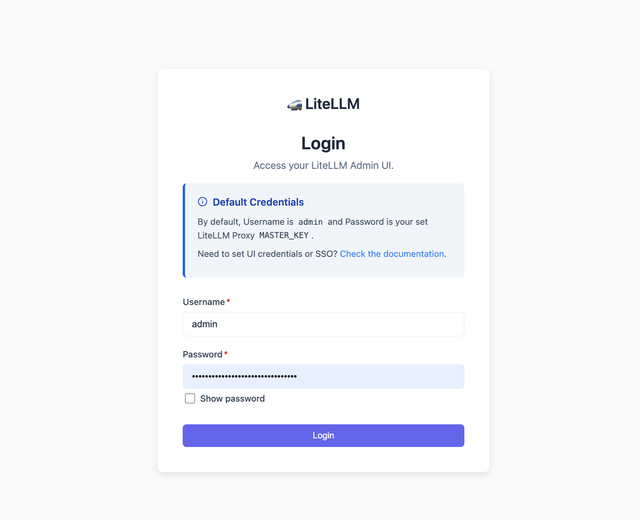
Debugging SSO JWT fields
- Set
ENABLE_SSO_DEBUG="true"and restart the proxy. Debug routes return 404 while this is disabled. - Register
<PROXY_BASE_URL>/sso/debug/callbackas an additional redirect URI at your provider. - Open
<PROXY_BASE_URL>/sso/debug/loginand complete sign-in. - Inspect the returned fields on the SSO Debug Information page, then unset
ENABLE_SSO_DEBUGwhen finished.
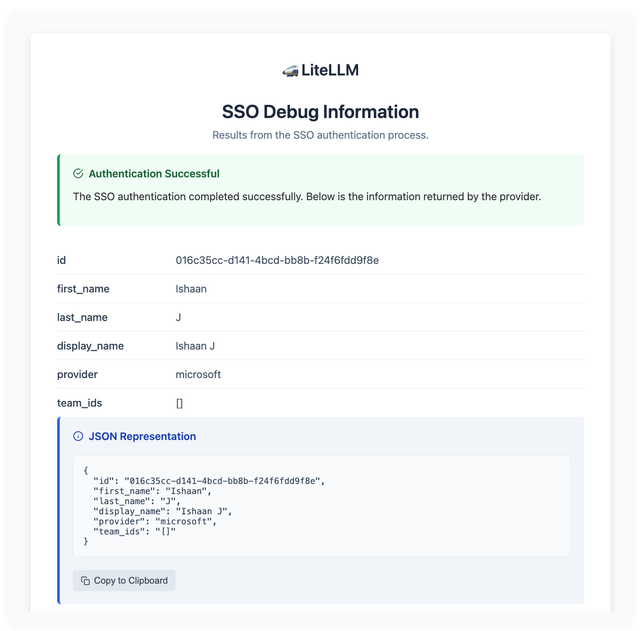
Related guides
- SSO permissions: sign-in restrictions, roles, team membership, and key creation.
- CLI sign-in: sign in from a command-line client.
- Custom SSO: customize the sign-in integration.
- Customize UI branding: logos and color themes.