Claude Code Quickstart
This tutorial shows how to call Claude models through LiteLLM proxy from Claude Code.
This tutorial is based on Anthropic's official LiteLLM configuration documentation. This integration allows you to use any LiteLLM supported model through Claude Code with centralized authentication, usage tracking, and cost controls.
Video Walkthrough
Prerequisites
- Claude Code installed
- API keys for your chosen providers
Installation
First, install LiteLLM with proxy support:
uv tool install 'litellm[proxy]'
1. Setup config.yaml
Create a secure configuration using environment variables:
model_list:
  # Configure the models you want to use
  - model_name: claude-opus-4-7
    litellm_params:
      model: anthropic/claude-opus-4-7
      api_key: os.environ/ANTHROPIC_API_KEY

  - model_name: claude-sonnet-4-6
    litellm_params:
      model: anthropic/claude-sonnet-4-6
      api_key: os.environ/ANTHROPIC_API_KEY

  - model_name: claude-haiku-4-5-20251001
    litellm_params:
      model: anthropic/claude-haiku-4-5-20251001
      api_key: os.environ/ANTHROPIC_API_KEY

general_settings:
  master_key: os.environ/LITELLM_MASTER_KEY
Set your environment variables:
export ANTHROPIC_API_KEY="your-anthropic-api-key"
export LITELLM_MASTER_KEY="sk-<paste-a-long-random-key>"  # Generate a secure key
Alternatively, you can store ANTHROPIC_API_KEY in a .env file in your proxy directory. LiteLLM will automatically load it when starting.
2. Start proxy
litellm --config /path/to/config.yaml

# RUNNING on http://0.0.0.0:4000
3. Verify Setup
Test that your proxy is working correctly:
curl -X POST http://0.0.0.0:4000/v1/messages \
-H "Authorization: Bearer $LITELLM_MASTER_KEY" \
-H "Content-Type: application/json" \
-d '{
    "model": "claude-opus-4-7",
    "max_tokens": 1000,
    "messages": [{"role": "user", "content": "What is the capital of France?"}]
}'
4. Configure Claude Code
Static API key
Set a fixed LiteLLM key as ANTHROPIC_AUTH_TOKEN:
export ANTHROPIC_AUTH_TOKEN="$LITELLM_KEY"
$LITELLM_KEY can be your proxy master key or a virtual key. A master key gives Claude Code access to all proxy models. A virtual key is limited to the models that key has access to.
Method 1: Unified Endpoint (Recommended)
Configure Claude Code to use LiteLLM's unified endpoint:
export ANTHROPIC_BASE_URL="http://0.0.0.0:4000"
Method 2: Provider-specific Pass-through Endpoint
Alternatively, use the Anthropic pass-through endpoint:
export ANTHROPIC_BASE_URL="http://0.0.0.0:4000/anthropic"
Dynamic API key with helper
For rotating keys or per-user authentication, Claude Code can run a script to fetch a key (for example, a JWT) instead of a static ANTHROPIC_AUTH_TOKEN.
- Create an API key helper script:
#!/bin/bash
# ~/bin/get-litellm-key.sh

# Example: Generate JWT token
jwt encode \
  --secret="${JWT_SECRET}" \
  --exp="+1h" \
  '{"user":"'${USER}'","team":"engineering"}'
- Configure Claude Code settings to use the helper:
{
  "apiKeyHelper": "~/bin/get-litellm-key.sh"
}
- Set token refresh interval:
# Refresh every hour (3600000 ms)
export CLAUDE_CODE_API_KEY_HELPER_TTL_MS=3600000
This value will be sent as Authorization and X-Api-Key headers. The apiKeyHelper has lower precedence than ANTHROPIC_AUTH_TOKEN or ANTHROPIC_API_KEY.
5. Use Claude Code
Start Claude Code with the model you want to use:
# Specify model at startup (Opus 4.7 — newest Claude Code model)
claude --model claude-opus-4-7

# Or specify a different model
claude --model claude-sonnet-4-6
claude --model claude-haiku-4-5-20251001

# Or change model during a session
claude
/model claude-opus-4-7
Alternatively, set default models with environment variables:
export ANTHROPIC_DEFAULT_OPUS_MODEL=claude-opus-4-7
export ANTHROPIC_DEFAULT_SONNET_MODEL=claude-sonnet-4-6
export ANTHROPIC_DEFAULT_HAIKU_MODEL=claude-haiku-4-5-20251001
claude
Using 1M Context Window
Claude Code supports extended context (1 million tokens) using the [1m] suffix:
# Use Opus 4.7 with 1M context (requires quotes in shell)
claude --model 'claude-opus-4-7[1m]'

# Inside a Claude Code session (no quotes needed)
/model claude-opus-4-7[1m]
Important: When using --model with [1m] in the shell, you must use quotes to prevent the shell from interpreting the brackets.
How it works:
- Claude Code strips the
[1m]suffix before sending to LiteLLM - Claude Code automatically adds the header
anthropic-beta: context-1m-2025-08-07 - Your LiteLLM config should NOT include
[1m]in model names
Verify 1M context is active:
/context
# Should show: 21k/1000k tokens (2%)
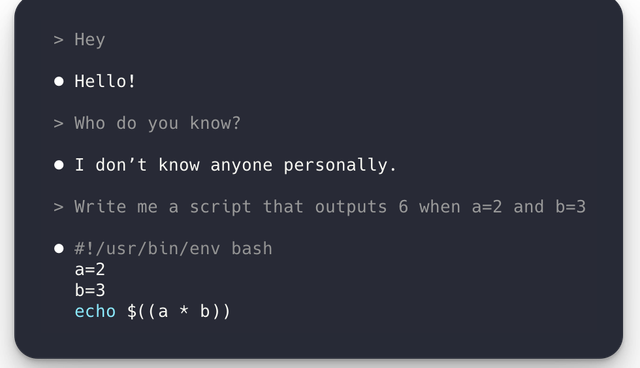
Example conversation:
Troubleshooting
Common issues and solutions:
Claude Code not connecting:
- Verify your proxy is running:
curl http://0.0.0.0:4000/health - Check that
ANTHROPIC_BASE_URLis set correctly - Ensure your
ANTHROPIC_AUTH_TOKENmatches your LiteLLM master key
Authentication errors:
- Verify your environment variables are set:
echo $LITELLM_MASTER_KEY - Check that your API keys are valid and have sufficient credits
- Ensure the
ANTHROPIC_AUTH_TOKENmatches your LiteLLM master key
Model not found:
- Ensure the model name in Claude Code matches exactly with your
config.yaml - Use
--modelflag or environment variables to specify the model - Check LiteLLM logs for detailed error messages
MCP tools filling the context window:
- Claude Code turns its tool search off when
ANTHROPIC_BASE_URLis not a first-party Anthropic host, so/contextshows every MCP tool schema inlined instead ofloaded on-demand - Set the
ENABLE_TOOL_SEARCH=trueenvironment variable, ideally in theenvblock of.claude/settings.json; see Keep MCP tools out of the context window
Using Bedrock/Vertex AI/Azure Foundry Models
Expand your configuration to support multiple providers and models:
Compatibility between Claude Code features and each provider (Anthropic, Bedrock, Vertex AI, Azure) changes as Claude Code and LiteLLM ship updates. The Claude Code × LiteLLM compatibility matrix is regenerated daily against the latest stable LiteLLM proxy across Haiku 4.5, Sonnet 4.6, and Opus 4.7. Check it first to see which (feature, provider) cells are currently green.
- Multi-Provider Setup
model_list:
  # Anthropic models
  - model_name: claude-opus-4-7
    litellm_params:
      model: anthropic/claude-opus-4-7
      api_key: os.environ/ANTHROPIC_API_KEY

  - model_name: claude-sonnet-4-6
    litellm_params:
      model: anthropic/claude-sonnet-4-6
      api_key: os.environ/ANTHROPIC_API_KEY

  # AWS Bedrock (Invoke — recommended for Claude Code today, see note below)
  - model_name: claude-bedrock-opus
    litellm_params:
      model: bedrock/invoke/us.anthropic.claude-opus-4-7
      aws_access_key_id: os.environ/AWS_ACCESS_KEY_ID
      aws_secret_access_key: os.environ/AWS_SECRET_ACCESS_KEY
      aws_region_name: us-west-2

  - model_name: claude-bedrock-sonnet
    litellm_params:
      model: bedrock/invoke/us.anthropic.claude-sonnet-4-6
      aws_access_key_id: os.environ/AWS_ACCESS_KEY_ID
      aws_secret_access_key: os.environ/AWS_SECRET_ACCESS_KEY
      aws_region_name: us-west-2

  - model_name: claude-bedrock-haiku
    litellm_params:
      model: bedrock/invoke/us.anthropic.claude-haiku-4-5-20251001-v1:0
      aws_access_key_id: os.environ/AWS_ACCESS_KEY_ID
      aws_secret_access_key: os.environ/AWS_SECRET_ACCESS_KEY
      aws_region_name: us-west-2

  # Azure Foundry
  - model_name: claude-opus-azure
    litellm_params:
      model: azure_ai/claude-opus-4-7
      api_key: os.environ/AZURE_AI_API_KEY
      api_base: os.environ/AZURE_AI_API_BASE # https://my-resource.services.ai.azure.com/anthropic

  # Google Vertex AI
  - model_name: claude-opus-vertex
    litellm_params:
      model: vertex_ai/claude-opus-4-7
      vertex_ai_project: "my-test-project"
      vertex_ai_location: "us-east5"
      vertex_credentials: os.environ/VERTEX_FILE_PATH_ENV_VAR # os.environ["VERTEX_FILE_PATH_ENV_VAR"] = "/path/to/service_account.json"

general_settings:
  master_key: os.environ/LITELLM_MASTER_KEY
Switch between models without code changes:
# Use Anthropic API directly (newest Claude Code model)
claude --model claude-opus-4-7

# Use Bedrock deployment (Opus 4.7 via Invoke)
claude --model claude-bedrock-opus

# Use Azure Foundry deployment
claude --model claude-opus-azure

# Use Vertex AI deployment
claude --model claude-opus-vertex
Bedrock-specific setup for Claude Code
Two extra steps make Claude Code work cleanly against Bedrock through LiteLLM today. Please do both before launching claude against a Bedrock-backed model.
The Invoke preference and the beta-header flag below are temporary. LiteLLM already re-implements many Anthropic-API features on top of Bedrock inside the gateway, and we're steadily extending that coverage on the Converse path. Soon, these workarounds will no longer be necessary.
1. Prefer Bedrock Invoke
In the config above, Bedrock models use the bedrock/invoke/<model-id> prefix, currently the smoother path for Claude Code traffic. If you'd like to try Converse, swap the prefix from bedrock/invoke/ to bedrock/converse/ and check the matrix for the feature you need.
2. Disable Claude Code's experimental beta headers for Bedrock
Claude Code attaches Anthropic experimental beta headers (e.g. anthropic-beta: prompt-caching-scope-2026-01-05,advanced-tool-use-2025-11-20) on every request. These work great against Anthropic's first-party API, but Bedrock doesn't currently accept all of them and might return a 400 invalid beta flag error. Set the CLAUDE_CODE_DISABLE_EXPERIMENTAL_BETAS environment variable to 1 to strip those headers.
The recommended place to set it is your global Claude Code user settings file at:
~/.claude/settings.json
(That's /Users/<you>/.claude/settings.json on macOS / Linux, or C:\Users\<you>\.claude\settings.json on Windows. All Claude Code clients, incl. CLI, VS Code extension, JetBrains plugin, etc., read from this file.)
How to edit it:
-
Open
~/.claude/settings.jsonin your editor of choice. If it doesn't exist yet, create it.# macOS / Linux - open with your default editor
${EDITOR:-nano} ~/.claude/settings.json
# Or with VS Code
code ~/.claude/settings.json -
Add (or merge into the existing)
envblock:~/.claude/settings.json{
"env": {
"CLAUDE_CODE_DISABLE_EXPERIMENTAL_BETAS": "1"
}
} -
Fully quit and reopen Claude Code so the new setting is picked up. For IDE plugins (VS Code, JetBrains), restart your IDE.
If you only want to disable beta headers for a single project, put the same env block in .claude/settings.json (committed) or .claude/settings.local.json (gitignored, personal) at the project root.
Shell-level exports also work for the CLI (export CLAUDE_CODE_DISABLE_EXPERIMENTAL_BETAS=1 before launching claude), but not IDE plugins.