Cursor Integration
Route Cursor IDE requests through LiteLLM for unified logging, budget controls, and access to any model. To connect Cursor to MCP tools, use the direct-client URL and headers in the MCP Configuration Reference
Supported modes: Ask, Plan, Agent. With the base URL override, agent mode works Since v1.97.0 because LiteLLM translates the Responses API request shapes Cursor's agent sends to the chat completions path. Cursor gates custom API keys by mode and model on its side, so coverage follows what Cursor enables.
Cursor does not officially support AI Gateways, our work here is best effort from reverse engineering their APIs. The Cursor CLI (agent / cursor-agent) cannot target LiteLLM at all, see Cursor CLI.
Newer Cursor builds no longer show the Override OpenAI Base URL setting on every plan. If your Cursor does not have it, use the Azure OpenAI fallback below instead of the setup in this section.
Quick Reference
| Setting | Value |
|---|---|
| Base URL | <LITELLM_PROXY_BASE_URL>/cursor |
| API Key | Your LiteLLM Virtual Key |
| Model | Public Model Name from LiteLLM |
Setup
1. Configure Base URL
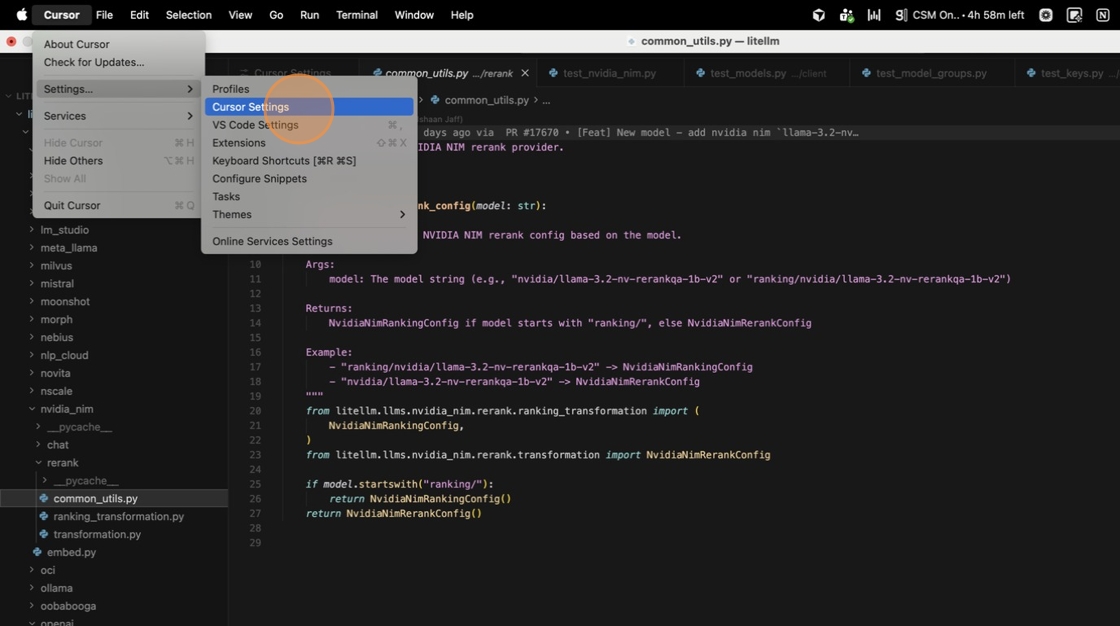
Open Cursor → Settings → Cursor Settings → Models.
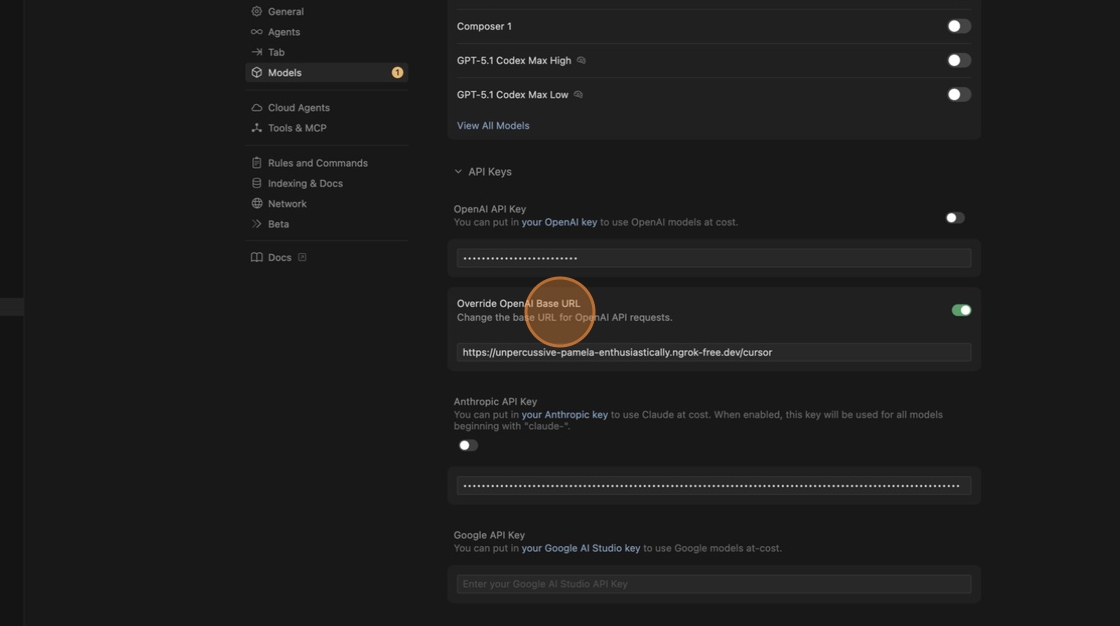
Enable Override OpenAI Base URL and enter your proxy URL with /cursor:
https://your-litellm-proxy.com/cursor
The proxy must be reachable from the internet: Cursor sends the requests from its own servers, not from your machine, with User-Agent: Cursor/1.0. A proxy behind a VPN or an IP allowlist, or on a private address, fails from Cursor's side before any request reaches LiteLLM; Troubleshooting lists what Cursor shows in each case.

2. Create Virtual Key
In LiteLLM Dashboard, go to Virtual Keys → + Create New Key.

Name your key and select which models it can access.
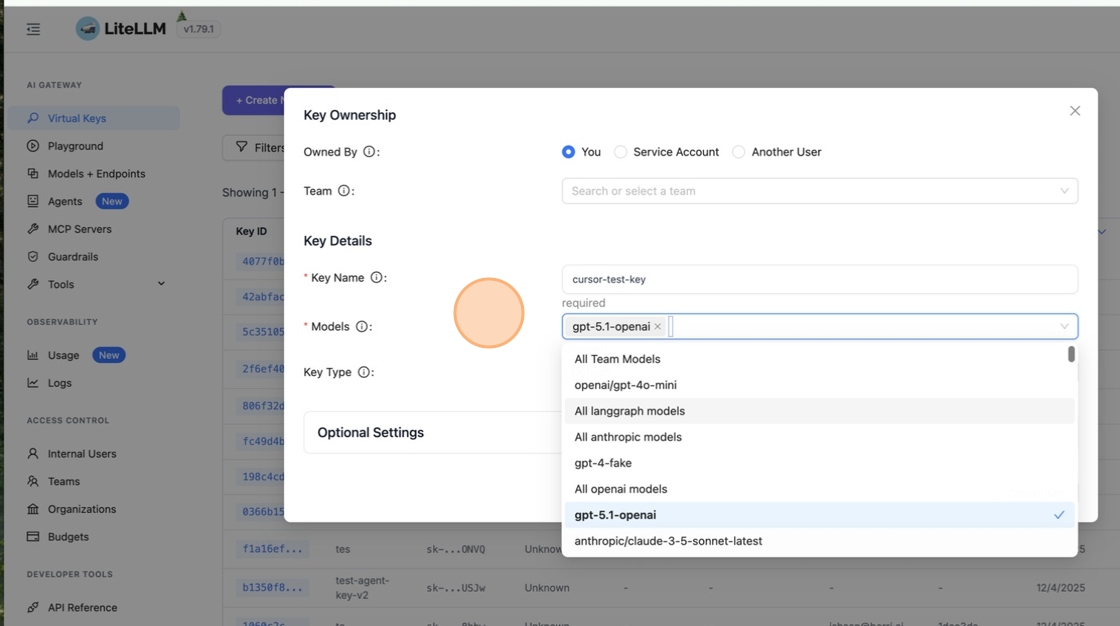
Click Create Key then copy it immediately, since you won't see it again.
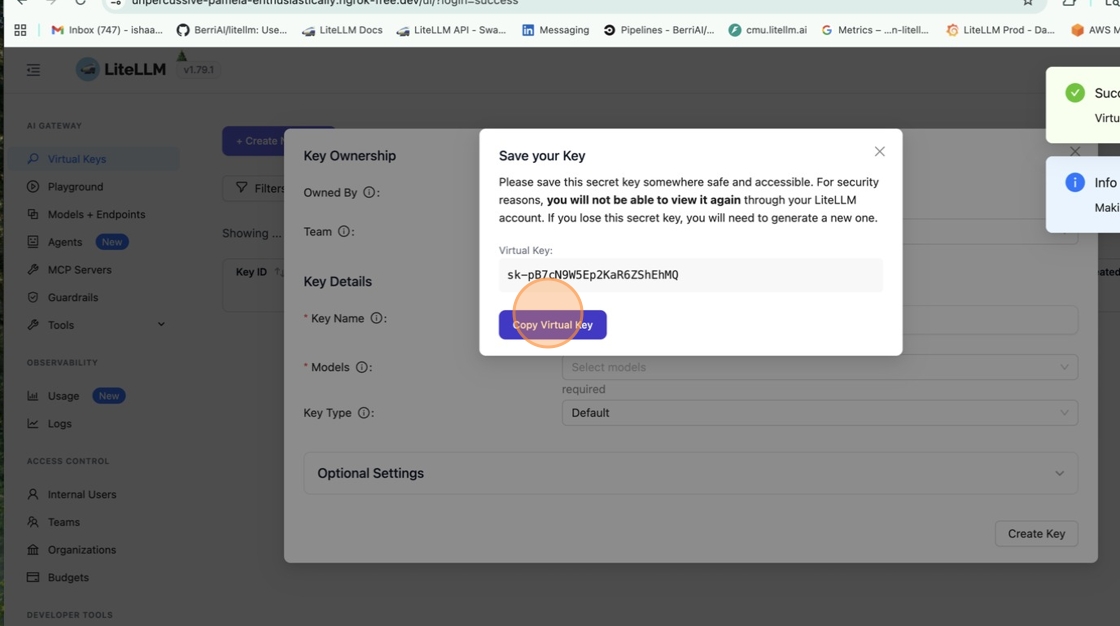
Paste it into the OpenAI API Key field in Cursor.
3. Add Custom Model
Click + Add Custom Model in Cursor Settings.
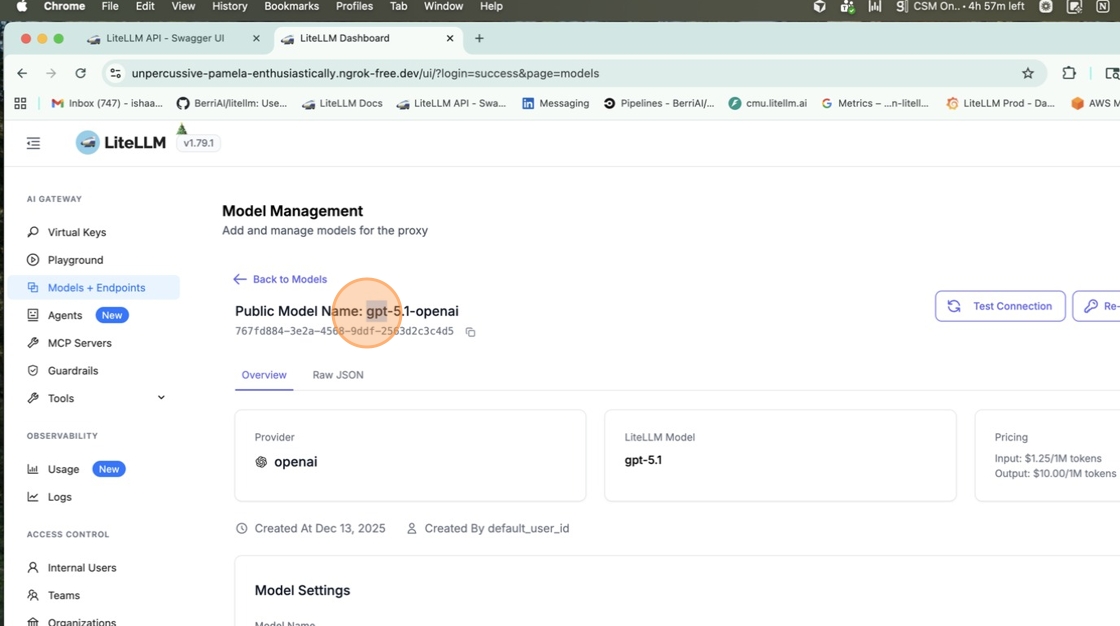
Get the Public Model Name from LiteLLM Dashboard → Models + Endpoints.
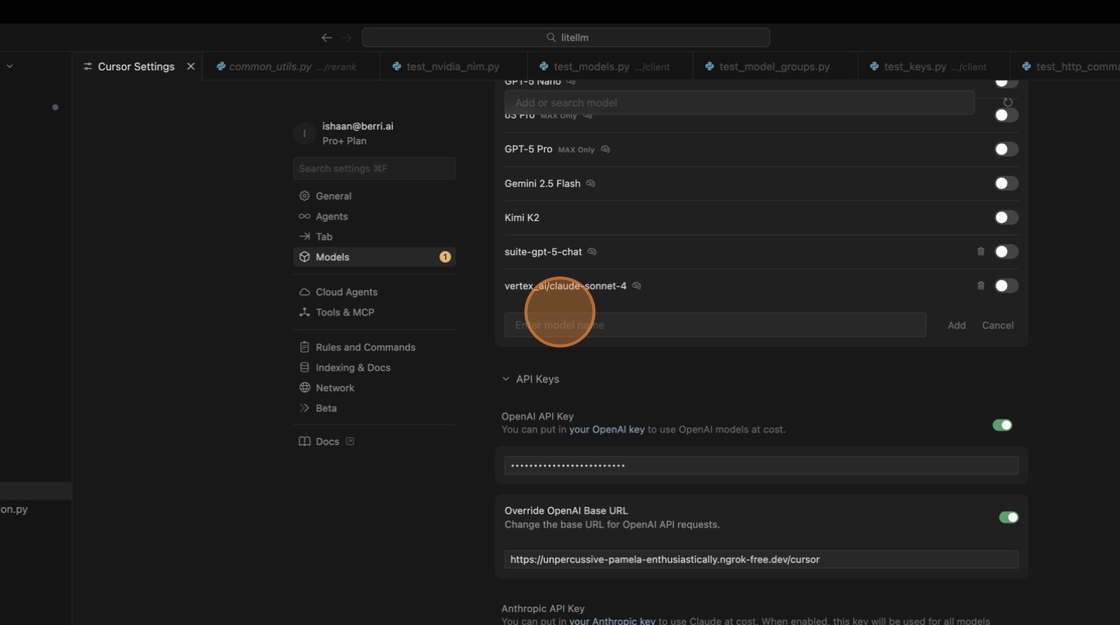
Paste the name in Cursor and enable the toggle.

Cursor rejects a custom model whose name matches one of its built-in models with The model "X" is already available as "Y". Cursor runs this check locally, before any request reaches LiteLLM. Add a model_list entry with a distinct public model name for the same deployment and use that name in Cursor:
model_list:
  - model_name: litellm-claude-sonnet-5
    litellm_params:
      model: anthropic/claude-sonnet-5
Cursor's model picker can emit thinking and fast variants of a model name, e.g. claude-opus-5-thinking-high or claude-opus-5-fast. Since v1.97.0 LiteLLM strips a trailing -fast and a -thinking-<effort> suffix, where <effort> is a reasoning_effort value (none, minimal, low, medium, high, xhigh, max) that LiteLLM forwards as the request's reasoning effort unless the request already sets one. Key scopes and per-model budgets apply to the resolved model, so you don't need separate model_list entries for these variants. A bare -thinking suffix with no effort level, e.g. claude-opus-5-thinking, is not resolved and returns Invalid model name unless it has its own model_list entry
4. Test
Open Ask mode with Cmd+L / Ctrl+L and select your model.

Send a message. All requests now route through LiteLLM.

Fallback: Azure OpenAI settings
If your Cursor build has no Override OpenAI Base URL setting, Cursor's Azure OpenAI settings still accept a custom base URL and route traffic to your LiteLLM proxy. This path uses LiteLLM's Azure-compatible /openai/deployments/<deployment>/chat/completions route, which has been in LiteLLM since 2023, so it needs no proxy upgrade. Ask, Plan, and Agent modes all work over it (verified on Cursor 3.17.21); Cursor's Azure client sends plain chat completions requests for agent mode too, so the v1.97.0 requirement from the base URL override path does not apply here.
| Setting | Value |
|---|---|
| Base URL | <LITELLM_PROXY_BASE_URL> (no /cursor suffix) |
| Deployment Name | Public Model Name from LiteLLM |
| API Key | Your LiteLLM Virtual Key |
1. Enable Azure OpenAI
Open Cursor → Settings → Cursor Settings → Models, expand API Keys, and enable the Azure OpenAI toggle. Cursor shows a confirmation dialog warning that some features cannot be billed to an API key; confirm it.
Fill in the fields:
- Base URL: your LiteLLM proxy URL, e.g.
https://your-litellm-proxy.com. Do not append/cursor. The proxy must be reachable from the internet: Cursor sends requests from its backend, not from your machine. - Deployment Name: the LiteLLM public model name to use, e.g.
claude-sonnet-5. This decides which model serves every request (see the warning below). - API Key: your LiteLLM virtual key.
2. Add a custom model
While the Azure OpenAI toggle is on, only custom models work. Cursor refuses its own models (Composer, Cursor Grok) with This model does not support custom API keys, and it still routes built-in Claude and GPT models to your proxy, but in Anthropic Messages or Azure Responses formats that the chat completions deployment route rejects, so those chats hang. Click + Add Custom Model, enter a name that does not collide with a built-in model (e.g. litellm-claude), enable it, and select it in the chat model picker.
To use Composer or another built-in model on your Cursor subscription, turn the Azure OpenAI toggle off; turn it back on to route through LiteLLM again.
On this path, Cursor sends every request to /openai/deployments/<Deployment Name>/chat/completions, and LiteLLM serves the model the path names. The custom model you pick in Cursor is only a label: picking a different custom model does not change which model answers. To switch models, edit the Deployment Name in the Azure OpenAI settings. Keep a single enabled custom model so the picker cannot mislead you.
3. Test
Send a message in Ask mode, then try Agent mode. Requests appear in your LiteLLM logs as chat completions on /openai/deployments/<Deployment Name>/chat/completions, attributed to the deployment's model.
Connecting MCP Servers
You can also connect MCP servers to Cursor via LiteLLM Proxy.
For official instructions on configuring MCP integration with Cursor, please refer to the Cursor documentation here: https://cursor.com/en-US/docs/context/mcp.
-
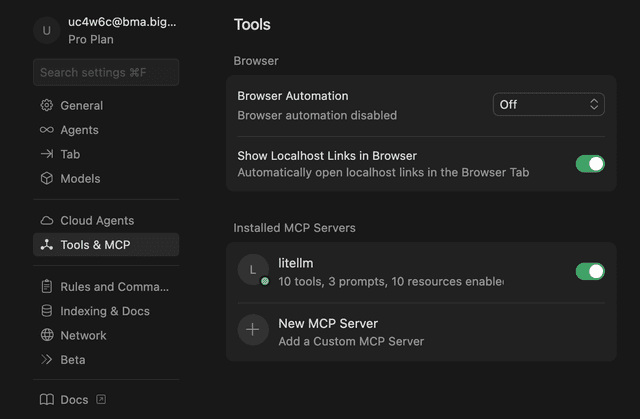
In Cursor Settings, go to the "Tools & MCP" tab and click "New MCP Server".
-
In your
mcp.json, add the following configuration:
{
  "mcpServers": {
    "litellm": {
      "url": "http://localhost:4000/everything/mcp",
      "type": "http",
      "headers": {
        "Authorization": "Bearer sk-LITELLM_VIRTUAL_KEY"
      }
    }
  }
}
- LiteLLM's MCP will now appear under "Installed MCP Servers" in Cursor.
Cursor Cloud Agents
LiteLLM can also front the Cursor Cloud Agents API, so agents launched over api.cursor.com get the same credential management and logging. See Cursor Cloud Agents.
Cursor CLI (cursor-agent)
The Cursor CLI (agent, also installed as cursor-agent) cannot target LiteLLM or any other gateway. Its --endpoint flag and CURSOR_API_ENDPOINT variable pick which Cursor backend the CLI logs in to, not an OpenAI-compatible API: on startup the CLI posts your key to <endpoint>/auth/exchange_user_api_key to trade it for Cursor session tokens, and every request after that is a Cursor-private RPC. Cursor does not document the flag and does not offer a custom endpoint or an OpenAI-compatible key in the CLI (open feature request); its one bring-your-own-credentials option, agent bedrock, still routes through Cursor's backend.
Pointing the CLI at a proxy fails before any model is reached (verified on the public Cursor CLI 2026.08.31 build):
export CURSOR_API_KEY=<LITELLM_VIRTUAL_KEY>
agent --endpoint https://your-litellm-proxy.com
⚠ Warning: The provided API key is invalid.
The API key was loaded from the CURSOR_API_KEY environment variable.
Please check you have the right key, create a new one, or authenticate without it.
The CLI prints this warning for any answer below 500 that does not carry Cursor session tokens (a 5xx gets a fixed Failed to reach the Cursor API error instead), so a proxy without that route (LiteLLM answers 404 at the root and 401 under /cursor) looks exactly like a wrong Cursor key, and no text from the proxy ever reaches the screen. To route Cursor through LiteLLM use the Cursor IDE setup on this page; for a terminal agent that supports custom endpoints, see Claude Code, Codex CLI, Gemini CLI, or OpenCode.
Troubleshooting
| Issue | Solution |
|---|---|
| Model not responding | Check base URL ends with /cursor and key has model access |
The provided API key is invalid from the Cursor CLI (agent / cursor-agent) | The Cursor CLI cannot use a gateway: --endpoint selects a Cursor backend, not an OpenAI-compatible API, so its login fails with this warning on any proxy that lacks Cursor's auth route. See Cursor CLI |
Invalid API key / Unauthorized User API key | Cursor shows this when the proxy answers 401. The API Key field must hold a LiteLLM virtual key (it starts with sk-); a placeholder value is rejected |
User API Key Rate limit exceeded | Cursor shows this when its request to the proxy gets a 429 or a 5xx, and also when it gets no answer at all, which is what a VPN or an IP allowlist that drops traffic from Cursor's servers looks like (verified on Cursor 3.18.25: the chat sits on Taking longer than expected for about a minute, then shows this). So the cause is often not a rate limit. First, from a machine outside your network, run curl <LITELLM_PROXY_BASE_URL>/cursor/models -H "Authorization: Bearer <LITELLM_VIRTUAL_KEY>"; if it hangs, the proxy is unreachable from the internet and LiteLLM never saw the requests. If it answers, look up the requests in the LiteLLM logs (they arrive with User-Agent: Cursor/1.0) for the real error. Frequent causes there are rpm or tpm limits on the key, since each Cursor request carries a system prompt of about 25k tokens, and provider 429s |
Network Error / We're having trouble connecting to the model provider | The base URL hostname does not resolve on the public internet, e.g. an internal DNS name. Cursor shows Rate limited by model provider, retrying while it retries for about a minute, then this. Use a hostname that public DNS resolves |
Provider returned error: Access to private networks is forbidden | The base URL points at a private address (10.x, 192.168.x, localhost, and the like), which Cursor's servers refuse to call. Put the proxy on a public address |
| Agent mode not working | Agent mode works Since v1.97.0. Upgrade LiteLLM if you run an older version, and confirm the model supports custom API keys in Cursor |
| Cursor does not list your LiteLLM models | Upgrade LiteLLM. GET /cursor/models is served Since v1.97.0. Earlier versions do not serve that route and answer 401 or 404. Verify with curl <LITELLM_PROXY_BASE_URL>/cursor/models -H "Authorization: Bearer <LITELLM_VIRTUAL_KEY>" |
The model "X" is already available as "Y" | Cursor blocks names that match its built-in models. Add the model under a distinct public model name (see the warning in step 3) |
This model does not support custom API keys | You selected a Cursor-native model (Composer, Cursor Grok) while a custom API key is enabled. Select the custom model you added, or disable the Azure OpenAI toggle to use Cursor's models on your subscription |
| Chat hangs with a built-in model picked while Azure OpenAI is enabled | Cursor still routes built-in Claude and GPT models to your proxy, in formats the deployment route rejects. Select the custom model you added |
| No Override OpenAI Base URL setting | Your Cursor build does not offer it. Use the Azure OpenAI fallback |
| Azure fallback always answers with the same model | Expected: the Deployment Name decides the model, whichever custom model is picked. Edit the Deployment Name to switch |