UI - Router Settings for Keys and Teams
Configure router settings at the key and team level to achieve granular control over routing behavior, fallbacks, retries, and other router configurations. This enables you to customize routing behavior for specific keys or teams without affecting global settings.
Overview
Router Settings for Keys and Teams allows you to configure router behavior at different levels of granularity. Previously, router settings could only be configured globally, applying the same routing strategy, fallbacks, timeouts, and retry policies to all requests across your entire proxy instance.
With key-level and team-level router settings, you can now:
- Customize routing strategies per key or team (e.g., use
least-busyfor high-priority keys,latency-based-routingfor others) - Configure different fallback chains for different keys or teams
- Split traffic across deployments with deployment weights per key or team
- Set key-specific or team-specific timeouts and retry policies
- Apply different reliability settings (cooldowns, allowed failures) per key or team
- Override global settings when needed for specific use cases

Summary
Router settings follow a hierarchical resolution order: Keys > Teams > Global. When a request is made:
- Key-level settings are checked first. If router settings are configured for the API key being used, those settings are applied.
- Team-level settings are checked next. If the key belongs to a team and that team has router settings configured, those settings are used (unless key-level settings exist).
- Global settings are used as the final fallback. If neither key nor team settings are found, the global router settings from your proxy configuration are applied.
This hierarchical approach ensures that the most specific settings take precedence, allowing you to fine-tune routing behavior for individual keys or teams while maintaining sensible defaults at the global level.
How Router Settings Resolution Works
Router settings are resolved in the following priority order:
Resolution Order: Key > Team > Global
-
Key-level router settings (highest priority)
- Applied when router settings are configured directly on an API key
- Takes precedence over all other settings
- Useful for individual key customization
-
Team-level router settings (medium priority)
- Applied when the API key belongs to a team with router settings configured
- Only used if no key-level settings exist
- Useful for applying consistent settings across multiple keys in a team
-
Global router settings (lowest priority)
- Applied from your proxy configuration file or database
- Used as the default when no key or team settings are found
- Previously, this was the only option available
How to Configure Router Settings
Configuring Router Settings for Keys
Follow these steps to configure router settings for an API key:
- Navigate to http://localhost:4000/ui/?login=success
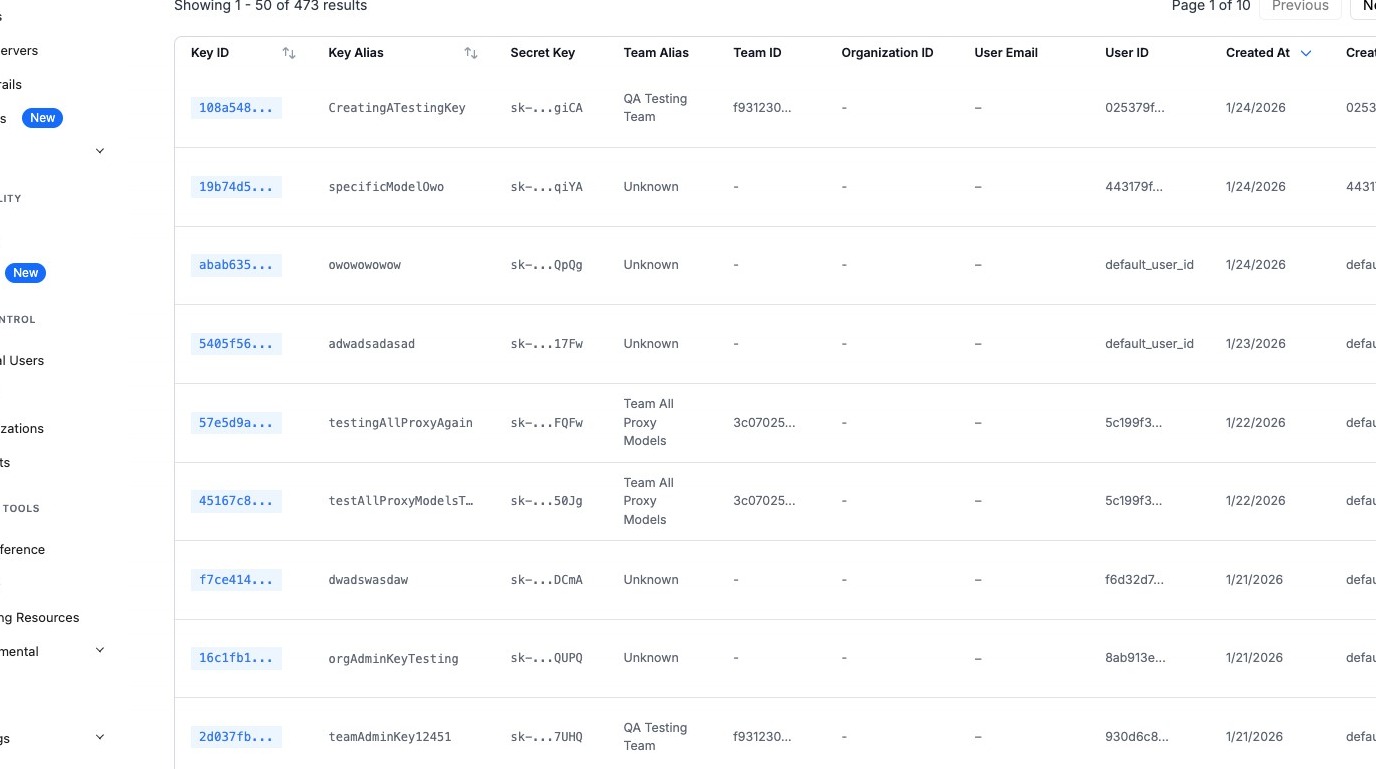
- Click "+ Create New Key" (or edit an existing key)
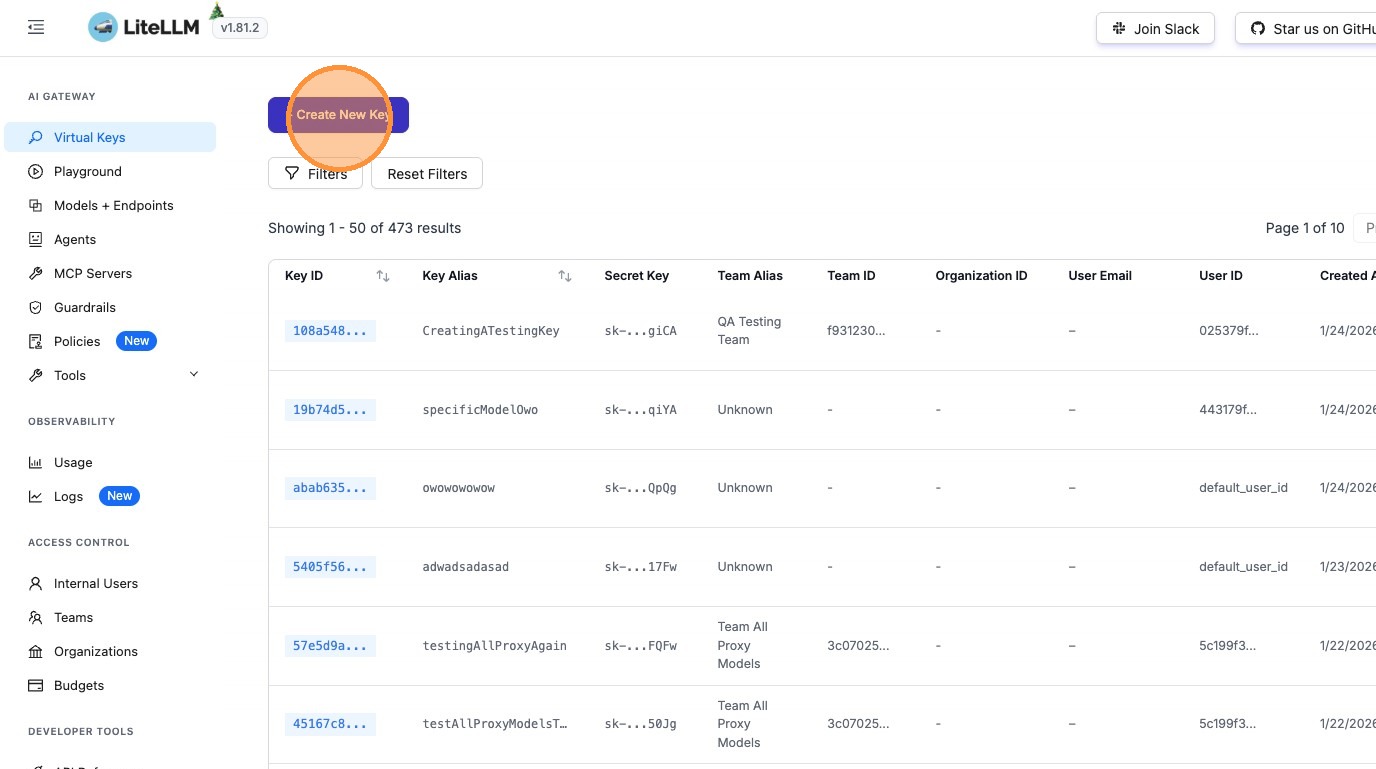
- Click "Optional Settings"
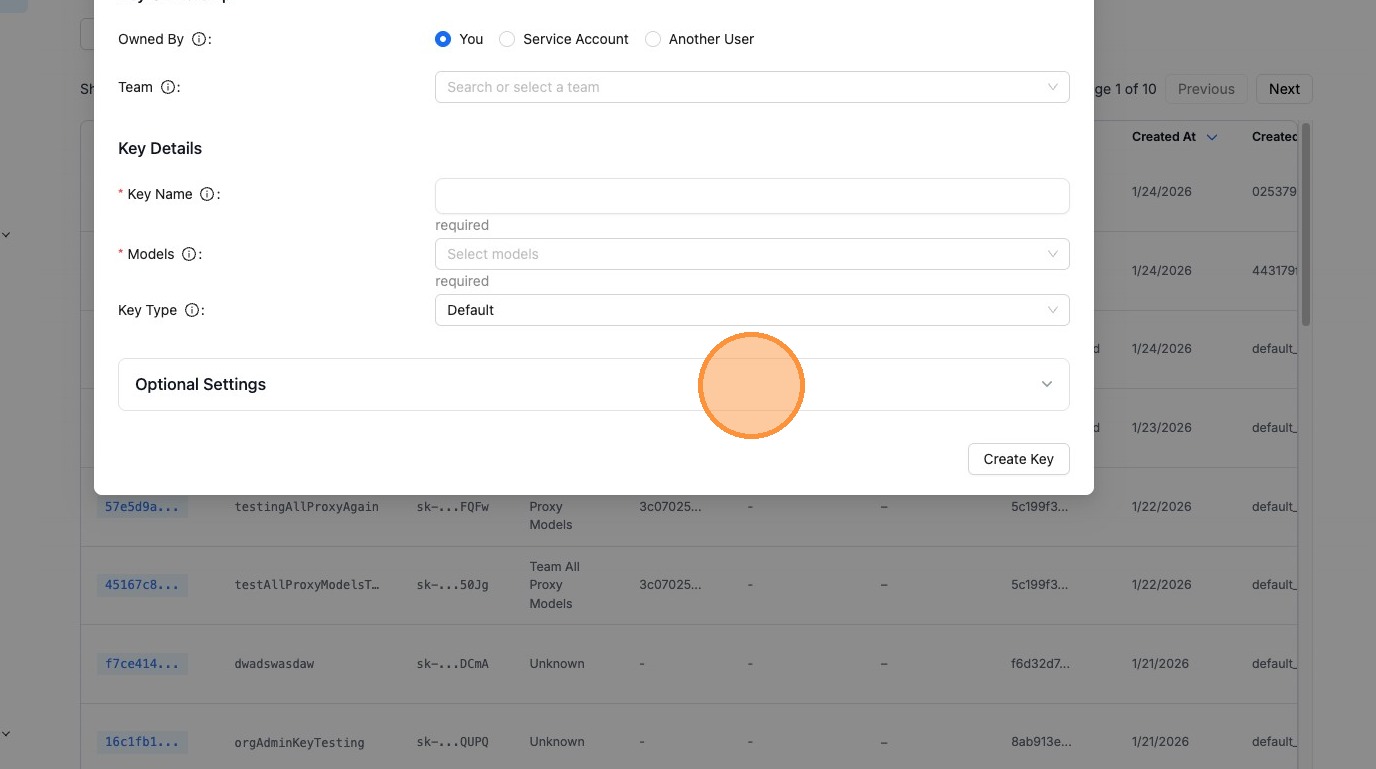
- Click "Router Settings"
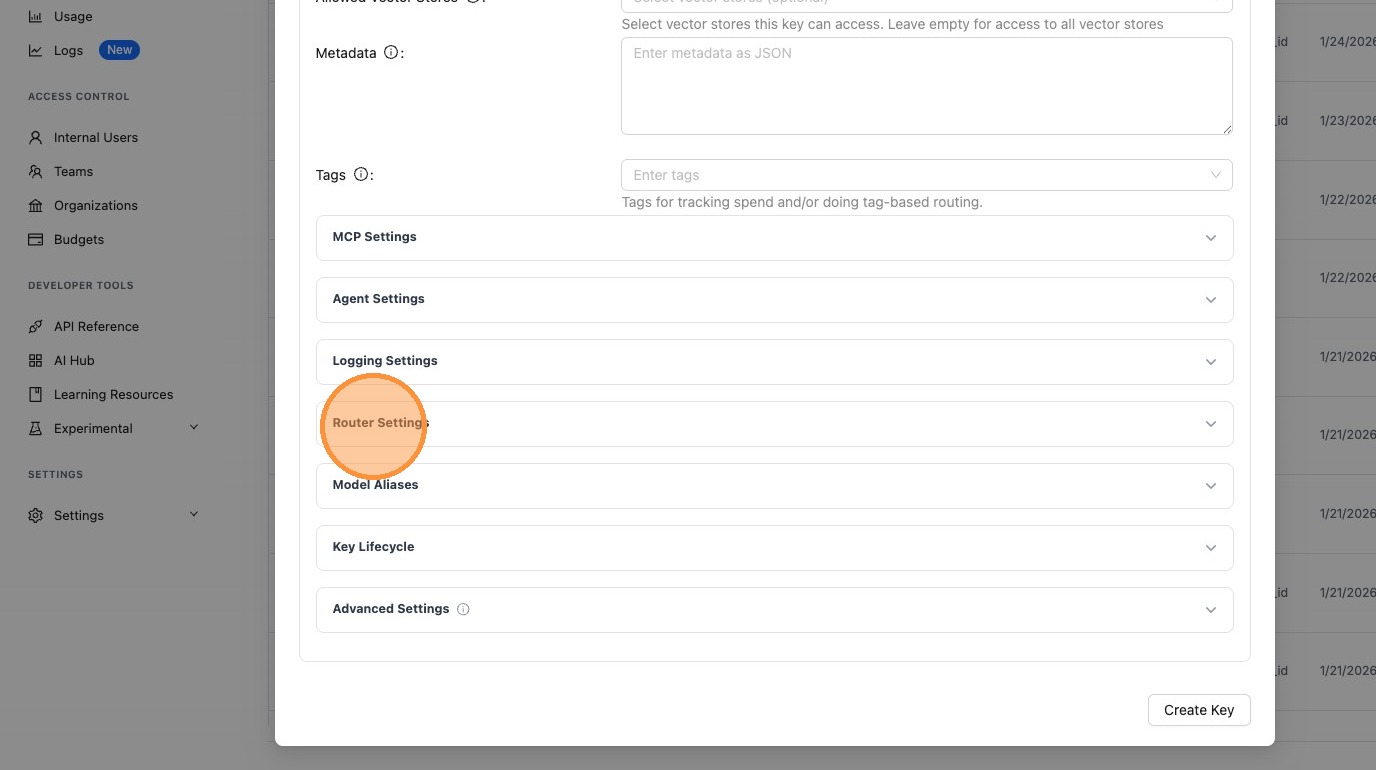
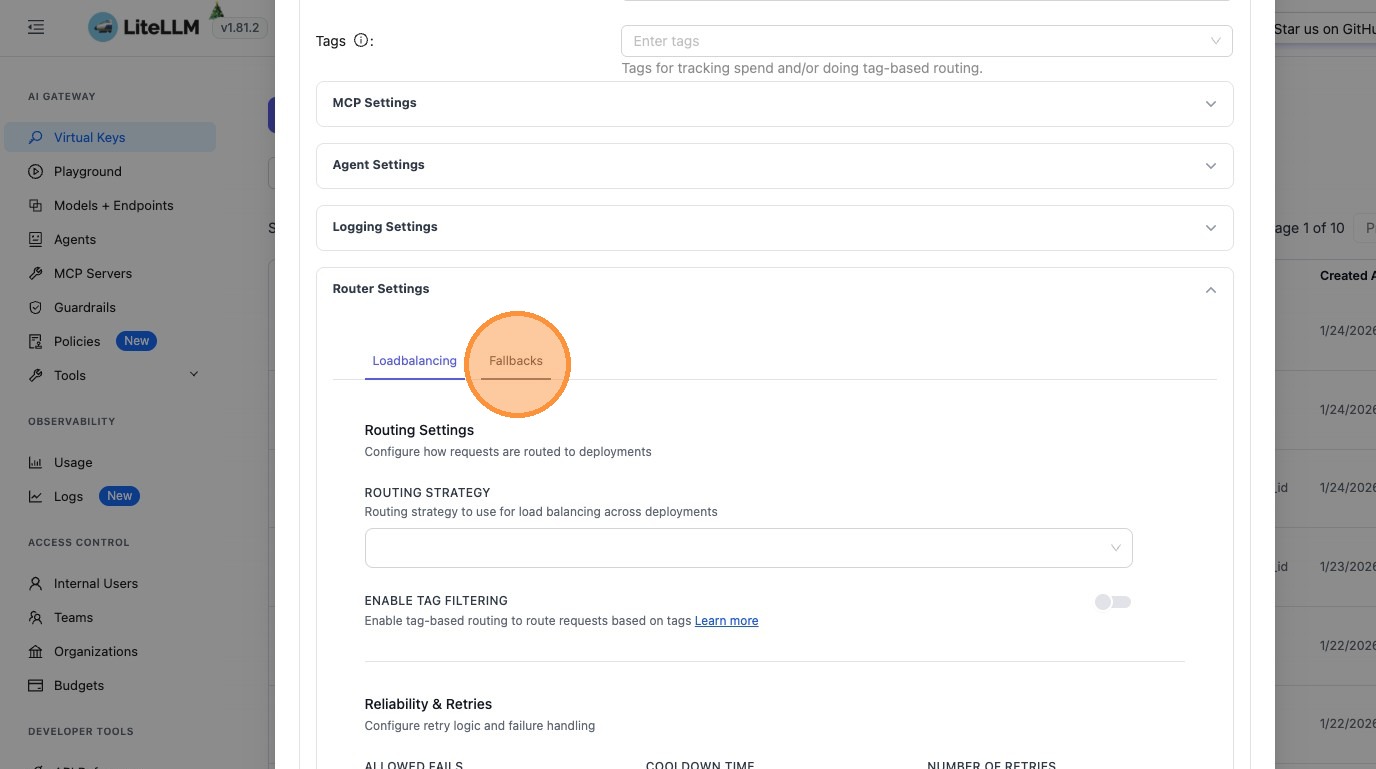
- Configure your desired router settings. For example, click "Fallbacks" to configure fallback models:
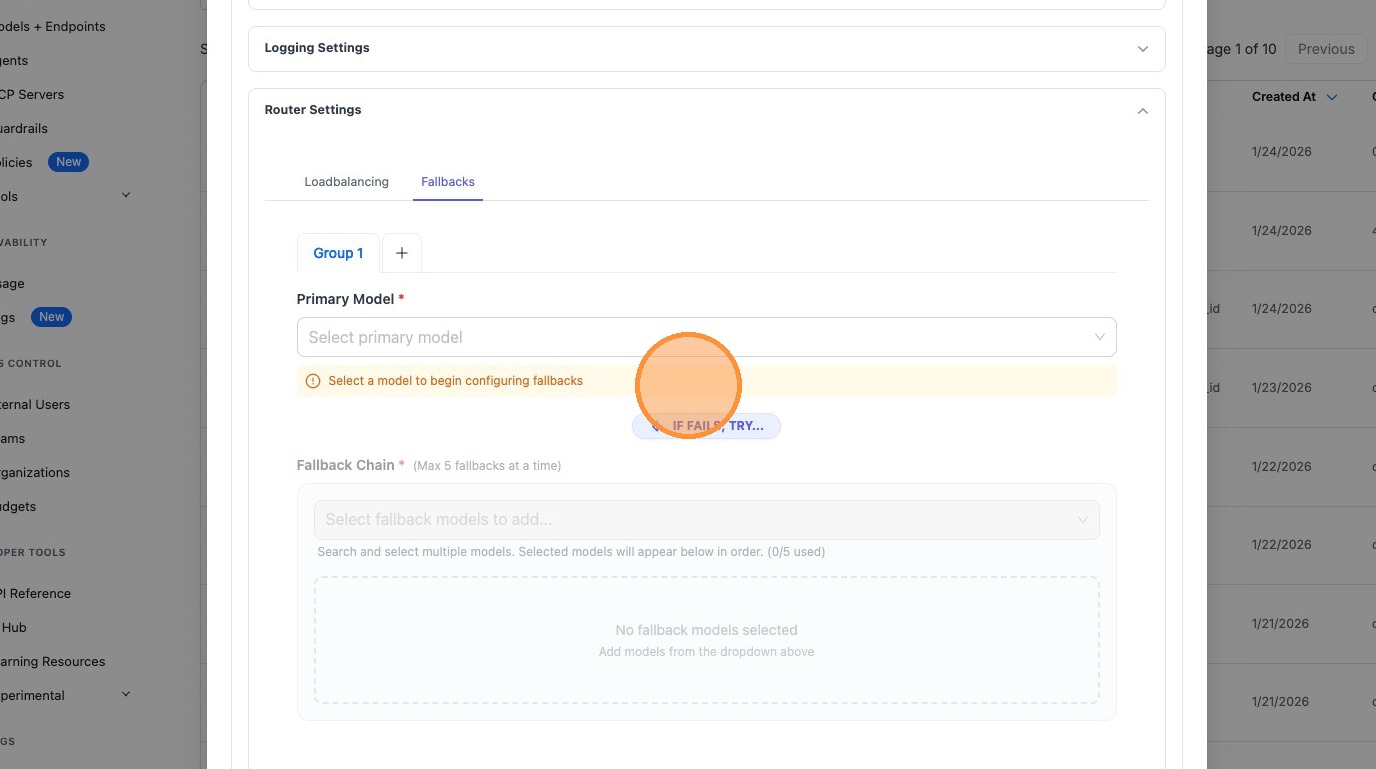
- Click "Select a model to begin configuring fallbacks" and configure your fallback chain:
Configuring Router Settings for Teams
Follow these steps to configure router settings for a team:
- Navigate to http://localhost:4000/ui/?login=success
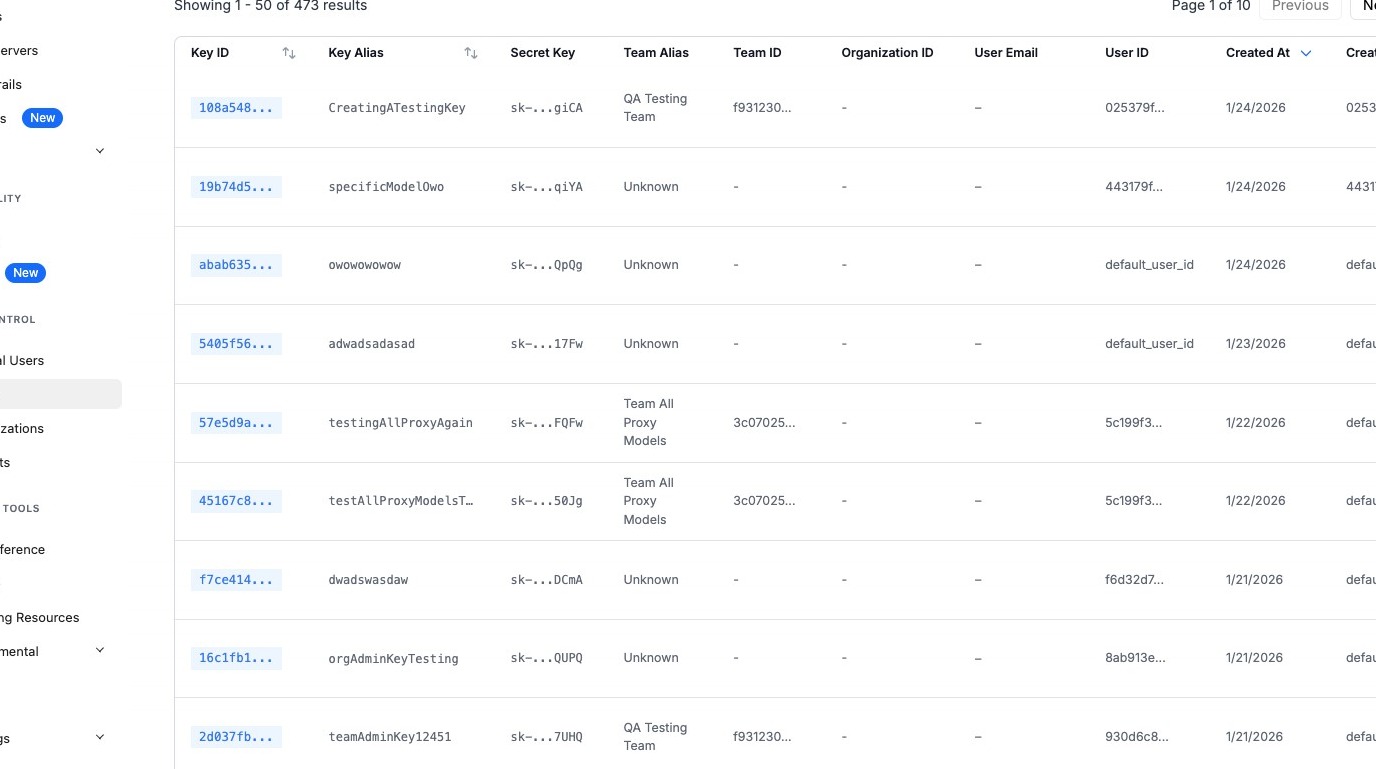
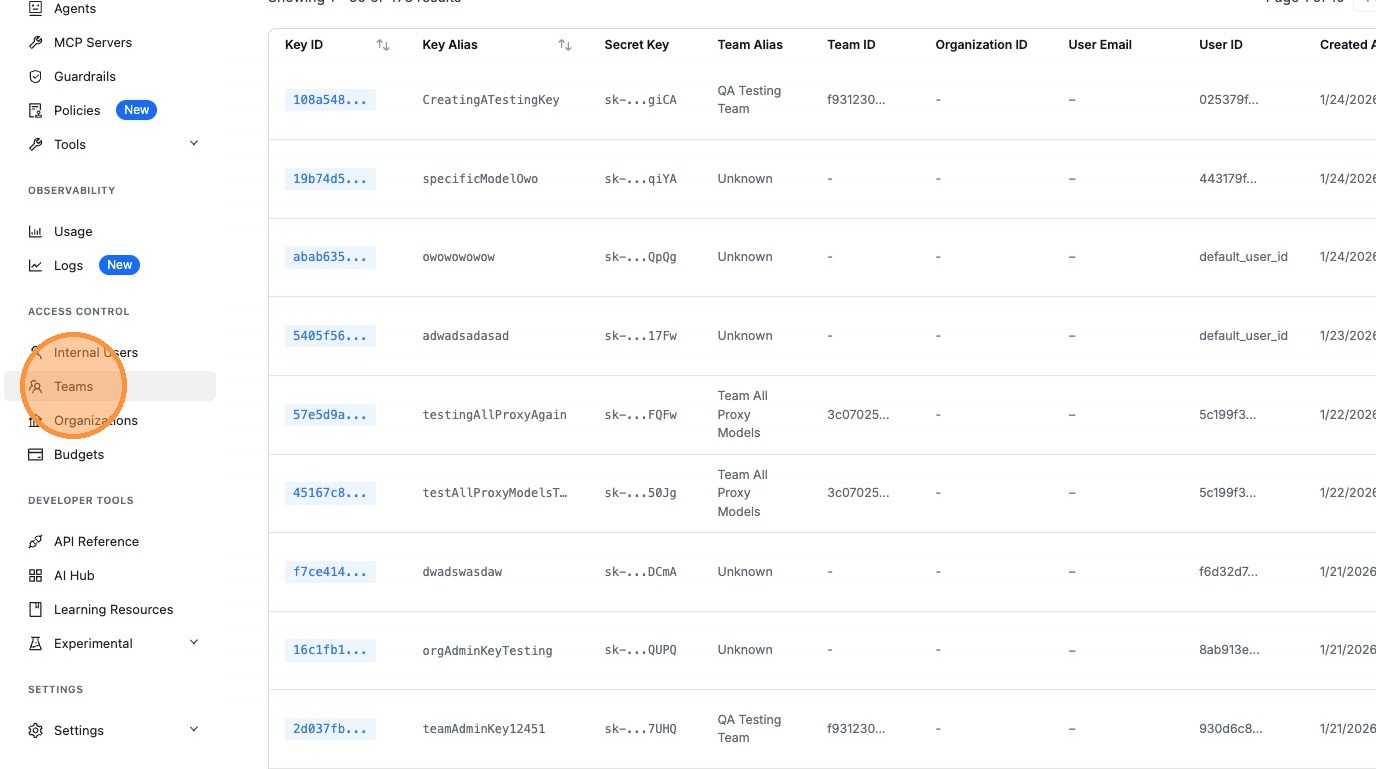
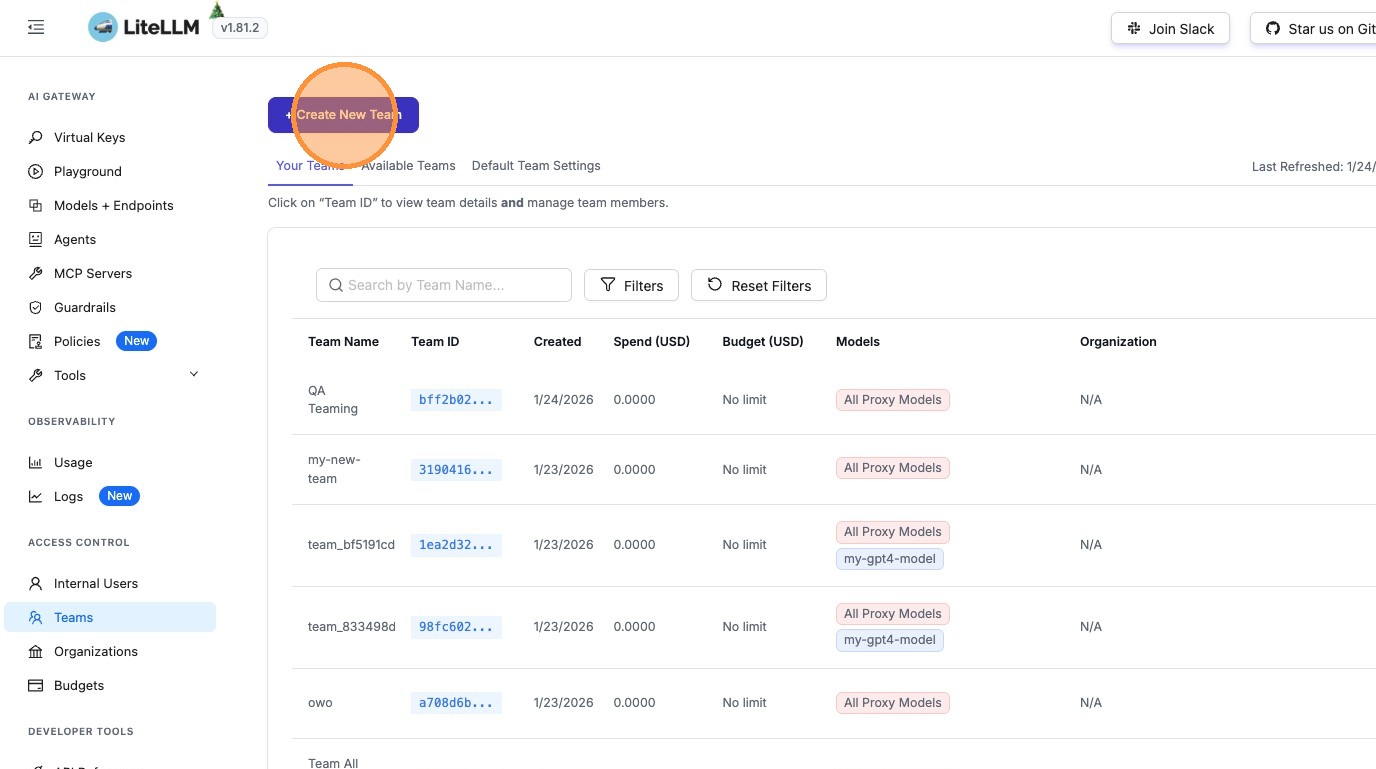
- Click "Teams"
- Click "+ Create New Team" (or edit an existing team)
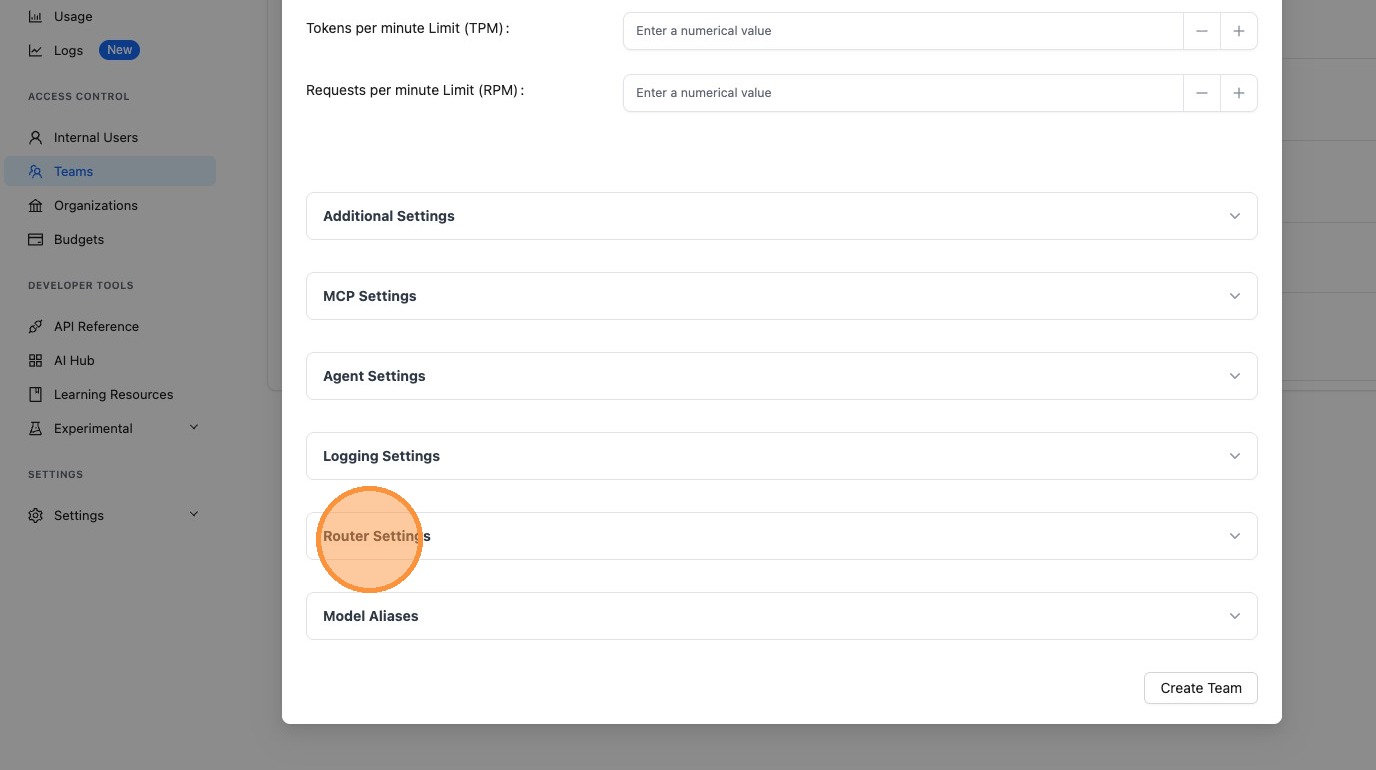
- Click "Router Settings"
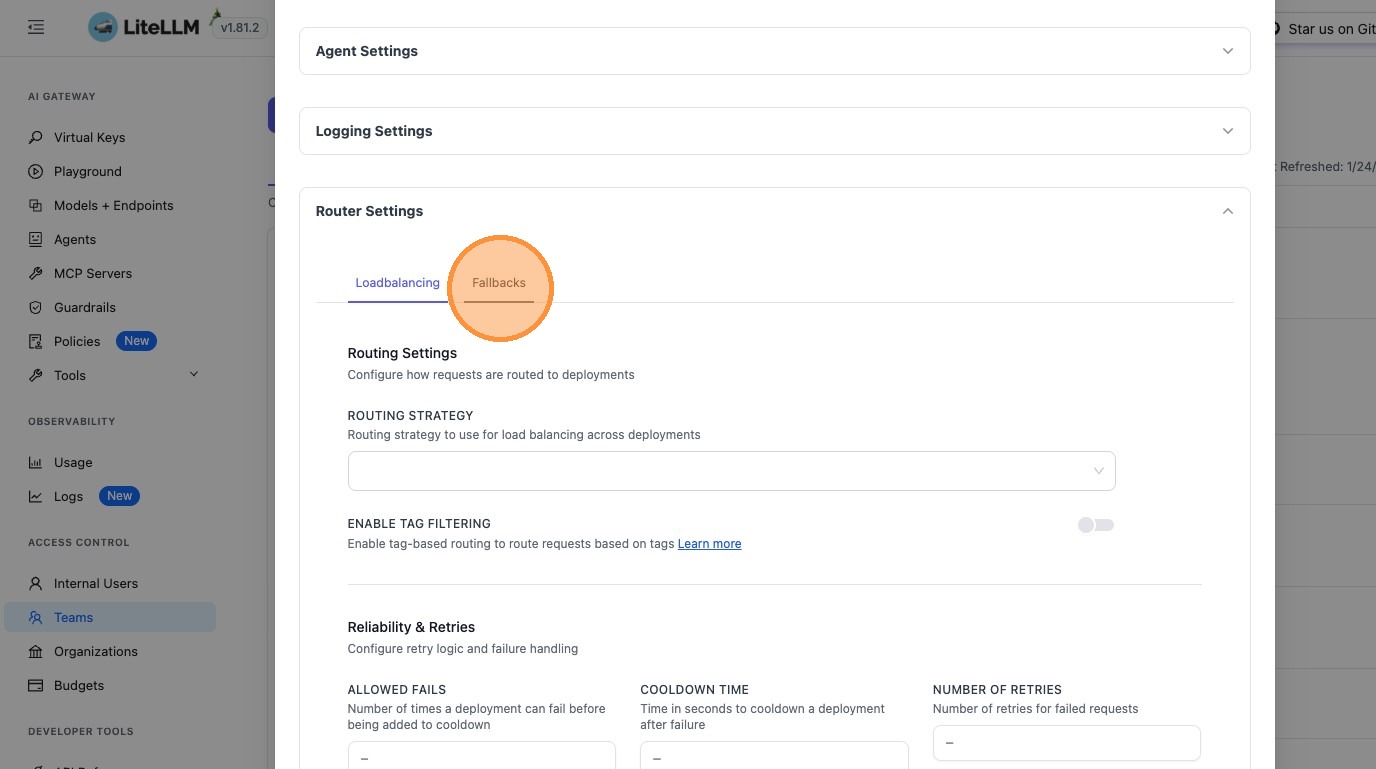
- Configure your desired router settings. For example, click "Fallbacks" to configure fallback models:
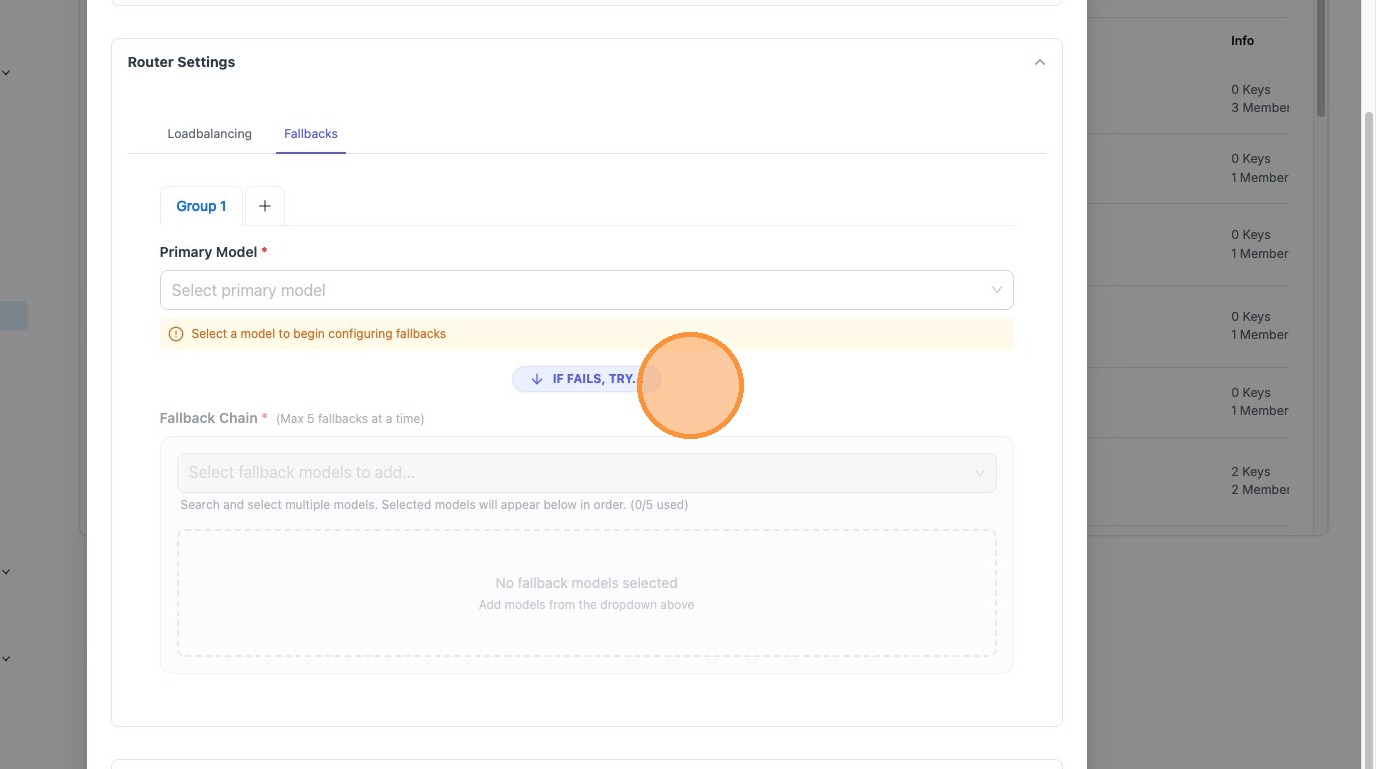
- Click "Select a model to begin configuring fallbacks" and configure your fallback chain:
Deployment Weights
Deployment weights split a model group's traffic across its deployments for one key or team. For example, a team can send 90% of its gpt-6.1-sol traffic to one deployment and 10% to another, while every other caller keeps the global split.
To set them in the UI, open the key or team Router Settings, select the simple-shuffle routing strategy on the Loadbalancing tab, and add a model group under Deployment Weights. Each deployment of that group is listed with a weight field and the share of traffic it receives. Weights are relative, so 9 and 1 give the same split as 90 and 10.
The same settings can be sent through the API on /team/new, /team/update, /key/generate or /key/update. The keys of weights are model group names, and the inner keys are deployment IDs (model_info.id):
{
  "router_settings": {
    "routing_strategy": "simple-shuffle",
    "weights": {
      "gpt-6.1-sol": {"deployment-id-a": 9, "deployment-id-b": 1}
    }
  }
}
Weights only apply with the simple-shuffle routing strategy, set either on the key or team or globally. The UI shows a warning when another strategy is selected. Once any deployment in a group has a weight, a deployment in that group without one receives no traffic from this key or team. A group with weights must have at least one weight above 0, and the proxy rejects deployment IDs that do not exist or that belong to a different team. Weights follow the same resolution order as the other router settings, so a key with its own router settings uses only those and the team's weights do not apply to it.
Use Cases
Different Routing Strategies per Key
Configure different routing strategies for different use cases:
- High-priority production keys: Use
latency-based-routingfor optimal performance - Development keys: Use
simple-shufflefor simplicity - Cost-sensitive keys: Use
cost-based-routingto minimize expenses
Team-Level Consistency
Apply consistent router settings across all keys in a team:
- Set team-wide fallback chains for reliability, and with
fallback_on_saturation: truewalk them as soon as the requested model reaches the dynamic rate limiter'ssaturation_threshold(see Fall back before the preferred model saturates) - Configure team-specific timeout policies
- Apply uniform retry policies across team members
Override Global Settings
Override global settings for specific scenarios:
- Production keys may need stricter timeout policies than development
- Certain teams may require different fallback models
- Individual keys may need custom retry policies for specific use cases
Gradual Rollout
Test new router settings on specific keys or teams before applying globally:
- Configure new routing strategies on a test key first
- Validate fallback chains on a small team before global rollout
- A/B test different timeout values across different keys
Related Features
- Router Settings Reference - Complete reference of all router settings
- Load Balancing - Learn about routing strategies and load balancing
- Reliability - Configure fallbacks, retries, and error handling
- Keys - Manage API keys and their settings
- Teams - Organize keys into teams