Trace coding agent sessions
For optional help from your coding agent, Set it up for me has prompts for an existing LiteLLM deployment, standalone Lens, and external ClickHouse. The agent should inspect the installed version before applying this guide
Send your personal Claude Code or Codex sessions to LiteLLM Lens to inspect their recorded activity. Choose your agent below.
You need a running Lens installation and a dedicated Lens tracing key. If you are starting from scratch, follow the Lens deployment guide. Your existing Claude Code or Codex model login continues to work.
In standalone Lens, open Traces and click Connect project if the setup panel is not already open. In a gateway-bundled release, open Lens > Traces and click Connect project. Under Connection details, copy the full Traces endpoint, including /v1/traces, and click Generate tracing key. Ask your administrator for a tracing key if you cannot create one. Keep any /lens-ingest prefix in the URL. These settings affect telemetry; your model URL and model credentials stay separate.
Claude Code
Claude Code needs no Lens plugin or helper. Its built-in OpenTelemetry exporters send trace spans and assistant response logs directly to Lens. Model calls can continue through your Claude subscription or your existing API provider; leave your Claude login and model endpoint unchanged.
Copy this prompt into your coding agent to have it configure this machine, or follow the manual steps below.
Set up this machine to send my Claude Code sessions to LiteLLM Lens. First read https://docs.litellm.ai/docs/proxy/lens/coding-agents.md and https://docs.litellm.ai/docs/proxy/lens/deployment.md.
1. Ask me for the full Traces endpoint from Lens > Traces > Set up tracing and an agent name, defaulting to claude-code. Preserve any /lens-ingest prefix and include /v1/traces once. Derive the logs endpoint by replacing the final /v1/traces with /v1/logs. Read my dedicated tracing key from an existing environment variable or a hidden terminal prompt. Never ask me to paste the key into chat, print it, or commit it.
2. Check that tracing is enabled and the Lens service accepts Claude conversation logs at /v1/logs. If it needs an upgrade, explain that before changing my local settings.
3. Explain which session content will be sent to my Lens service. Configure Claude's built-in OTLP trace and log exporters and the content flags in the guide. Merge them into the env object in my user-level ~/.claude/settings.json, preserving other settings and resource attributes. Keep credentials in private user configuration. Use lens.session.capture=true and my chosen gen_ai.agent.name. Do not install a plugin or helper, change my Claude subscription/API login or model endpoint, or enable optional raw API-body export.
4. Tell me to restart Claude Code, then complete a small prompt that uses a tool. Verify the new trace under my chosen agent name in Lens > Traces > Conversation contains the prompt, tool activity, and assistant reply. These events belong in Lens, not the normal request Logs screen. Report any missing content or export error instead of claiming setup succeeded.
5. Show me the configuration changes with credentials hidden, explain how to pause telemetry, and point out the capture limits described in the guide.
This setup requires the Lens service with its /v1/logs ingestion route. Use a current Claude Code version with assistant response logging support.
In the terminal where you run claude, paste the endpoint and tracing key in the first two lines, then run the block. The logs URL uses the same address with /v1/logs in place of /v1/traces:
export LENS_TRACING_KEY="<paste your Lens tracing key>"
export OTEL_EXPORTER_OTLP_TRACES_ENDPOINT="<paste the full Traces endpoint>"
export OTEL_EXPORTER_OTLP_TRACES_HEADERS="Authorization=Bearer $LENS_TRACING_KEY"
export OTEL_EXPORTER_OTLP_LOGS_ENDPOINT="${OTEL_EXPORTER_OTLP_TRACES_ENDPOINT%/v1/traces}/v1/logs"
export OTEL_EXPORTER_OTLP_LOGS_HEADERS="Authorization=Bearer $LENS_TRACING_KEY"

export CLAUDE_CODE_ENABLE_TELEMETRY=1
export CLAUDE_CODE_ENHANCED_TELEMETRY_BETA=1
export OTEL_TRACES_EXPORTER=otlp
export OTEL_EXPORTER_OTLP_TRACES_PROTOCOL="http/protobuf"
export OTEL_METRICS_EXPORTER=none
export OTEL_LOGS_EXPORTER=otlp
export OTEL_EXPORTER_OTLP_LOGS_PROTOCOL="http/protobuf"
export OTEL_RESOURCE_ATTRIBUTES="lens.session.capture=true,gen_ai.agent.name=claude-code"

export OTEL_LOG_USER_PROMPTS=1
export OTEL_LOG_ASSISTANT_RESPONSES=1
export OTEL_LOG_TOOL_DETAILS=1
export OTEL_LOG_TOOL_CONTENT=1

claude
The content flags include prompts, assistant replies, tool arguments, and supported tool outputs, which can contain source code or secrets. Enable them only for a Lens deployment where you intend to store that content.
Complete a prompt that uses a tool, then open Lens > Traces, select claude-code, and switch the trace to Conversation. You should see your prompt, commentary, tool activity, and final reply. Child agents appear in expandable branches. Background title generation and suggested prompts are excluded from the conversation.
lens.session.capture=true groups turns with the same Claude session ID into one trace, including resumed sessions and background-agent replies. Original trace IDs remain in span attributes. Omit this resource attribute to retain Claude's separate traces per interaction. If you already set OTEL_RESOURCE_ATTRIBUTES, append these values instead of replacing your existing attributes.
Assistant replies use a separate telemetry stream from trace spans. Keep both exporters enabled. The allowlisted detailed-tracing endpoint is not required. See Claude Code's monitoring reference for the beta exporter's coverage and content limits.
The /v1/logs endpoint receives OpenTelemetry events for Lens. These become part of the session trace and do not create entries in the normal LiteLLM Logs screen or additional spend records.
Claude's stable tool-output events omit failed executions and some tool kinds. To fill these gaps from the next model request, optionally enable native API-body export:
export OTEL_LOG_RAW_API_BODIES=1
export CLAUDE_CODE_OTEL_CONTENT_MAX_LENGTH=1048576
This sends full API bodies, including conversation history and source content, to the Lens service. Lens extracts tool results for Conversation and discards the body attribute. The larger limit avoids Claude's default 60 KB truncation in typical short sessions, but long sessions can still exceed it. Lens warns when a body is incomplete. Results that are never sent to another model request remain unavailable. file:<dir> mode writes bodies only on your machine and cannot supply them to a remote Lens service.
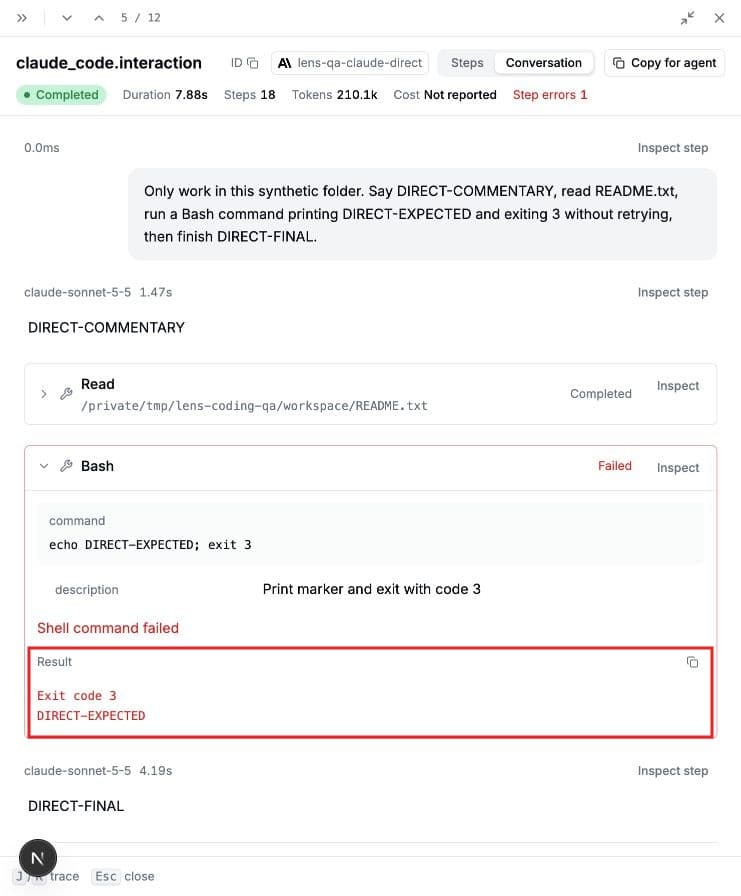
The conversation below includes a deliberately failed command. With the optional body export, Lens shows its stdout alongside the failure and the assistant's final reply.
For persistent configuration, add these variables to the env object in your user-level ~/.claude/settings.json, preserving existing settings. Repository-level settings cannot enable telemetry or choose its destination. Managed settings may override your local destination.
Codex
Use the BerriAI Codex integration on GitHub. This public preview supports local Codex desktop and CLI sessions. Automatic setup currently supports macOS and requires Python 3.11 or later.
Copy this prompt into your coding agent to have it install and configure the integration, or follow the manual steps below.
Set up LiteLLM Lens tracing for my local Codex desktop or CLI sessions. First read https://docs.litellm.ai/docs/proxy/lens/coding-agents.md and https://github.com/BerriAI/litellm-lens-codex-integration/blob/main/README.md.
1. Check this machine's operating system and Python version against the integration's current prerequisites. If automatic setup is unsupported, explain the limitation rather than inventing installation steps.
2. Ask me for the full Traces endpoint from Lens > Traces > Set up tracing and an agent name. The installer accepts that endpoint at its Lens ingestion URL prompt and preserves /lens-ingest when present. Use the documented Terminal setup so I can enter my dedicated tracing key at its hidden prompt and confirm recording. Never ask me to paste the key into chat, print it, or commit it.
3. Install or update the official BerriAI integration using the README's From Terminal instructions. Reuse an existing installation where possible, and preserve my Codex authentication, model configuration, and unrelated hooks. Explain what will be recorded; only newly captured activity should be exported.
4. Tell me to start a new Codex chat and complete a small prompt that uses a tool. Verify its trace appears under my chosen agent name in Lens > Traces > Conversation, with the prompt, tool outcome, and assistant reply. Check the integration's status and pending uploads if it does not appear; installation alone is not proof that capture works.
5. Show me what changed with credentials hidden, explain how to pause recording with lens-setup, and summarize the integration's capture limits.
- Follow From Terminal (recommended) in the installation guide. The same installer works for desktop and CLI.
- At Lens ingestion URL, paste the full Traces endpoint from the dashboard. The installer accepts that endpoint and keeps
/lens-ingestwhen present. Enter your Lens tracing key at the hidden prompt, choose an agent name, and confirm to start recording. - Start a new Codex chat and complete a turn. Open Lens > Traces and find the agent name you chose.
Each chat has one trace, updated after completed or interrupted turns. Reopening a chat continues its trace. Only activity after setup is recorded.
The plugin reads visible transcript items for newly recorded turns, including commentary, repeated messages, tool outcomes, model changes, and subagents. Completed transcript turns can be recovered when a completion hook is missing. See the coverage and privacy details for its limits. To pause recording, ask Codex: Use lens-setup to pause recording.
Coverage and troubleshooting
Lens shows the content the coding agent exported. It cannot recover missing content from older traces. Claude's native telemetry does not export an exact terminal recording: images, hidden reasoning, local menus, permission dialogs, and some session events may be absent. Claude also limits exported content length; long tool results or replies can be truncated before Lens receives them. Codex replaces media with explicit omission markers and identifies unsupported transcript items. These limits prevent a promise of identical rendering for every session or future agent version.
If Claude shows tools but no replies, check OTEL_LOGS_EXPORTER, OTEL_LOG_ASSISTANT_RESPONSES, and the logs endpoint. A 404 for /v1/logs means the Lens service or ingestion route needs an update. Allow the exporters to flush after a turn. Do not enable raw API-body export to compensate for missing reply logs.
To change the Claude agent name, set gen_ai.agent.name in OTEL_RESOURCE_ATTRIBUTES. For example, gen_ai.agent.name=my-claude-code,developer=alice,lens.session.capture=true. Use that exact name in the trace filter and in any investigation's agent filter. An investigation restricted to claude-code will not sample my-claude-code automatically.
For large traces, use Load next steps in Conversation to load later activity. If a step fails to load, retry it before loading the next page. Subagent branches preserve their own messages and tool results so concurrent agents do not appear to be one speaker.