Production Best Practices
Work through this page before going live. It covers the production configuration, machine sizing and worker strategy, Redis, and database and migrations; each section stands alone, so you can also use it as a review checklist for an existing deployment. For how large to make the Postgres and Redis instances themselves, including instance recommendations for AWS, Azure, and GCP, see Database Sizing and Redis Sizing. For deeper container tuning such as alternative servers, TLS at the proxy, keepalive, and loading config from object storage, see Server Tuning.
Configuration
Set a master key
The master key is the proxy admin credential: it authenticates admin API calls and is the Admin UI login password. Set it as an env var (it must start with sk-), keep it in your secret manager, and rotate it with the master key rotation flow.
export LITELLM_MASTER_KEY="sk-<long-random-value>"
Set trusted proxy ranges
Failed Admin UI sign-ins are limited per source address (see security best practices). That limit only runs when the proxy knows which address is the client, so set general_settings.trusted_proxy_ranges to the CIDR ranges of the load balancer or ingress in front of LiteLLM, or to [] if clients connect directly. Left unset, the proxy warns at startup and only the weaker per-username limit applies.
general_settings:
  trusted_proxy_ranges: ["10.0.0.0/8"]   # or [] when clients connect directly
Turn on alerting
Get notified about LLM exceptions, slow or hanging requests, budget crossings, database exceptions, outages, and weekly spend reports. In the Admin UI go to Settings then Logging & Alerts, open the Alerting Types tab, toggle the alert types you want, paste your Slack webhook URL, and click Test Alerts to confirm delivery. Thresholds and report frequency live in the Alerting Settings tab next to it.
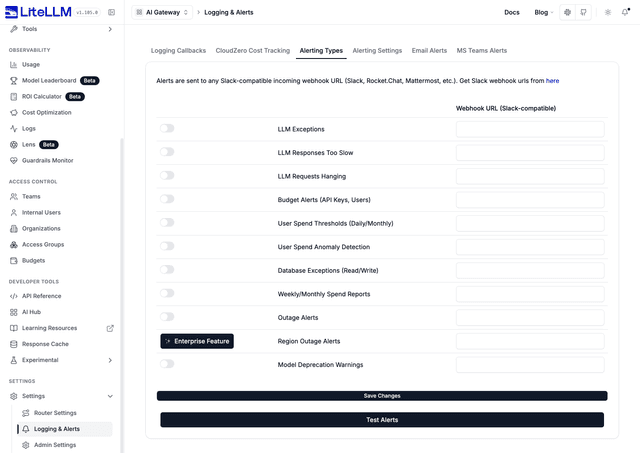
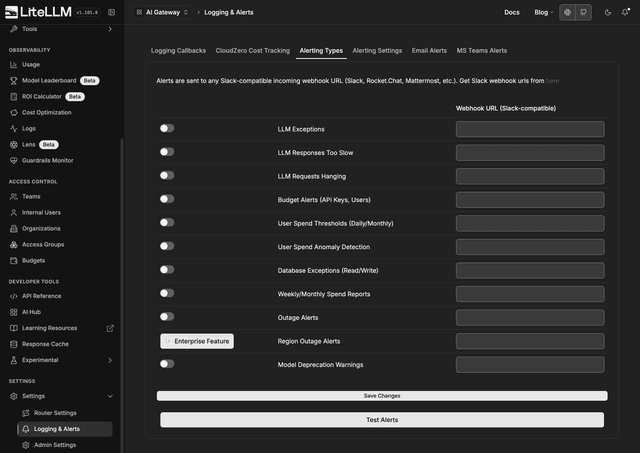
To bake it into config instead, set alerting: ["slack"] under general_settings and export SLACK_WEBHOOK_URL in the environment.
Batch spend writes
Write spend updates to the database every 60 seconds instead of on every request; at production traffic, per-request writes become a database hot spot.
general_settings:
  proxy_batch_write_at: 60
Above roughly 1000 requests per second, also route these writes through Redis with the Redis transaction buffer to prevent connection exhaustion and deadlocks.
Tune config reload across pods
With store_model_in_db: true, each pod keeps itself in sync with config added at runtime (models, credentials, guardrails, general settings, etc.) by polling the database on a background job. There is no cross-pod push; a pod converges within one polling interval of a change. That interval defaults to 30 seconds and is tunable, so if you need faster convergence you can lower it, and if you run many pods against a busy database you can raise it to shed load.
general_settings:
  store_model_in_db: true
  proxy_config_reload_interval_seconds: 30
The value is read at startup, so a change takes effect once each pod restarts. It can also be set from the admin UI under Router Settings on the General tab, and via the PROXY_CONFIG_RELOAD_INTERVAL_SECONDS environment variable.


Bound database connections
Cap the connection pool per worker process so your instances cannot exhaust the database. Size it as MAX_DB_CONNECTIONS / (instances × workers); the default is 10.
general_settings:
  database_connection_pool_limit: 10
Each instance multiplies your total connections: 3 instances × 4 workers × 10 connections = 120 total connections against your database.
Once an autoscaler owns the replica count, the instance count in that formula is maxReplicas, not the number of pods you are running today. The litellm-helm chart defaults autoscaling.maxReplicas and keda.maxReplicas to 100, so a deployment that scales out fully asks for roughly 1000 connections at the default pool limit of 10, which is far past what a stock Postgres accepts. Set maxReplicas from what your database can serve, and see how to calculate the right value for the full division.
Keep error logs out of the database
LLM exceptions are written to the database by default. Under sustained provider errors this bloats the spend logs table; send exceptions to your logging stack (see alerting and logging callbacks) instead.
general_settings:
  disable_error_logs: True
Set a request timeout
Fail requests that hang instead of holding connections open; the default is 6000 seconds.
litellm_settings:
  request_timeout: 600
Production logging
Switch off debug logging, emit JSON logs, and silence FastAPI's per-request info logs:
litellm_settings:
  set_verbose: False
  json_logs: true
export LITELLM_LOG="ERROR"
Disable load_dotenv
Set export LITELLM_MODE="PRODUCTION". This disables load_dotenv(), which would otherwise automatically load credentials from a local .env.
Set the salt key
If you use the database, set a salt key for encrypting and decrypting stored variables. Do not change it after adding a model; it encrypts your LLM API key credentials, and changing it makes them unreadable. Use a password generator to get a random hash.
export LITELLM_SALT_KEY="sk-<paste-a-long-random-key>"
Sizing and workers
Machine specifications
Give each pod 1 vCPU and 4Gi of memory, as both requests and limits, and scale both with the worker count if you run more than one worker per container.
resources:
  requests:
    cpu: "1" # should be 1*num_workers
    memory: "4Gi" # should be 4*num_workers
  limits:
    cpu: "1"
    memory: "4Gi"
Both figures are per worker, so that multiplication is real rather than notional: a container running 8 workers wants 8 vCPU and 32Gi, not 1 vCPU and 4Gi. Sizing a multi-worker container from the single-worker numbers is a common way to end up under-provisioned, and it is the main reason to keep one worker per pod on Kubernetes and let replicas rather than workers carry the concurrency.
4Gi is a floor rather than a target. The proxy's steady-state footprint is not a function of how many requests it is serving concurrently: Prisma runs the query engine as a separate process whose resident memory behaves as a high-water mark, growing to fit the largest single statement that engine has ever executed, and glibc does not hand that memory back to the operating system afterwards. A pod's floor therefore ratchets up to its worst-ever write and stays there for the life of the worker. Provision below 4Gi and a single large write is enough to push the pod past its limit and have the kernel OOM-kill it, which surfaces as a crash loop under traffic that looks unremarkable on every other metric.
The largest statements come from spend logging with store_prompts_in_spend_logs enabled, because each row then carries a full prompt and response rather than counters. If you store prompts, treat 4Gi as the minimum and give the pod headroom above it.
Autoscaling
Scale on CPU, and leave the memory target unset. Memory is not a usable scaling signal for the proxy: the query engine's resident memory reflects the largest write a pod has ever done rather than what it is doing now, so a memory target ratchets replicas up after one large write and never scales them back in. Provision memory as the floor above and let CPU drive the replica count.
targetCPUUtilizationPercentage: 60
60 rather than a higher threshold because a replica is not useful the moment it is created. The litellm-helm startup probe allows up to 300 seconds for a pod to pass its first readiness check, so a replica added at 80 percent CPU arrives minutes after the saturation that triggered it. Both charts ship higher defaults, 80 on litellm-helm and 70 on the componentized chart's gateway, chosen so the charts install cleanly anywhere; lower them for production.
Workers and scaling
On Kubernetes, or anywhere else a pod-level autoscaler is reading CPU, run one Uvicorn worker per pod and scale horizontally (more pods) rather than vertically (more workers per pod). This is the default, so you only need --num_workers 1; one process per pod keeps latency predictable, lets the Horizontal Pod Autoscaler read the CPU threshold above against a single process, and makes rolling restarts hitless because Kubernetes drains one pod at a time.
CMD ["--port", "4000", "--config", "./proxy_server_config.yaml", "--num_workers", "1"]
On a single VM or a bare container with nothing scaling it for you, the opposite applies: set NUM_WORKERS to the machine's vCPU count, since nothing else will put those cores to work. Sizing and connection limits are both per worker, so a machine running eight workers wants eight times the memory floor above and an eighth of the connection pool.
Do not combine --num_workers 1 with --max_requests_before_restart. With a single worker the flag does not recycle anything; once the limit is hit the whole pod stops serving. Under Uvicorn the process exits with code 0 and Kubernetes restarts the container, and under Gunicorn nothing accepts connections until the old worker has drained and a replacement has booted, which is long enough for liveness probes to fail. Health probes count toward the limit too, so two probes every 15 seconds use up 11,520 requests a day before any real traffic. If you see gradual memory growth under sustained load, rely on Kubernetes replacing pods, or run two or more workers with jitter as described in Recycle workers.
For packing multiple workers into one container, alternative servers (Gunicorn, Hypercorn, Granian), staggering recycles with jitter, hitless rolling restarts on Kubernetes, terminating TLS at the proxy, keepalive tuning, and loading config.yaml from S3 or GCS, see Server Tuning.
Run background jobs on a dedicated worker
At startup the proxy registers a scheduler of background jobs, and it does that once per Uvicorn worker process rather than once per pod. A pod started with --num_workers 4 runs four copies of every job, so a deployment of ten such replicas runs forty, and the amount of work multiplies by replicas times processes even though most of these jobs exist to happen once.
Jobs whose effect is shared, resetting budgets or pruning spend logs or pushing a usage export, elect a single owner through Redis before doing anything. Where Redis is not configured there is nothing to elect through, so each of them runs unguarded on every process that registered it. LITELLM_JOB_ROLE lets you register those jobs on one deployment instead of on every replica serving traffic, and for a multi-pod deployment without Redis it is the only way to get single execution.
LITELLM_JOB_ROLE | What the process registers |
|---|---|
unset, or all | Every job. This is the default and the behavior you already have |
worker | Every job, including the single-owner ones |
serving | No single-owner job |
Parsing is case insensitive and ignores surrounding whitespace. An unrecognized value falls back to all and logs a warning, so a typo cannot silently stop a deployment's budget resets.
A pod set to serving stops registering the budget reset job, spend log cleanup, key rotation, expired Admin UI session key cleanup, the PTU flat-cost rollup, the weekly and monthly spend reports, the Prometheus fallback stats, the batch and responses cost polls, and the CloudZero, Focus, Vantage, and Mavvrik usage exports.
It keeps registering the spend flush, the daily tag spend flush, the gateway request counter flush, the periodic config reload, and the database model and credential reloads, because each of those drains that pod's own in-memory queues or refreshes that pod's own model registry rather than acting on state another pod could act on. A serving pod therefore keeps writing its own spend to the database and keeps picking up models added at runtime; the role changes which shared work it schedules, not whether it tracks what it served.
Ownership is observable at runtime. The elected pod logs <job name>: pod <id> owns this run at INFO, and the litellm_pod_lock_manager_size Prometheus gauge carries a <job>:<pod> label naming the job and the pod holding its lock.
Kubernetes reference topology
Scale the serving Deployment as usual and keep the worker at one replica. Both point at the same database and the same Redis, which is what lets the worker take over the jobs the serving pods no longer register.
apiVersion: apps/v1
kind: Deployment
metadata:
  name: litellm-serving
spec:
  replicas: 10
  selector:
    matchLabels:
      app: litellm-serving
  template:
    metadata:
      labels:
        app: litellm-serving
    spec:
      containers:
        - name: litellm
          image: docker.litellm.ai/berriai/litellm:v1.98.0 # pin a version, do not use :latest
          args: ["--config", "/app/proxy_server_config.yaml", "--num_workers", "1"]
          ports:
            - containerPort: 4000
          env:
            - name: LITELLM_JOB_ROLE
              value: serving
          envFrom:
            - secretRef:
                name: litellm-secrets # DATABASE_URL, REDIS_HOST, REDIS_PORT, REDIS_PASSWORD, LITELLM_MASTER_KEY
          volumeMounts:
            - name: config-volume
              mountPath: /app/proxy_server_config.yaml
              subPath: config.yaml
          readinessProbe:
            httpGet:
              path: /health/readiness
              port: 4000
            initialDelaySeconds: 120
            periodSeconds: 15
      volumes:
        - name: config-volume
          configMap:
            name: litellm-config-file
---
apiVersion: apps/v1
kind: Deployment
metadata:
  name: litellm-jobs
spec:
  replicas: 1
  selector:
    matchLabels:
      app: litellm-jobs
  template:
    metadata:
      labels:
        app: litellm-jobs
    spec:
      containers:
        - name: litellm
          image: docker.litellm.ai/berriai/litellm:v1.98.0 # keep in lockstep with the serving image
          args: ["--config", "/app/proxy_server_config.yaml", "--num_workers", "1"]
          ports:
            - containerPort: 4000
          env:
            - name: LITELLM_JOB_ROLE
              value: worker
          envFrom:
            - secretRef:
                name: litellm-secrets # the same secret, so both reach the same database and Redis
          volumeMounts:
            - name: config-volume
              mountPath: /app/proxy_server_config.yaml
              subPath: config.yaml
          readinessProbe:
            httpGet:
              path: /health/readiness
              port: 4000
            initialDelaySeconds: 120
            periodSeconds: 15
      volumes:
        - name: config-volume
          configMap:
            name: litellm-config-file
Point your Service and Ingress at app: litellm-serving only, so the worker takes no request traffic. Give the worker one Uvicorn worker for the same reason the serving pods get one, since a second process would register a second copy of every job on the one deployment meant to run them once.
Redis
Run Redis (7.0 or newer) as soon as you run more than one proxy instance. It shares rate limit counters, router state, and the response cache across instances; without it, each instance enforces limits independently and cache hits stay local to the instance that served the request. For the full list of what degrades or stops working without it, see What Needs Redis.
router_settings:
  routing_strategy: simple-shuffle # (default) - recommended for best performance
  redis_host: os.environ/REDIS_HOST
  redis_port: os.environ/REDIS_PORT
  redis_password: os.environ/REDIS_PASSWORD

litellm_settings:
  cache: True
  cache_params:
    type: redis
    host: os.environ/REDIS_HOST
    port: os.environ/REDIS_PORT
    password: os.environ/REDIS_PASSWORD
Keep the default simple-shuffle routing strategy for high-traffic deployments; usage-based routing adds Redis lookups to the request path. For how much Redis to provision and which managed offering to pick on each cloud, see Redis Sizing.
Redis transaction buffer
At very high traffic (roughly 1000+ requests per second, or 10+ instances), spend tracking itself becomes a database bottleneck: every instance issues UPDATE/UPSERT statements against the same key, user, and team rows, which causes deadlocks and can exhaust Postgres connections (FATAL: sorry, too many clients already). The transaction buffer routes those writes through Redis instead: each instance queues its spend updates in Redis, and a single instance holding a Redis-backed lock aggregates the queue and flushes it to the database in one transaction.
general_settings:
  use_redis_transaction_buffer: true
Monitor it with the litellm_pod_lock_manager_size Prometheus metric (which pod holds the flush lock) and the litellm_in_memory_spend_update_queue_size / litellm_redis_spend_update_queue_size gauges (spend updates waiting in memory and in Redis; the _daily_ variants track per-user daily aggregates). If you see Got exception from REDIS No connection available under load, raise max_connections in your Redis cache_params.
Database and migrations
For instance sizes, storage and IOPS, the connection ceiling on each cloud's managed Postgres, and how to keep the spend log write path from being the thing you resize for, see Database Sizing.
Gracefully handle DB unavailability
When running LiteLLM on a VPC (and inaccessible from the public internet), you can enable graceful degradation so that request processing continues even if the database is temporarily unavailable.
WARNING: Only do this if you're running LiteLLM on VPC, that cannot be accessed from the public internet.
general_settings:
  allow_requests_on_db_unavailable: True
When allow_requests_on_db_unavailable is set to true, LiteLLM will handle errors as follows:
| Type of Error | Expected Behavior | Details |
|---|---|---|
| Prisma connection errors | Request will be allowed | The database engine cannot be reached (connection refused or reset, EngineConnectionError). Requests proceed with a restricted INTERNAL_USER fallback identity, never admin. |
| Prisma query errors (P2xxx, e.g. P2010) | Request will be blocked | The database answered but the query failed, so the key cannot be verified and the request gets a 401. Treated as fail-closed because the database is reachable. |
| Httpx Errors | Request will be allowed | Occurs when the database is unreachable, allowing the request to proceed despite the DB outage. |
| Pod Startup Behavior | Pods start regardless | LiteLLM Pods will start even if the database is down or unreachable, ensuring higher uptime guarantees for deployments. |
| Health/Readiness Check | Always returns 200 OK | The /health/readiness endpoint returns a 200 OK status to ensure that pods remain operational even when the database is unavailable. |
| LiteLLM Budget Errors or Model Errors | Request will be blocked | Triggered when the DB is reachable but the authentication token is invalid, lacks access, or exceeds budget limits. |
During a database outage, virtual keys already in the in-memory auth cache keep authenticating until user_api_key_cache_ttl expires, which defaults to 60 seconds and can be longer with enable_redis_auth_cache; see caching_redis. The master key and models defined in the config file keep working. Uncached virtual key lookups, key/team/user management endpoints, and spend log writes fail or are deferred until the database is back
More information about what the Database is used for here
Verify the database server certificate (custom CA, e.g. AWS RDS)
Managed Postgres (AWS RDS, Cloud SQL, Azure Flexible Server, an internal PKI) serves a certificate issued by the provider's own CA, which is not in the stock image's trust store. You do not need a custom image to verify it: mount the CA bundle into the container and point the DB URL at it with the same libpq params the provider docs give you.
export DATABASE_URL="postgresql://user:pass@mydb.abc123.us-east-1.rds.amazonaws.com:5432/litellm?sslmode=verify-full&sslrootcert=/certs/global-bundle.pem"
LiteLLM rewrites sslmode=verify-full (or verify-ca) and sslrootcert into the params its Postgres driver understands (sslmode=require, sslcert=<bundle>, sslaccept=strict) on DATABASE_URL, DIRECT_URL and DATABASE_URL_READ_REPLICA, so the server certificate chain and hostname are checked on every connection, including migrations. A server whose certificate does not chain to the mounted bundle fails at boot with P1011: Error opening a TLS connection ... certificate verify failed. The driver has no chain-only mode, so verify-ca also checks the hostname. Setting the driver params directly (sslmode=require&sslcert=/certs/global-bundle.pem&sslaccept=strict) works too, and any driver param you pin yourself wins over the translation. The same keys can be set from config instead of the URL through database_extra_connection_params (see Cap Idle DB Connections + Pass Extra Prisma URL Params).
Plain Docker:
docker run \
  -v /path/to/global-bundle.pem:/certs/global-bundle.pem:ro \
  -e DATABASE_URL="postgresql://user:pass@mydb.abc123.us-east-1.rds.amazonaws.com:5432/litellm?sslmode=verify-full&sslrootcert=/certs/global-bundle.pem" \
  -e LITELLM_MASTER_KEY="sk-<paste-a-long-random-key>" \
  -p 4000:4000 \
  ghcr.io/berriai/litellm:main-stable --config /app/config.yaml
Helm: put the bundle in a ConfigMap or Secret and mount it with volumes / volumeMounts. Both the Deployment and the migrations Job get these mounts, so migrations verify the certificate too.
kubectl create configmap rds-ca --from-file=global-bundle.pem
db:
  useExisting: true
  endpoint: mydb.abc123.us-east-1.rds.amazonaws.com
  database: litellm
  url: postgresql://$(DATABASE_USERNAME):$(DATABASE_PASSWORD)@$(DATABASE_HOST)/$(DATABASE_NAME)?sslmode=verify-full&sslrootcert=/certs/global-bundle.pem
volumes:
  - name: rds-ca
    configMap:
      name: rds-ca
volumeMounts:
  - name: rds-ca
    mountPath: /certs
    readOnly: true
Download the RDS bundle from AWS; other providers publish theirs the same way. This is separate from SSL_CERT_FILE, which only affects LiteLLM's outbound HTTPS calls to LLM providers and callbacks; the DB driver does not read it. If you need both, mount one bundle and point both settings at it.
Stagger scheduled background jobs
LiteLLM runs a set of scheduled background jobs against the database: spend flushes, daily tag spend, budget resets, config-in-DB reloads, credential reloads, spend log retention cleanup, and any cost export integrations you enable. Every one of those is registered when the proxy starts, and an interval job's first run is one interval after that instant, so without staggering they all fire at the same moment, on every replica a rollout brought up together, for the life of the process. On a large deployment that shows up as a periodic database CPU spike that competes with request-path auth and budget queries.
LiteLLM spreads them out by default. Each job is shifted by a deterministic offset derived from its scheduler job id and the identity of the process running it, so two jobs on one pod land at different instants, the same job lands at a different instant on each replica, and a simultaneous restart does not put everything back on one timestamp. Nothing is delayed by more than one of its own periods.
The defaults suit most deployments. For a large multi-pod cluster, widen the window so the same number of jobs spreads over more time:
general_settings:
  scheduled_job_stagger:
    window_seconds: 600
The applied offsets are logged once at startup, at INFO, as a single line naming the identity, the window, and every job's offset, so a schedule you are debugging can be reproduced from the log rather than guessed. Set the log level to DEBUG to also get each fire's scheduled time against the time it actually started.
Offsets never touch a cron schedule you supplied yourself, such as maximum_spend_logs_cleanup_cron, since that names an instant you chose. To pin one of LiteLLM's own jobs to its unshifted schedule, or to place it exactly where you want it, set its offset explicitly:
general_settings:
  scheduled_job_stagger:
    offsets:
      update_spend_job: 0
      ptu_flat_cost_rollup_job: 900
Replicas are placed in the window using POD_NAME, falling back to HOSTNAME and then the system hostname, plus the worker process id. If your replicas share a hostname, give each one a distinct identity so they do not land on the same offset. Set enabled: false to turn the whole thing off and restore the previous behavior.
Run migrations from the Helm PreSync hook
The Helm PreSync hook flow is in beta.
To ensure only one service manages database migrations, use our Helm PreSync hook for Database Migrations. This ensures migrations are handled during helm upgrade or helm install, while LiteLLM pods explicitly disable migrations.
- Helm PreSync Hook:
- The Helm PreSync hook is configured in the chart to run database migrations during deployments.
- The hook always sets
DISABLE_SCHEMA_UPDATE=false, ensuring migrations are executed reliably.
Reference Settings to set on ArgoCD for values.yaml
db:
  useExisting: true # use existing Postgres DB
  url: postgresql://ishaanjaffer0324:... # url of existing Postgres DB
-
LiteLLM Pods:
- Set
DISABLE_SCHEMA_UPDATE=truein LiteLLM pod configurations to prevent them from running migrations.
Example configuration for LiteLLM pod:
env:
  - name: DISABLE_SCHEMA_UPDATE
value: "true" - Set
Use prisma migrate deploy
LiteLLM runs prisma migrate deploy on startup by default, so db migrations are handled across versions in production with no configuration. To stop a pod from running migrations at all, set DISABLE_SCHEMA_UPDATE=true as described in Run migrations from the Helm PreSync hook.
Older versions gated this behind USE_PRISMA_MIGRATE="True". That flag was removed in PR #13555 when migrate deploy became the default, and this page continued to recommend it after the fact. Setting USE_PRISMA_MIGRATE today does nothing; it is safe to remove from your environment, and removing it does not change migration behavior
The migrate deploy command:
- Does not issue a warning if an already applied migration is missing from migration history
- Does not detect drift (production database schema differs from migration history end state - for example, due to a hotfix)
- Does not reset the database or generate artifacts (such as Prisma Client)
- Does not rely on a shadow database
How LiteLLM ships migrations:
-
A new migration file is written to our
litellm-proxy-extraspackage. See all -
The core litellm pip package is bumped to point to the new
litellm-proxy-extraspackage. This ensures, older versions of LiteLLM will continue to use the old migrations. See code -
When you upgrade to a new version of LiteLLM, the migration file is applied to the database. See code
For how long migrations take at production scale and how to plan an upgrade around them, see the Upgrade Guide.
Read-only file system
Running LiteLLM with readOnlyRootFilesystem: true is a Kubernetes security best practice that prevents container processes from writing to the root filesystem. LiteLLM fully supports this configuration.
If you see a Permission denied error, it means the LiteLLM pod is running with a read-only file system. LiteLLM needs writable directories for:
- Database migrations: Set
LITELLM_MIGRATION_DIR="/path/to/writable/directory" - Admin UI: Set
LITELLM_UI_PATH="/path/to/writable/directory" - UI assets/logos: Set
LITELLM_ASSETS_PATH="/path/to/writable/directory"
Option 1: Using EmptyDir Volumes with InitContainer (Recommended)
This approach copies the pre-built UI from the Docker image to writable emptyDir volumes at pod startup.
Full Deployment manifest (initContainer, env, securityContext, volumes)
apiVersion: apps/v1
kind: Deployment
metadata:
  name: litellm-proxy
spec:
  template:
    spec:
      initContainers:
        - name: setup-ui
          image: ghcr.io/berriai/litellm:latest
          command:
            - sh
            - -c
            - |
              cp -r /var/lib/litellm/ui/* /app/var/litellm/ui/ && \
              cp -r /var/lib/litellm/assets/* /app/var/litellm/assets/
          volumeMounts:
            - name: ui-volume
              mountPath: /app/var/litellm/ui
            - name: assets-volume
              mountPath: /app/var/litellm/assets

      containers:
        - name: litellm
          image: ghcr.io/berriai/litellm:latest
          env:
            - name: LITELLM_NON_ROOT
              value: "true"
            - name: LITELLM_UI_PATH
              value: "/app/var/litellm/ui"
            - name: LITELLM_ASSETS_PATH
              value: "/app/var/litellm/assets"
            - name: LITELLM_MIGRATION_DIR
              value: "/app/migrations"
            - name: PRISMA_BINARY_CACHE_DIR
              value: "/app/cache/prisma-python/binaries"
            - name: XDG_CACHE_HOME
              value: "/app/cache"
          securityContext:
            readOnlyRootFilesystem: true
            runAsNonRoot: true
            runAsUser: 101
            capabilities:
              drop:
                - ALL
          volumeMounts:
            - name: config
              mountPath: /app/config.yaml
              subPath: config.yaml
              readOnly: true
            - name: ui-volume
              mountPath: /app/var/litellm/ui
            - name: assets-volume
              mountPath: /app/var/litellm/assets
            - name: cache
              mountPath: /app/cache
            - name: migrations
              mountPath: /app/migrations

      volumes:
        - name: config
          configMap:
            name: litellm-config
        - name: ui-volume
          emptyDir:
            sizeLimit: 100Mi
        - name: assets-volume
          emptyDir:
            sizeLimit: 10Mi
        - name: cache
          emptyDir:
            sizeLimit: 500Mi
        - name: migrations
          emptyDir:
            sizeLimit: 64Mi
Option 2: Without UI (API-only deployment)
If you don't need the admin UI, you can run with minimal configuration:
env:
  - name: LITELLM_NON_ROOT
    value: "true"
  - name: LITELLM_MIGRATION_DIR
    value: "/app/migrations"
securityContext:
  readOnlyRootFilesystem: true
The proxy will log a warning about the UI but API endpoints will work normally.
Environment variables for read-only filesystems:
| Variable | Purpose | Default |
|---|---|---|
LITELLM_UI_PATH | Admin UI directory | /var/lib/litellm/ui (Docker) |
LITELLM_ASSETS_PATH | UI assets/logos | /var/lib/litellm/assets (Docker) |
LITELLM_MIGRATION_DIR | Database migrations | Package directory |
PRISMA_BINARY_CACHE_DIR | Prisma binary cache | System default |
XDG_CACHE_HOME | General cache directory | System default |
Notes: always set LITELLM_MIGRATION_DIR to a writable emptyDir path, and set PRISMA_BINARY_CACHE_DIR and XDG_CACHE_HOME to writable paths. If using a custom server_root_path, you must pre-process UI files in your Dockerfile as the proxy cannot modify files at runtime with a read-only filesystem. The UI is automatically detected as pre-restructured if it contains a .litellm_ui_ready marker file (created by the official Docker images).
Verify production readiness
Expected performance
See the gateway load-test results.
Confirm debug logging is off
You should only see the following level of details in logs on the proxy server:
# INFO:     192.168.2.205:11774 - "POST /chat/completions HTTP/1.1" 200 OK
# INFO:     192.168.2.205:34717 - "POST /chat/completions HTTP/1.1" 200 OK
# INFO:     192.168.2.205:29734 - "POST /chat/completions HTTP/1.1" 200 OK
Deployment FAQ
Q: Is Postgres the only supported database, or do you support other ones (like Mongo)?
A: We explored MySQL but that was hard to maintain and led to bugs for customers. Currently, PostgreSQL is our primary supported database for production deployments.
Because LiteLLM talks to the database through Prisma over the PostgreSQL wire protocol, any Postgres-wire-compatible distributed SQL database works as a drop-in replacement. YugabyteDB is used in production this way; point DATABASE_URL at its YSQL endpoint (postgresql://<user>:<password>@<host>:<port>/<dbname>) and LiteLLM runs its migrations and queries unchanged. This is a good fit if you need horizontal scale or multi-region high availability beyond what a single Postgres instance provides.
Q: If there is Postgres downtime, how does LiteLLM react? Does it fail-open or is there API downtime?
A: You can gracefully handle DB unavailability if it's on your VPC; see Gracefully handle DB unavailability above.
Need help or want dedicated support? Talk to a founder here.