Deleted Keys & Teams Audit Logs
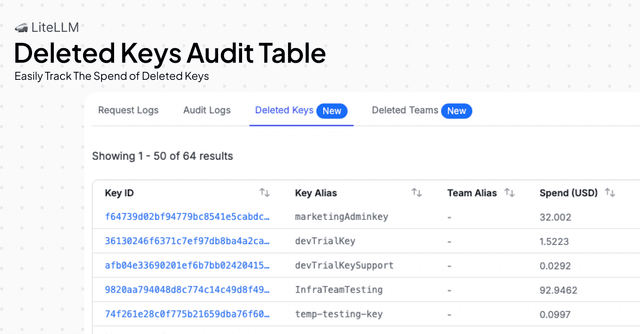
View deleted API keys and teams along with their spend and budget information at the time of deletion for auditing and compliance purposes.
Overview
The Deleted Keys & Teams feature provides an audit trail for deleted entities in your LiteLLM proxy. This feature was implemented to easily allow audits of which key or team was deleted along with the spend/budget at the time of deletion.
When a key or team is deleted, LiteLLM automatically captures:
- Deletion timestamp - When the entity was deleted
- Deleted by - Who performed the deletion action
- Spend at deletion - The total spend accumulated at the time of deletion
- Original budget - The budget that was set for the entity before deletion
- Entity details - Key or team identification information
This information is preserved even after deletion, allowing you to maintain accurate financial records and audit trails for compliance purposes.
Viewing Deleted Keys
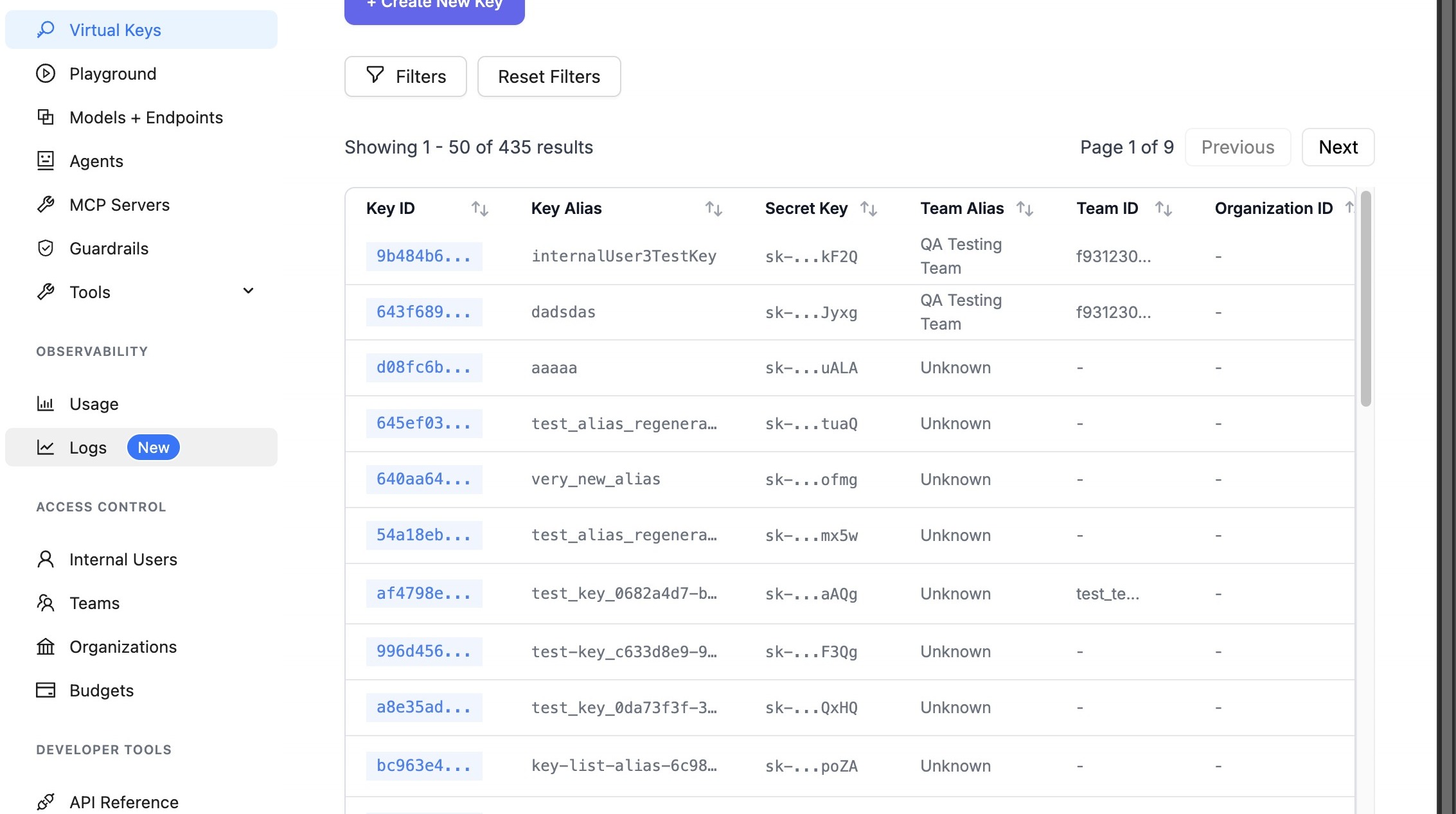
Step 1: Navigate to API Keys Page
Navigate to the API Keys page in the LiteLLM UI:
http://localhost:4000/ui/?login=success&page=api-keys
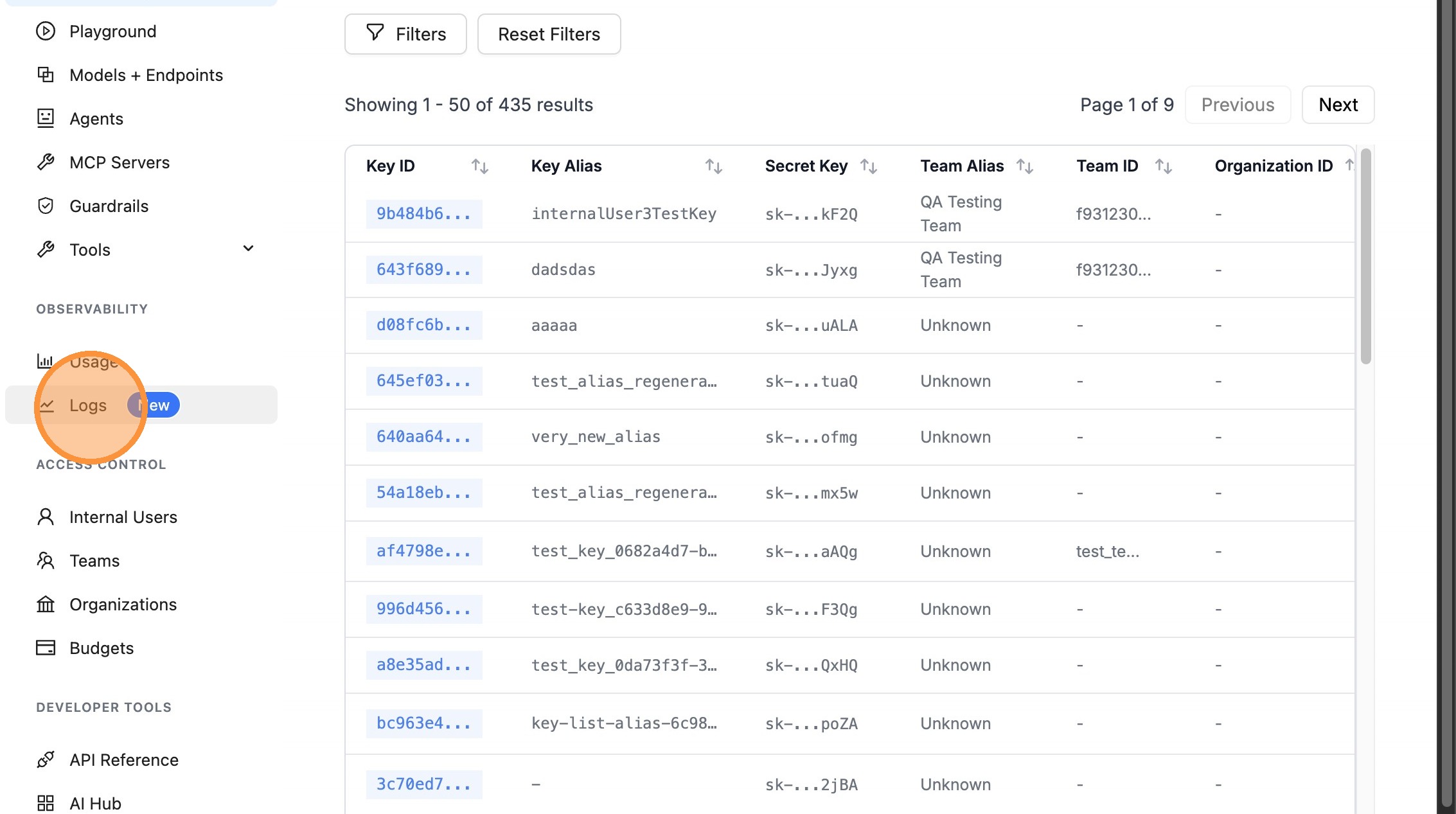
Step 2: Access Logs Section
Click on the "Logs" menu item in the navigation.
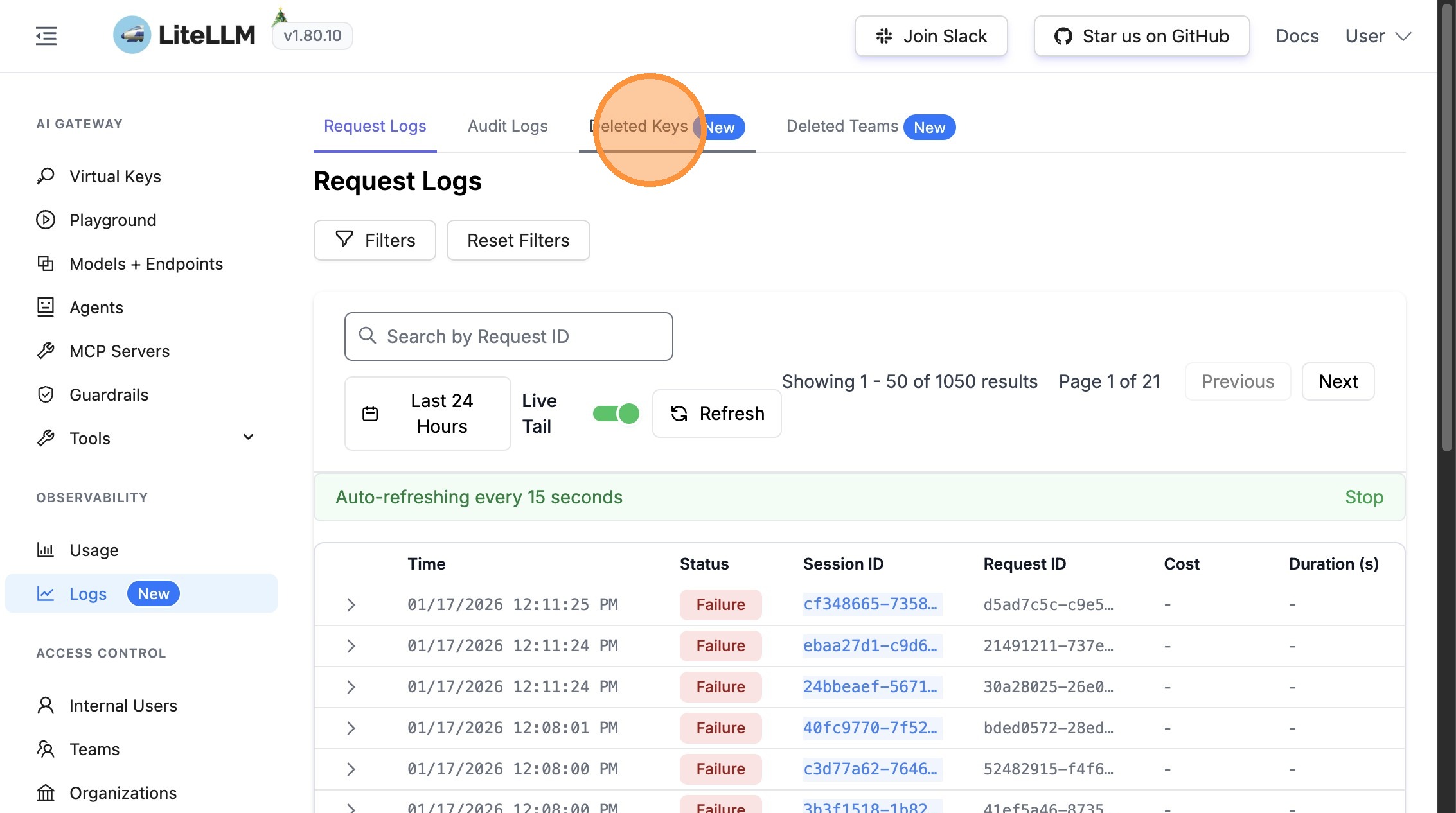
Step 3: View Deleted Keys
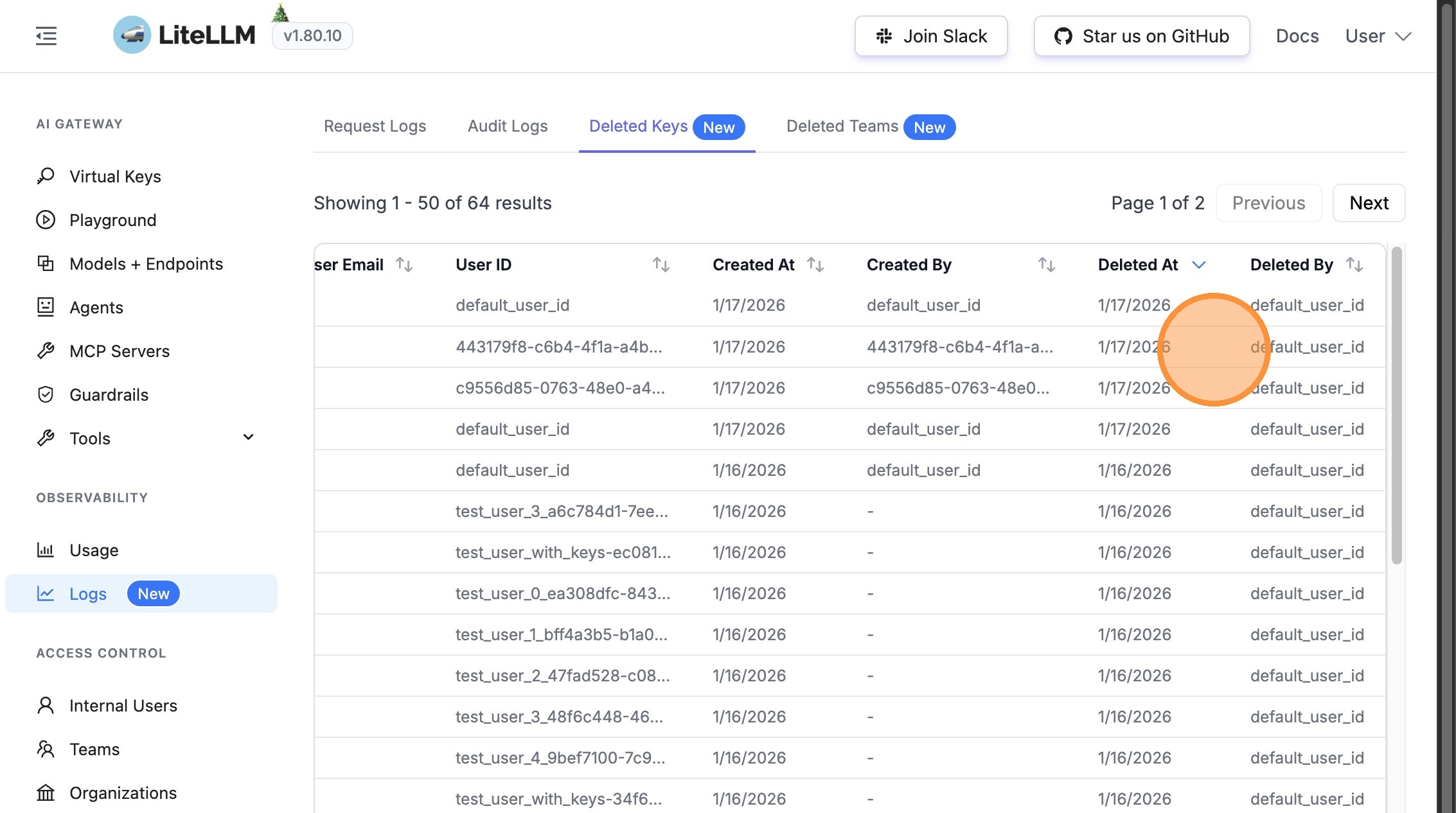
Click on "Deleted Keys" to view the table of all deleted API keys.
Step 4: Review Deletion Information
The Deleted Keys table includes the following information about each deleted key:
- When the key was deleted (timestamp)
- Who deleted the key (user/admin information)
- Key identification details
Step 5: View Financial Information
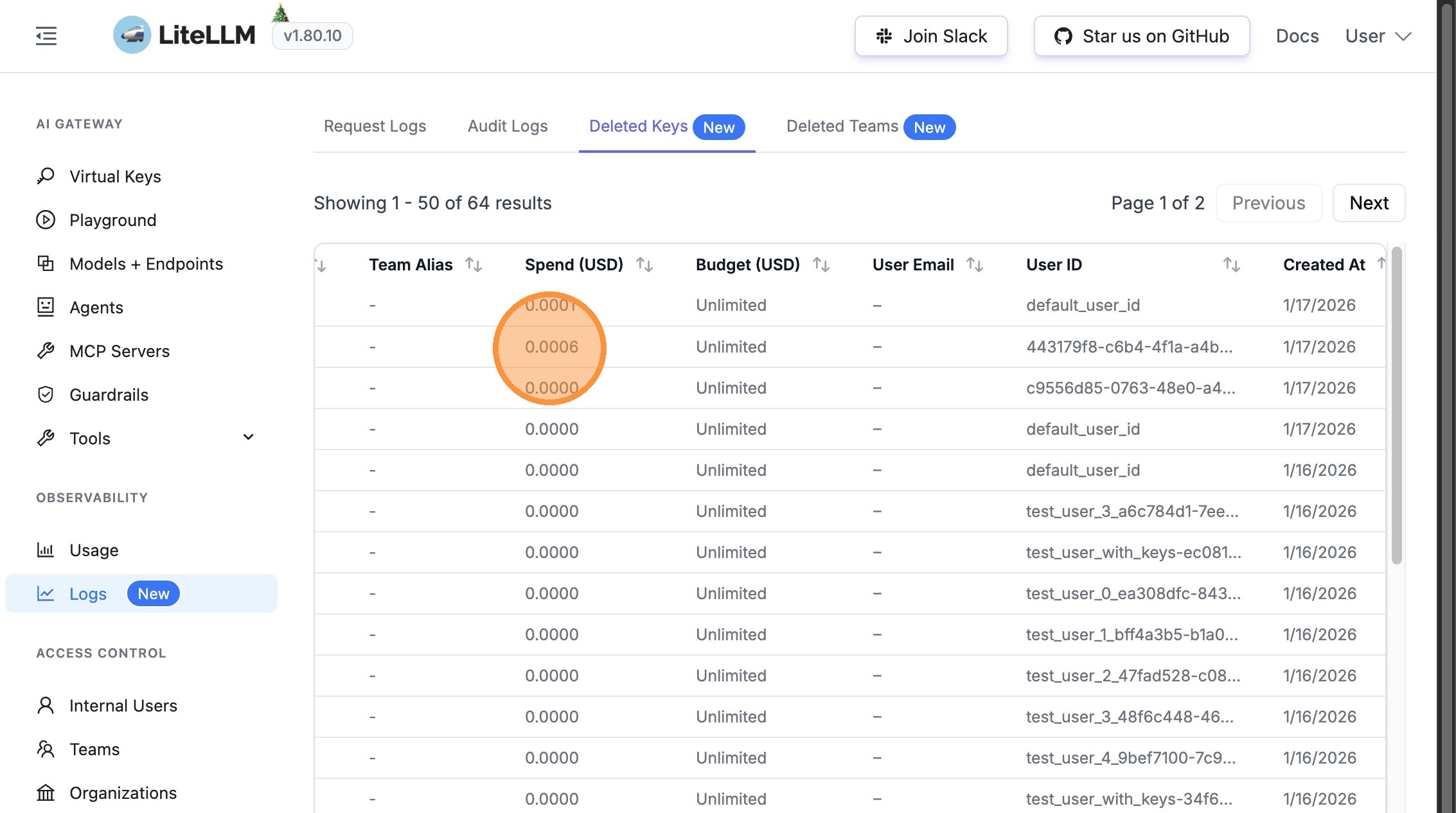
The table also displays financial information captured at the time of deletion:
- Spend at deletion - Total spend accumulated when the key was deleted
- Original budget - The budget limit that was set for the key
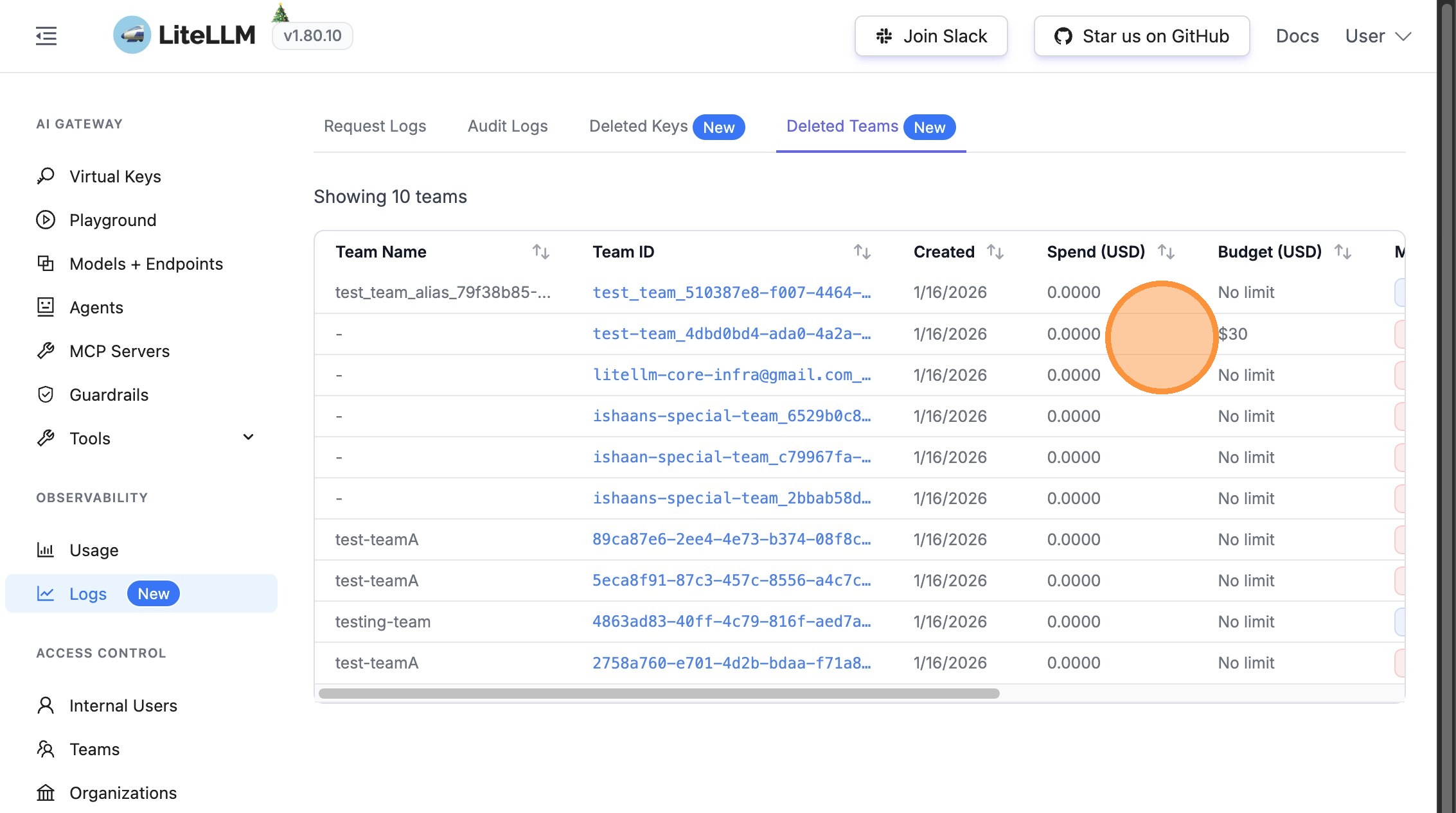
Viewing Deleted Teams
Step 1: Access Deleted Teams
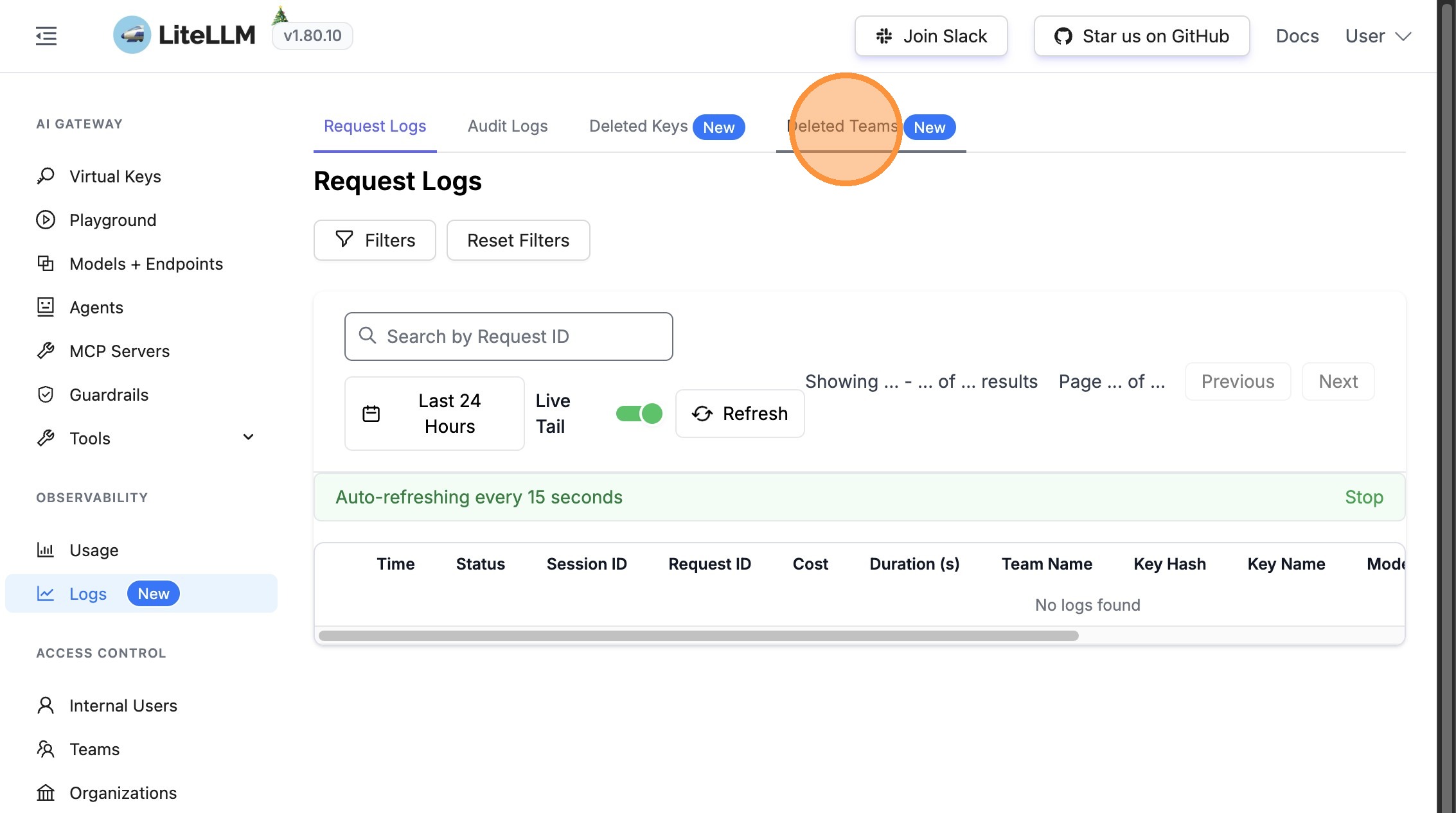
From the Logs section, click on "Deleted Teams" to view all deleted teams.
Step 2: Review Team Deletion Information
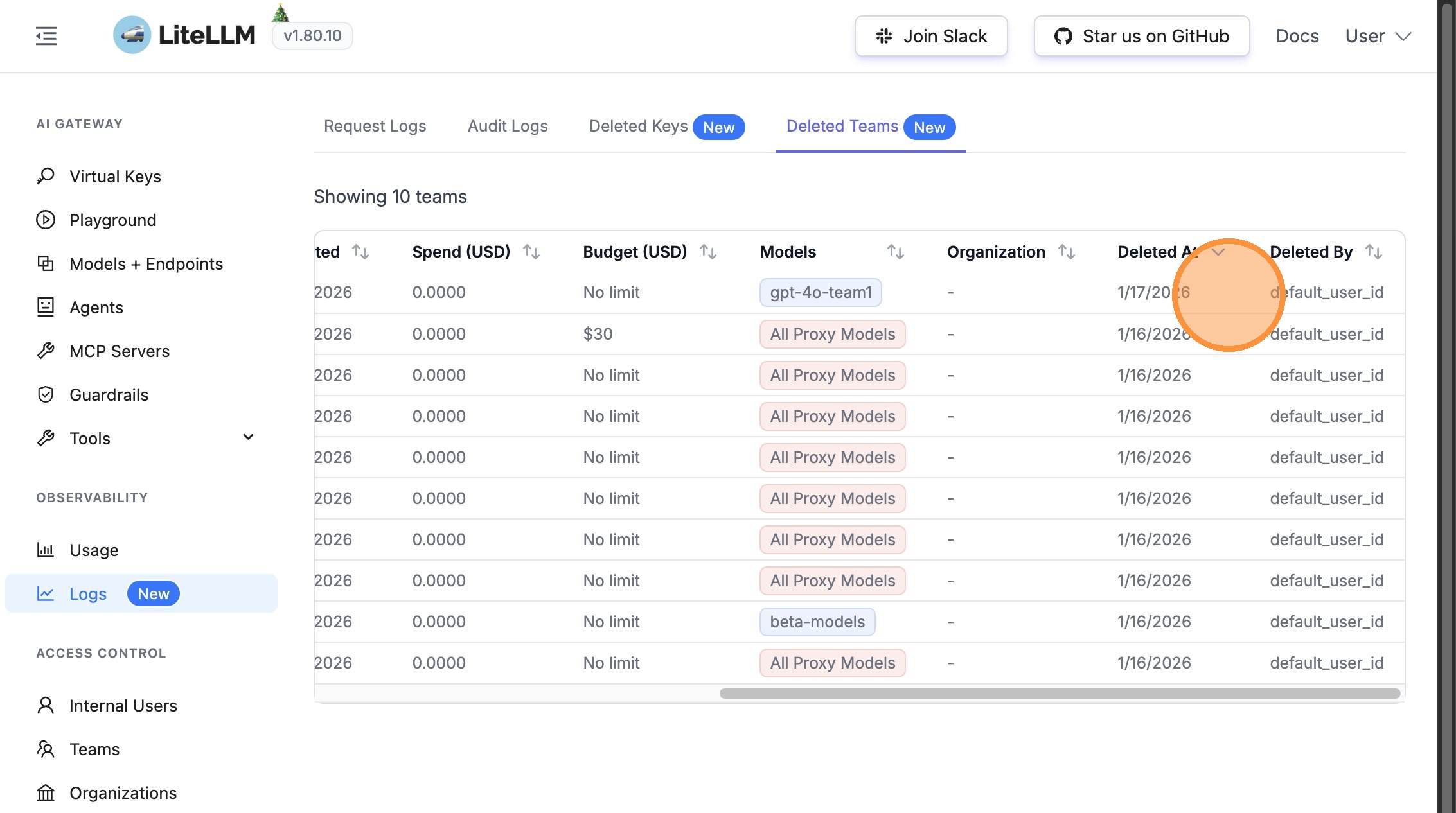
The Deleted Teams table provides detailed information about each deleted team:
- When the team was deleted (timestamp)
- Who deleted the team (user/admin information)
- Team identification details
Step 3: View Team Financial Information
Similar to deleted keys, the Deleted Teams table shows financial information:
- Spend at deletion - Total spend accumulated when the team was deleted
- Original budget - The budget limit that was set for the team
Use Cases
This feature is particularly useful for:
- Financial Auditing - Track spend and budgets for deleted entities
- Compliance - Maintain records of who deleted what and when
- Cost Analysis - Understand spending patterns before deletion
- Accountability - Identify which admin or user performed deletions
- Historical Records - Preserve financial data even after entity deletion
Related Features
- Audit Logs - View audit logs for all entity changes
- UI Logs - View request logs and spend tracking