Model Compare Playground UI
Compare multiple LLM models side-by-side in an interactive playground interface. Evaluate model responses, performance metrics, and costs to make informed decisions about which models work best for your use case.
Since v1.80.5Overview
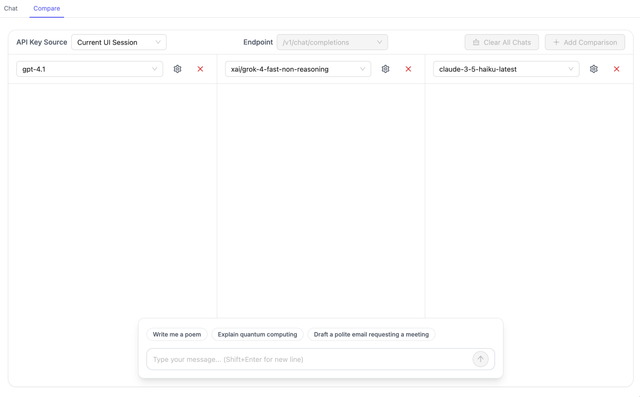
The Model Compare Playground UI enables side-by-side comparison of up to 3 different LLM models simultaneously. Configure models, parameters, and test prompts to evaluate and compare model responses with detailed metrics including latency, token usage, and cost.
Getting Started
Accessing the Model Compare UI
1. Navigate to the Playground
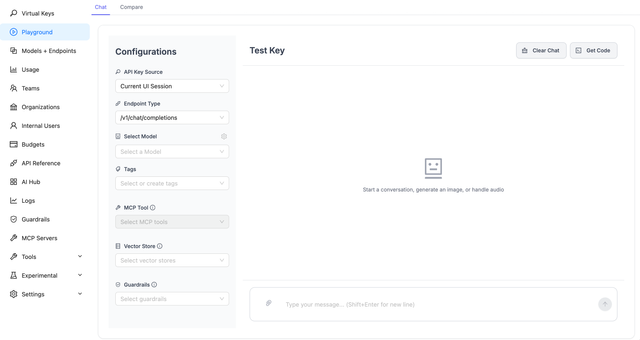
Go to the Playground page in the Admin UI (PROXY_BASE_URL/ui/?login=success&page=llm-playground)
2. Switch to Compare Tab
Click on the Compare tab in the Playground interface.
Configuration
Setting Up Models
1. Select Models to Compare
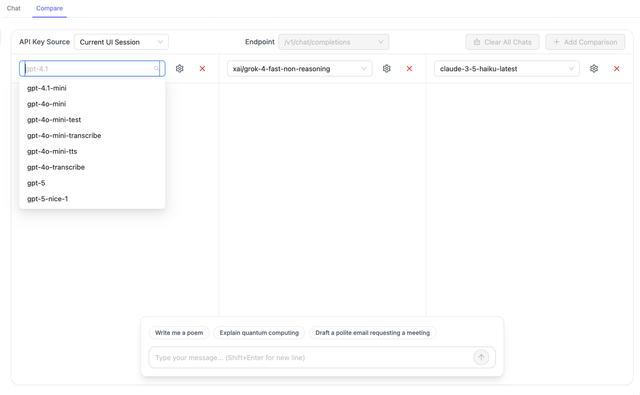
You can compare up to 3 models simultaneously. For each comparison panel:
- Click on the model dropdown to see available models
- Select a model from your configured endpoints
- Models are loaded from your LiteLLM proxy configuration
2. Configure Model Parameters
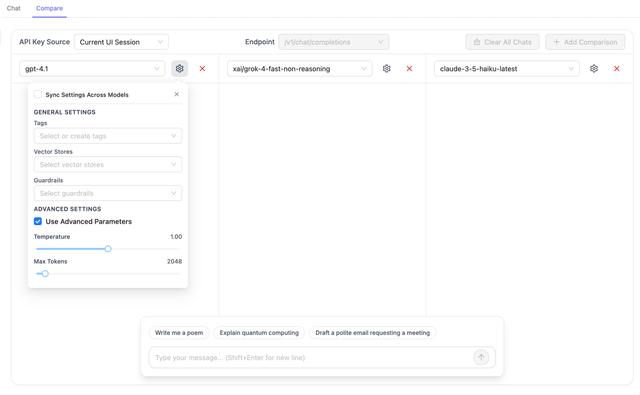
Each model panel supports individual parameter configuration:
Basic Parameters:
- Temperature: Controls randomness (0.0 to 2.0)
- Max Tokens: Maximum tokens in the response
Advanced Parameters:
- Enable "Use Advanced Params" to configure additional model-specific parameters
- Supports all parameters available for the selected model/provider
3. Apply Parameters Across Models
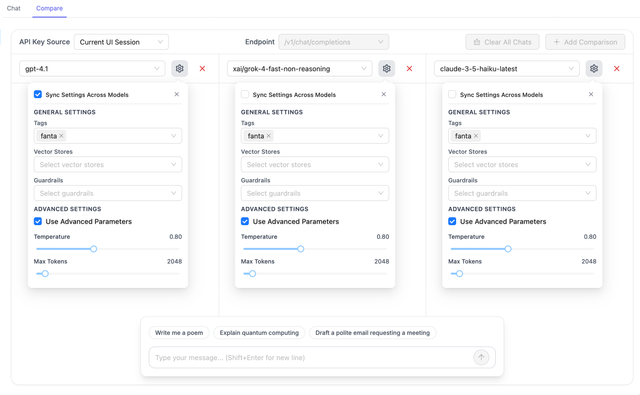
Use the "Sync Settings Across Models" toggle to synchronize parameters (tags, guardrails, temperature, max tokens, etc.) across all comparison panels for consistent testing.
Guardrails
Configure and test guardrails directly in the playground:
- Click on the guardrails selector in a model panel
- Select one or more guardrails from your configured list
- Test how different models respond to guardrail filtering
- Compare guardrail behavior across models
Tags
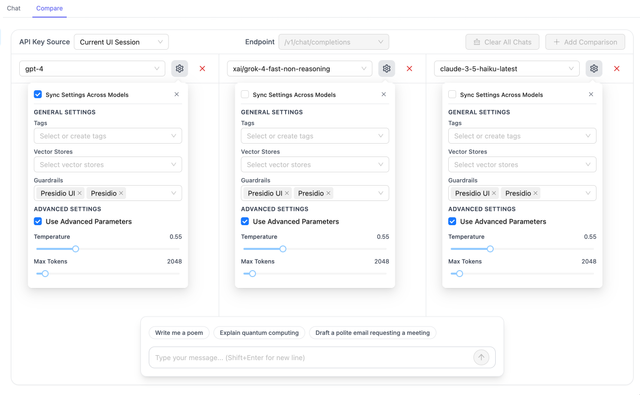
Apply tags to organize and filter your comparisons:
- Select tags from the tag dropdown
- Tags help categorize and track different test scenarios
Vector Stores
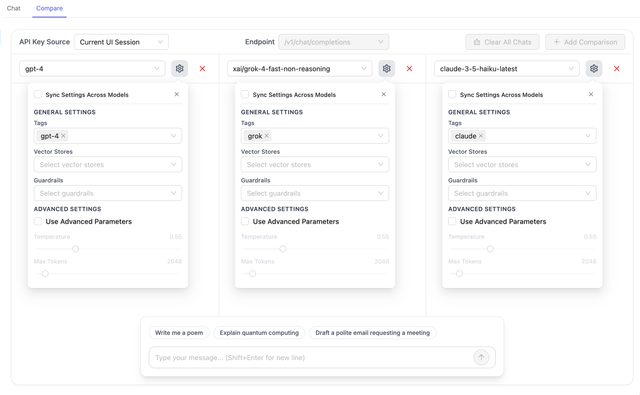
Configure vector store retrieval for RAG (Retrieval Augmented Generation) comparisons:
- Select vector stores from the dropdown
- Compare how different models use retrieved context
- Evaluate RAG performance across models
Running Comparisons
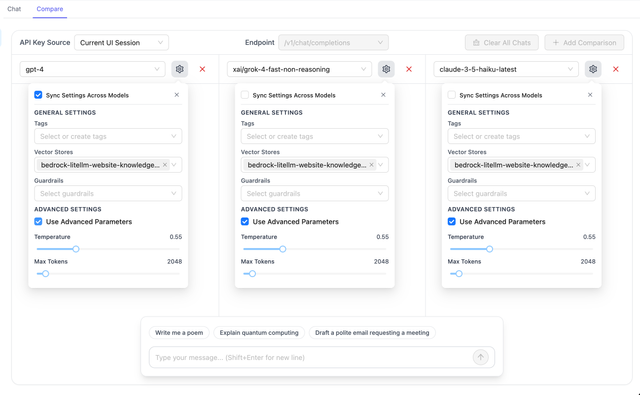
1. Enter Your Prompt
Type your test prompt in the message input area. You can:
- Enter a single message for all models
- Use suggested prompts for quick testing
- Build multi-turn conversations

2. Send Request
Click the send button (or press Enter) to start the comparison. All selected models will process the request simultaneously.
3. View Responses
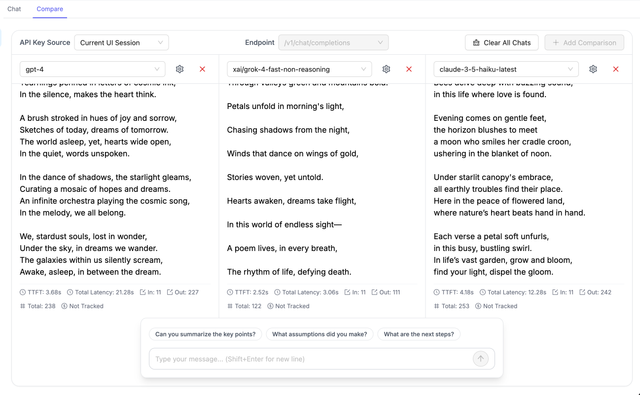
Responses appear side-by-side in each model panel, making it easy to compare:
- Response quality and content
- Response length and structure
- Model-specific formatting
Comparison Metrics
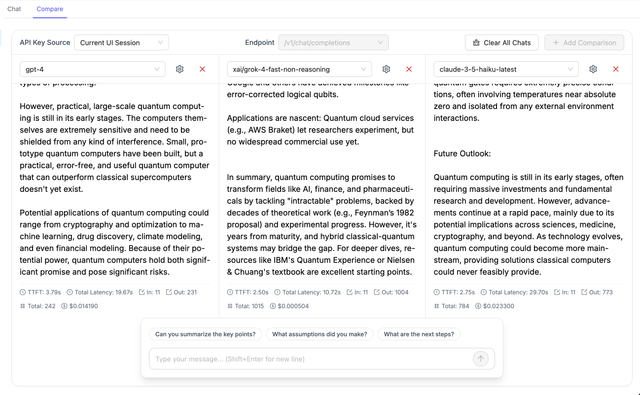
Each comparison panel displays detailed metrics to help you evaluate model performance:
Time To First Token (TTFT)
Measures the latency from request submission to the first token received. Lower values indicate faster initial response times.
Token Usage
- Input Tokens: Number of tokens in the prompt/request
- Output Tokens: Number of tokens in the model's response
- Reasoning Tokens: Tokens used for reasoning (if applicable, e.g., o1 models)
Total Latency
Complete time from request to final response, including streaming time.
Cost
If cost tracking is enabled in your LiteLLM configuration, you'll see:
- Cost per request
- Cost breakdown by input/output tokens
- Comparison of costs across models
Use Cases
Model Selection
Compare multiple models on the same prompt to determine which performs best for your specific use case:
- Response quality
- Response time
- Cost efficiency
- Token usage
Parameter Tuning
Test different parameter configurations across models to find optimal settings:
- Temperature variations
- Max token limits
- Advanced parameter combinations
Guardrail Testing
Evaluate how different models respond to safety filters and guardrails:
- Filter effectiveness
- False positive rates
- Model-specific guardrail behavior
A/B Testing
Use tags and multiple comparisons to run structured A/B tests:
- Compare model versions
- Test prompt variations
- Evaluate feature rollouts
Related Features
- Playground Chat UI - Single model testing interface
- Chat UI - Chat page with chat history, MCP tools, and your own keys, logs, and usage
- Model Management - Configure and manage models
- Guardrails - Set up safety filters
- AI Hub - Share models and agents with your organization