Team Soft Budget Alerts
This feature requires a LiteLLM Enterprise license. Start a free 30-day trial or book a demo. See what Enterprise includes.
Email budget alerts require an enterprise license.
Set a soft budget on a team and get email alerts when spending crosses the threshold, without blocking any requests.
Overview
A soft budget is a spending threshold that triggers email notifications when exceeded, but does not block requests. This is different from a hard budget (max_budget), which rejects requests once the limit is reached.
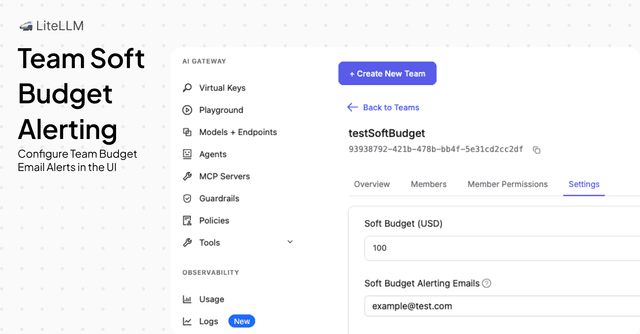
Team soft budget alerts let you:
- Get notified early — receive email alerts when a team's spend crosses the soft budget threshold
- Keep requests flowing — unlike hard budgets, soft budgets never block API calls
- Target specific recipients — send alerts to specific email addresses (e.g. team leads, finance), not just the team members
- Work without global alerting — team soft budget alerts are sent via email independently of Slack or other global alerting configuration
Team soft budget alerts are sent via email. You must have an active email integration (SendGrid, Resend, or SMTP) configured on your proxy for alerts to be delivered. See Email Notifications for setup instructions.
Team soft budget alerts are automatically active once you configure a soft budget and at least one alerting email on a team. No additional proxy configuration or restart is needed; alerts are checked on every request.
How It Works
On every API request made with a key belonging to a team, the proxy checks:
- Does the team have a
soft_budgetset? - Is the team's current
spend>= thesoft_budget? - Are there any emails configured in
soft_budget_alerting_emails?
If all three conditions are met, an email alert is sent to the configured recipients. Alerts are deduplicated so the same alert is only sent once within a 24-hour window.
How to Set Up Team Soft Budget Alerts
1. Navigate to the Admin UI
Go to the Admin UI (e.g. http://localhost:4000/ui or your PROXY_BASE_URL/ui).
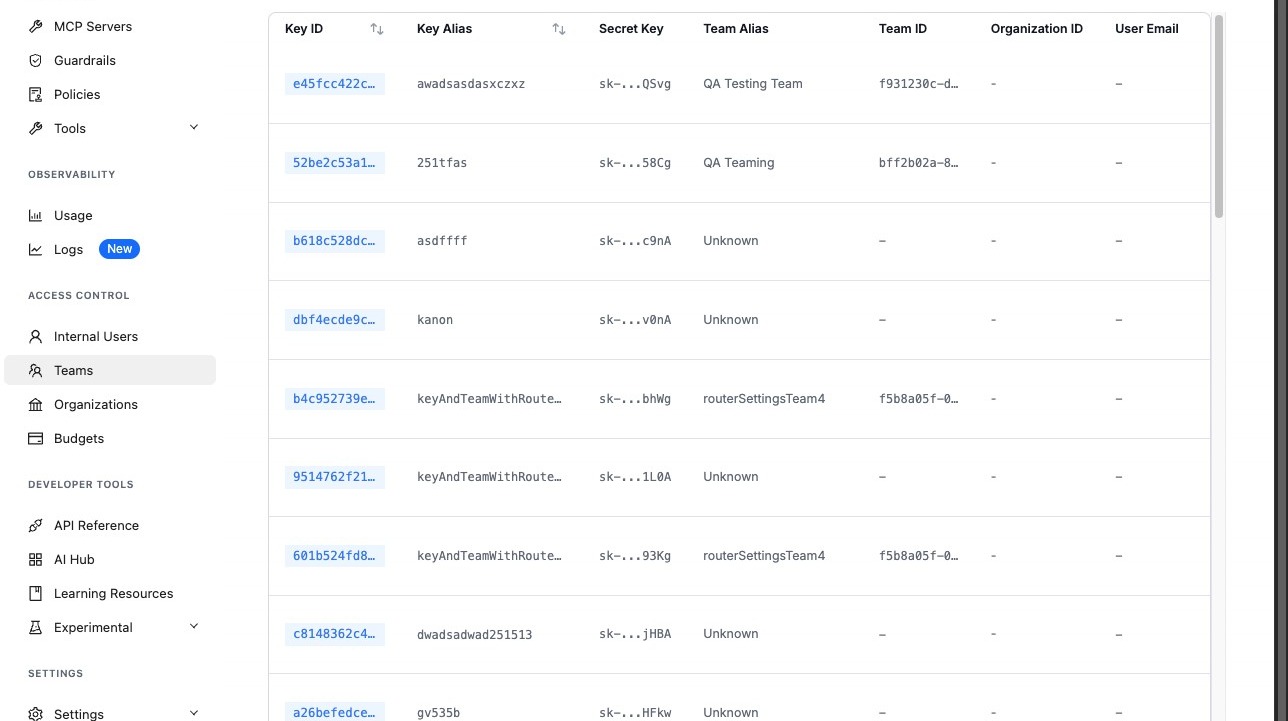
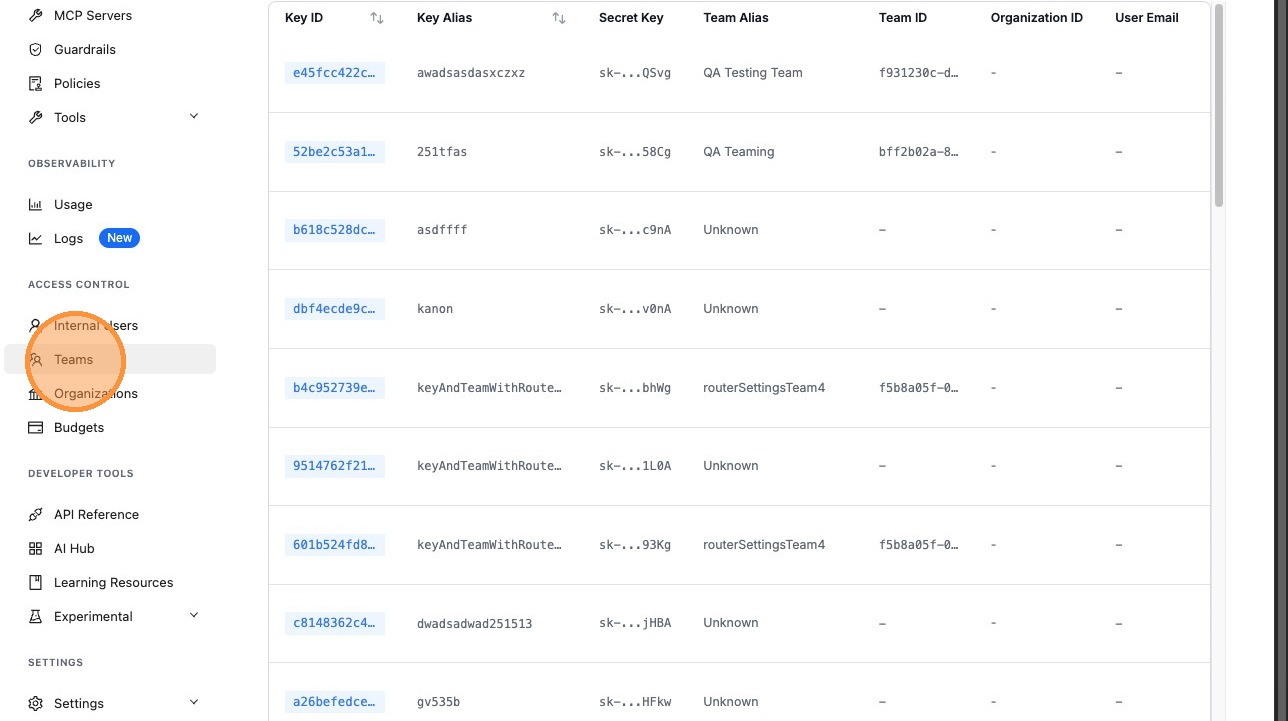
2. Go to Teams
Click Teams in the sidebar.
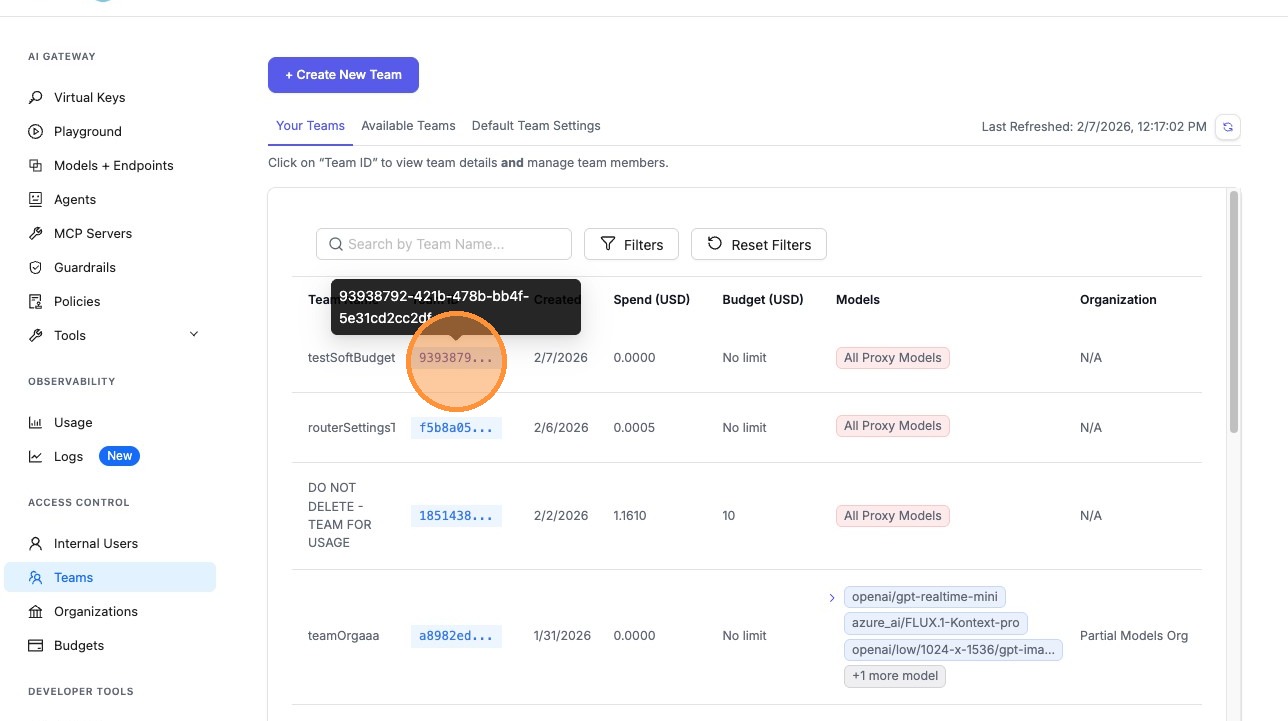
3. Select a team
Click on the team you want to configure soft budget alerts for.
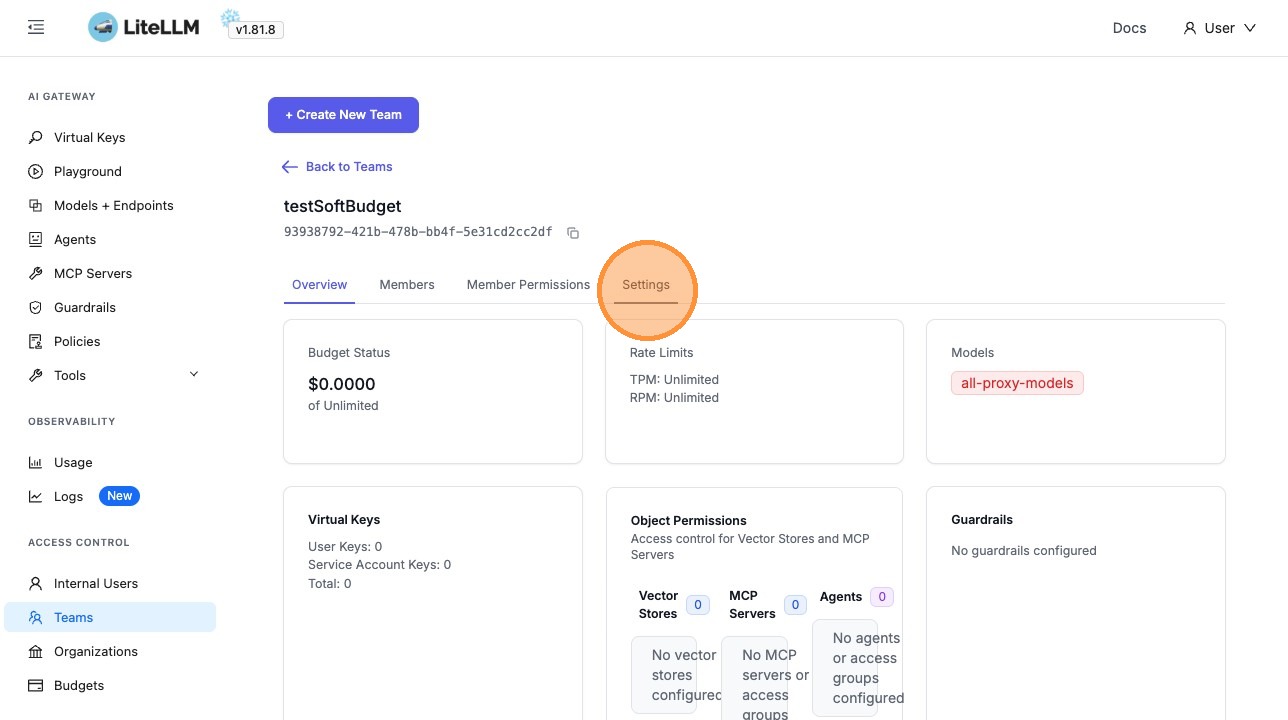
4. Open team Settings
Click the Settings tab to view the team's configuration.
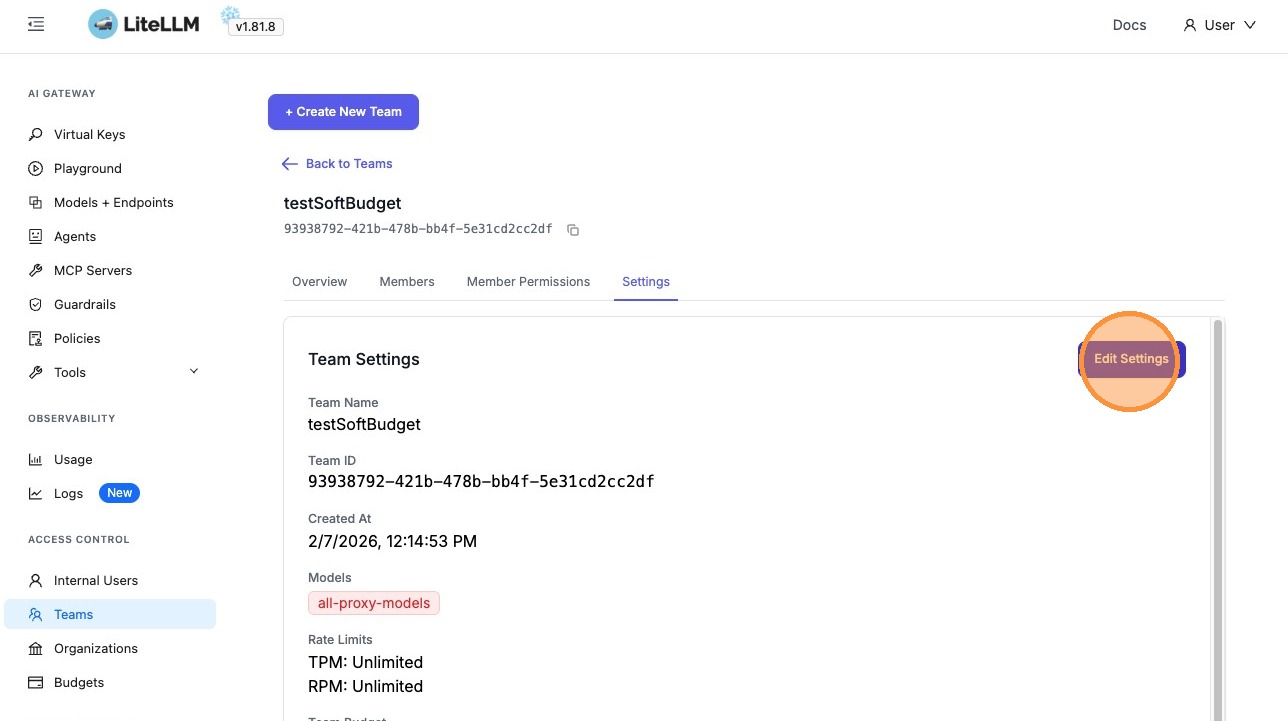
5. Edit Settings
Click Edit Settings to modify the team's budget configuration.
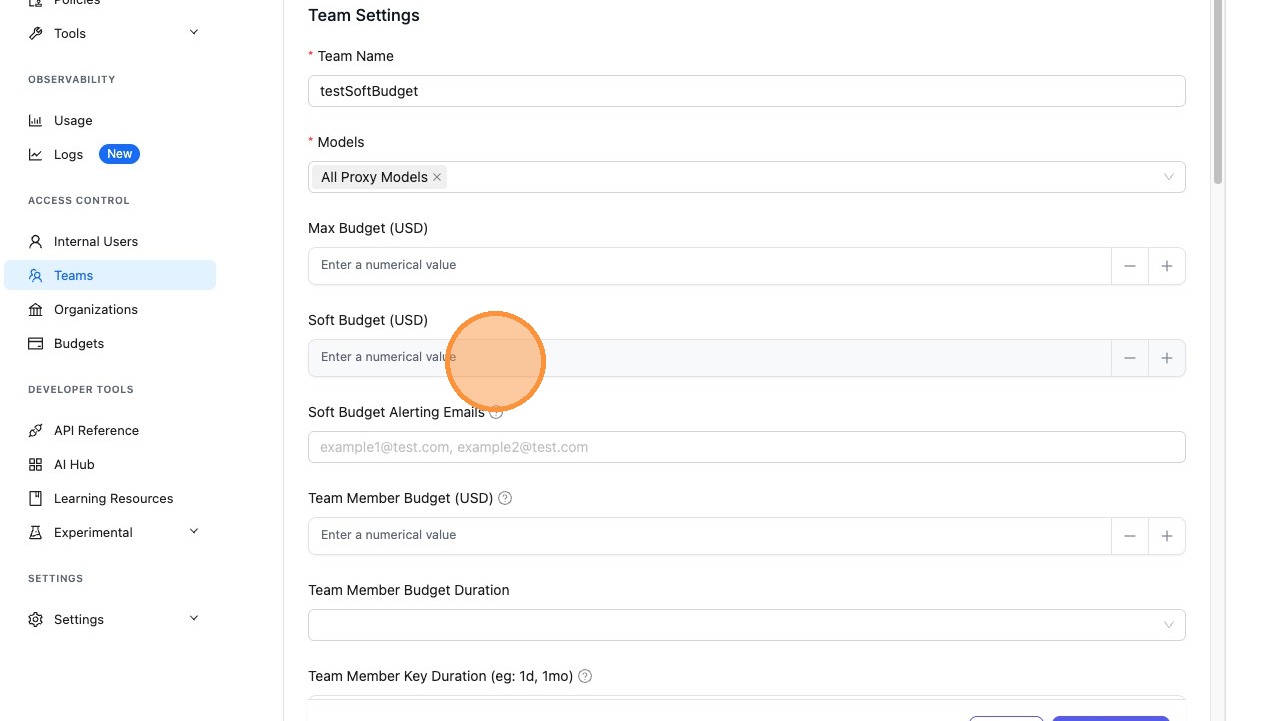
6. Set the Soft Budget
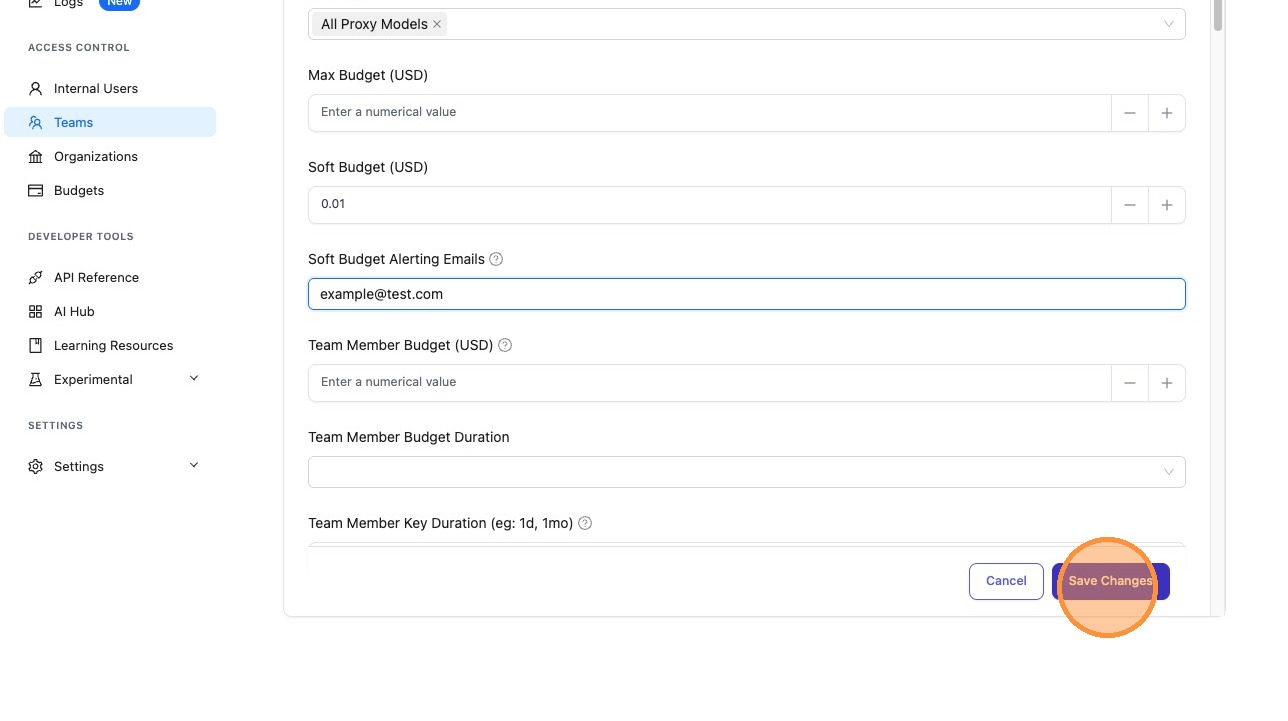
Click the Soft Budget (USD) field and enter your desired threshold. For example, enter 0.01 for testing or a higher value like 500 for production.
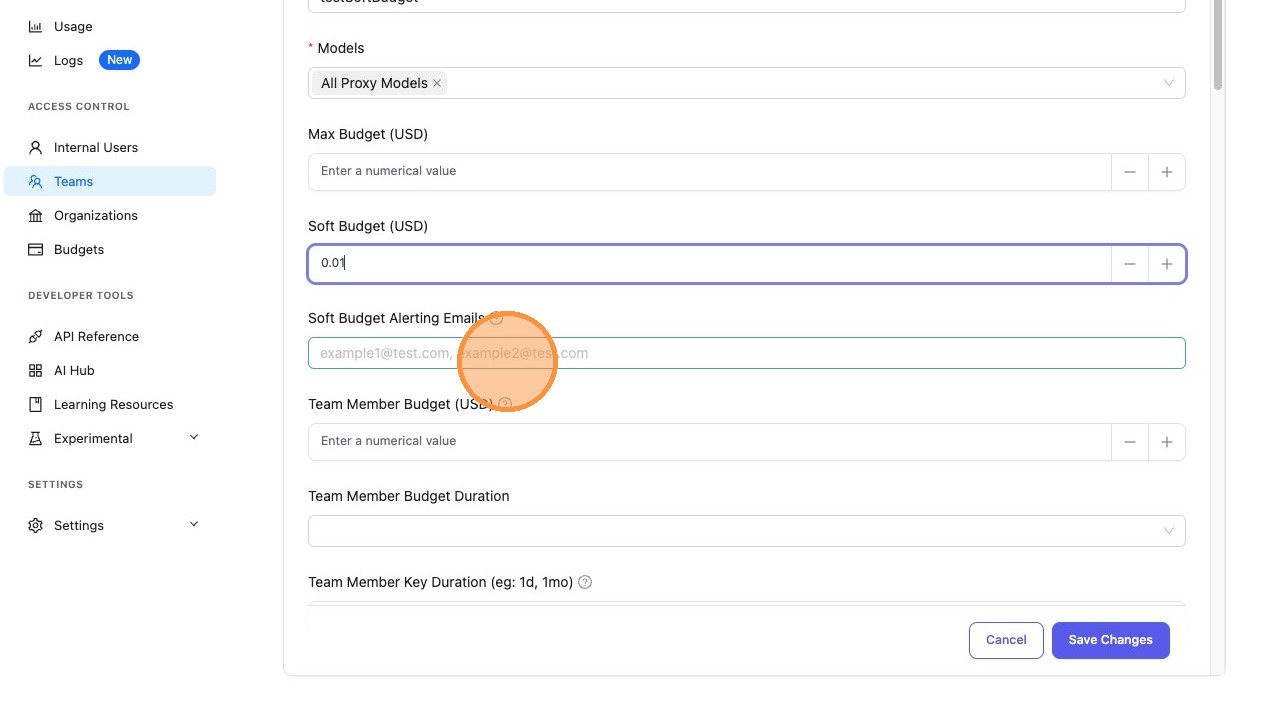
7. Add alerting emails
Click the Soft Budget Alerting Emails field and enter one or more comma-separated email addresses that should receive the alert.
8. Save Changes
Click Save Changes. The soft budget alert is now active, with no proxy restart required.
9. Verify: email alert received
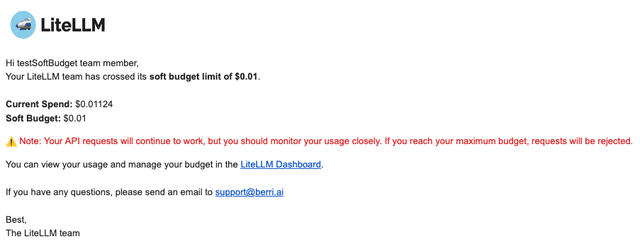
Once the team's spend crosses the soft budget, an email alert is sent to the configured recipients. Below is an example of the alert email:
Settings Reference
| Setting | Description |
|---|---|
| Soft Budget (USD) | The spending threshold that triggers an email alert. Requests are not blocked when this limit is exceeded. |
| Soft Budget Alerting Emails | Comma-separated email addresses that receive the alert when the soft budget is crossed. At least one email is required for alerts to be sent. |
- Soft Budget: Advisory threshold. Sends email alerts but does not block requests.
- Max Budget: Hard limit. Blocks requests once the budget is exceeded.
You can set both on the same team to get early warnings (soft) and a hard stop (max).
API Configuration
You can also configure team soft budgets via the API when creating or updating a team:
curl -X POST 'http://localhost:4000/team/update' \
  --header "Authorization: Bearer $LITELLM_API_KEY" \
  --header 'Content-Type: application/json' \
  --data '{
    "team_id": "your-team-id",
    "soft_budget": 500.00,
    "metadata": {
      "soft_budget_alerting_emails": ["lead@example.com", "finance@example.com"]
    }
  }'
Related Documentation
- Email Notifications – Configure email integrations (Resend, SMTP) for LiteLLM Proxy
- Alerting – Set up Slack and other alerting channels
- Cost Tracking – Track and manage spend across teams, keys, and users